Windows 10 System Drive Structure
Windows 10 System Drive Structure
In most cases, the default installation location for Windows is the C drive (allow me to call it C drive). Have you ever wondered: what exactly is the relationship between the C drive and the D drive? If I delete files on the C drive, what impact does it have on the D drive? And vice versa?
By now, you probably already know that the C drive and D drive share a small connection: they likely belong to the same physical disk, simply being two partitions of that disk.
In fact, that’s the only connection they have!!!
If you no longer want any files on your D drive, you can simply format it directly. This will not affect the operation of Windows 10 at all (since all core files required by the operating system reside on the C drive). However, such an operation may cause your software to stop working, because some applications may have placed their files on the D drive during installation.
Files and Folders on the C Drive
Viewing Hidden Files
Let’s be honest—the C drive is the operating system’s “lifeline.” The files here are extremely complex, and it’s impossible to fully understand every single one. But we can get to know them from a different angle.
Open File Explorer and double-click to enter the C drive. You’ll see only a few files and folders. Is that the whole story? Of course not. The operating system is hiding things from us. Let’s reveal the hidden files!
Steps:
1. Click on "View"
2. Check "Hidden items"
After showing hidden files, several semi-transparent files and folders appear. Do you think the operating system is now fully exposed before your eyes? Unfortunately, no. There are still some hidden files that are too critical for the operating system to be displayed.
Steps:
1. Click "File" in the top-left corner
2. Click "Change folder and search options"
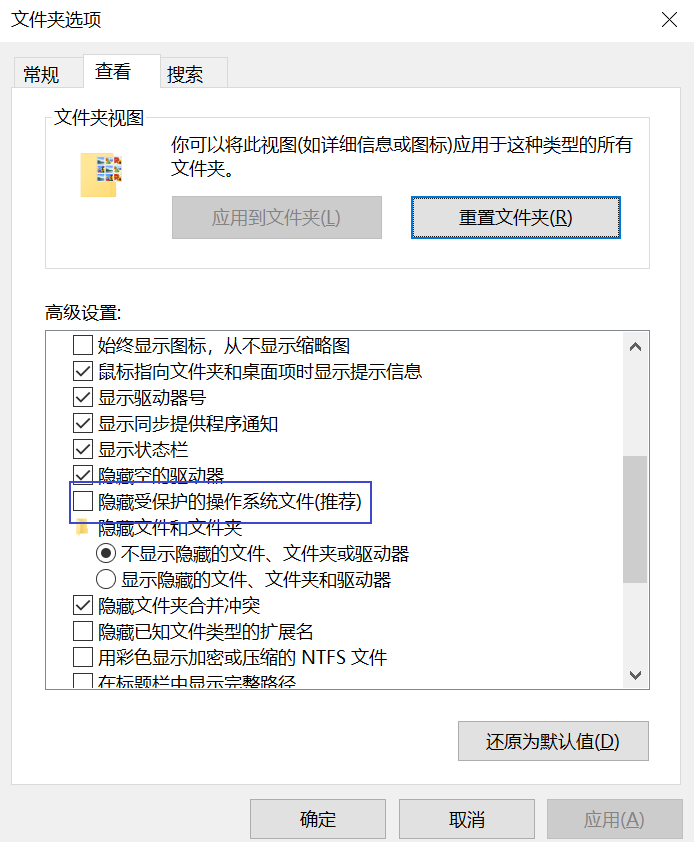
3. Click on "View"
4. Uncheck "Hide protected operating system files (Recommended)"
5. Click "OK" all the way through
Now, it’s truly fully exposed.
Overview of C Drive Files and Folders
Let’s introduce a few important files and folders:
Folders:
$RECYCLE.BIN: The Recycle Bin. When you press the Delete key to remove a file, it is actually placed in this folder. Each partition has its own $RECYCLE.BIN folder, responsible for receiving the "trash" from that partition.
Program Files & Program Files (x86) & ProgramData: Installation folders for various software and system configurations, very important.
Recovery: The folder containing WinRE (Windows Recovery Environment), typically inaccessible. WinRE is the recovery environment launched during system failures.
System Volume Information: Basic disk information, do not delete.
Windows: The folder where Windows is installed, containing the vast majority of Windows system files. Inside, there is a System32 folder with essential components required for the operating system to run—the "lifeline within the lifeline."
Users: Stores your account data, including a folder named after your account. All files on your desktop are located inside a folder called "Desktop" within your account folder.
Files:
hiberfil.sys: The system hibernation file. You may not have this file if you haven't enabled hibernation mode. It is usually quite large, making it a target for cleanup tutorials. If you delete it, your system will no longer be able to enter hibernation mode.
pagefile.sys: The system paging file. It acts as virtual memory. When your computer runs low on physical memory, the system automatically moves infrequently used data from memory into pagefile.sys to free up valuable RAM. However, this can cause slow performance when that data needs to be read back into memory. Therefore, increasing your physical RAM is the fundamental way to improve speed.
You might not fully understand what I mean by “memory.”
Memory
Memory is a key component in a computer system used for storing and accessing data. It is used for temporary storage of programs and data, allowing the CPU to read and write data more quickly.
Memory is commonly referred to as Random Access Memory (RAM). It is a type of volatile memory, meaning that when the computer loses power, the data stored in memory is lost. Unlike permanent storage devices such as disks, memory is used for temporary storage of running programs and data for fast CPU access.
The main functions of memory include:
Storing instructions and information for the operating system, applications, and data.
Providing the CPU with fast access to data for performing calculations and operations.
Acting as a cache to store frequently used data, speeding up access times.
Supporting concurrent processing and multitasking, allowing multiple programs to run simultaneously.
In summary, memory is the temporary storage space in a computer system that enables the CPU to quickly access and manipulate data, supporting the normal operation and execution of tasks.
You can increase your computer’s memory by installing additional RAM sticks.