User Account Permissions
User Account Permissions
Have you ever encountered this situation: You open an installer, and a few seconds later, the system asks you: “Do you want to allow this app to make changes to your device?”
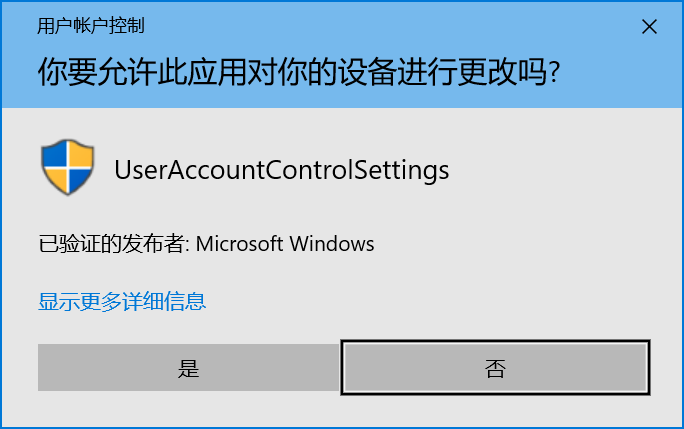
What does this mean? To understand it, you need to know about user account permissions.
When Windows starts up, the operating system asks you to log into your account. You enter your password and access your desktop. Perhaps your account is an administrator-type account. This means your account has higher privileges than a standard user account.
The account settings in Windows 10 are quite complex, with various account permissions overlapping. Different permissions allow reading and writing to different files. However, overall, computer accounts can be broadly divided into two categories:
1. Physical Accounts
2. Virtual Accounts
Physical Accounts
Physical accounts are those actually registered by users. This is similar to registering an account on social media. The registrant owns the account’s username and password.
Virtual Accounts
Virtual accounts are built-in accounts of the operating system, generally with very high privileges. Users typically cannot log into the computer system using a virtual account. Virtual accounts strictly control the system’s core confidential files, preventing them from being modified or deleted by users or malware.
Virtual accounts have very high system file management permissions. Except for the Administrator super admin account, which can be enabled as a physical account through certain methods, other virtual accounts are generally not usable by us.
If we try to delete a core system file, the system will prompt us: “You need to provide administrator permission to delete this file.”
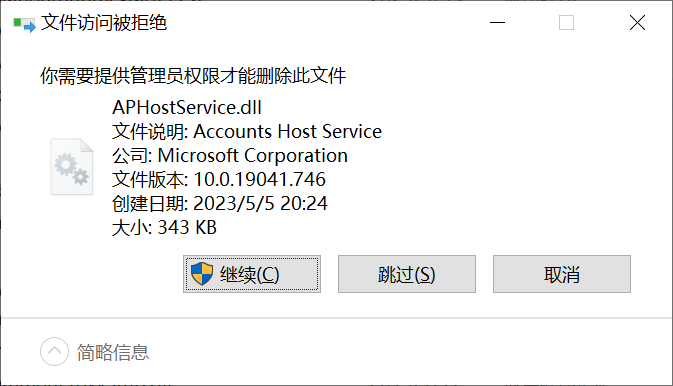
After clicking “OK,” the system prompts again: “You need permission from TrustedInstaller to make changes to this file.”
TrustedInstaller is one of the system’s virtual accounts.
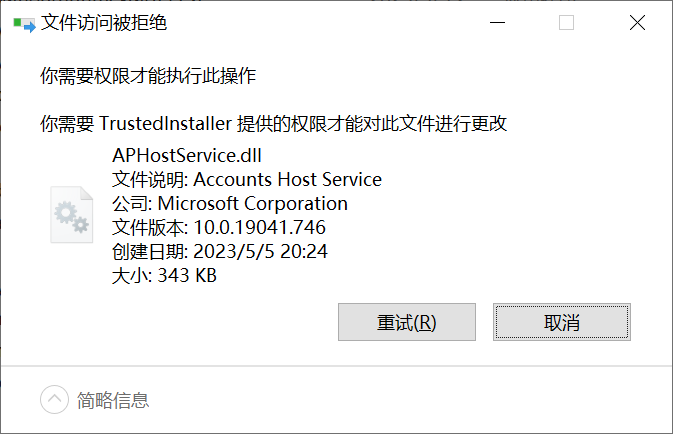
The main virtual accounts in Windows include:
Administrator
TrustedInstaller
System
DefaultAccount
PowerUsers
You just need to be aware of what virtual accounts are.
All we really need to know is that when the system asks us for administrator permissions, it means our operation involves modifying system files, such as editing the registry.
Visually, if you see a small shield icon in the bottom right corner of a software icon, it means that software will request administrator permissions from you.
Sometimes, you might find this annoying: “A tiny, insignificant little software asks me for permission every time I open it. How annoying!” In fact, you can disable the user account permission prompts using the following method.
Steps:
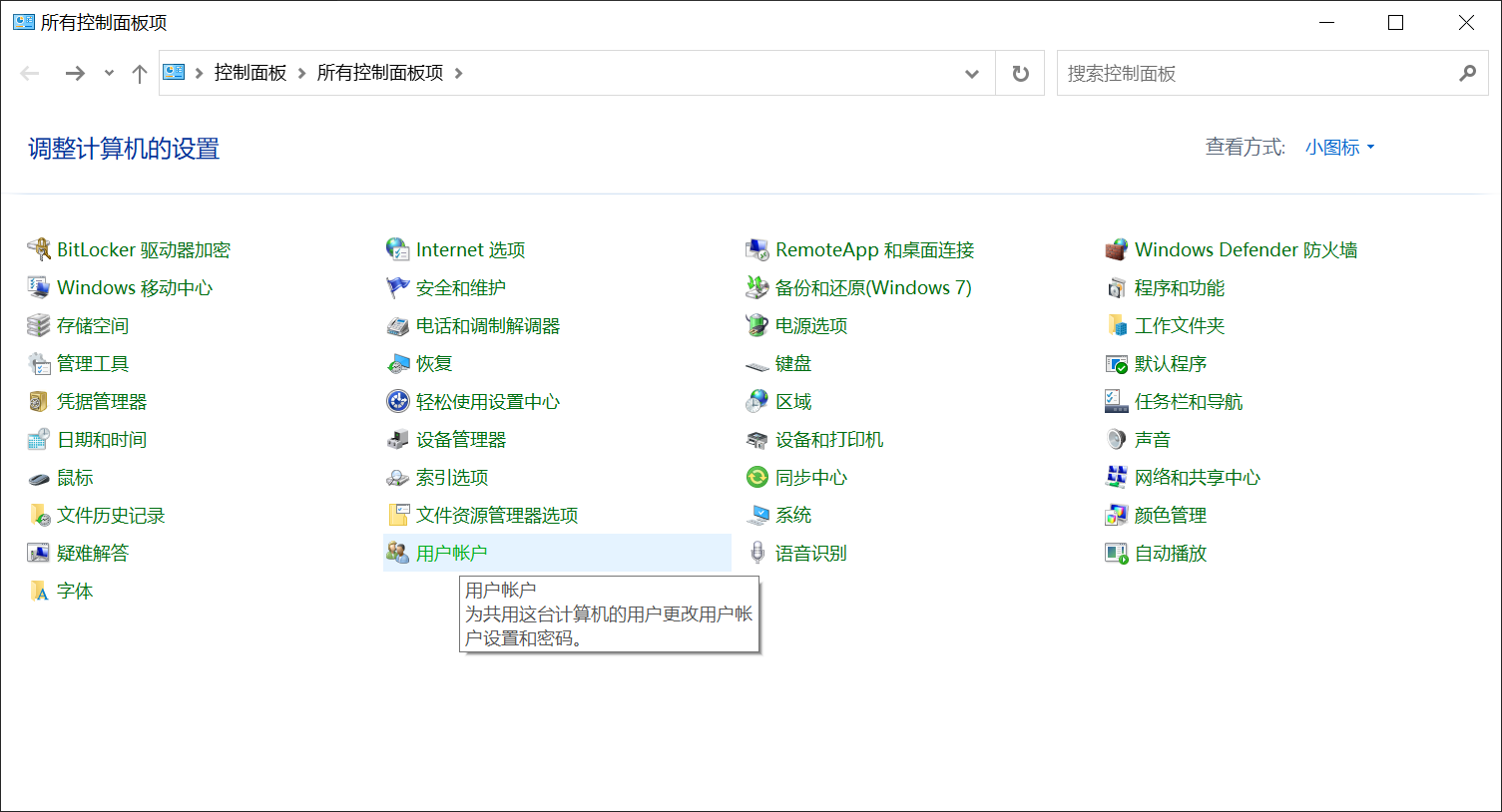
1. Open the Control Panel (Shortcut: Windows key + s, search for "Control Panel")
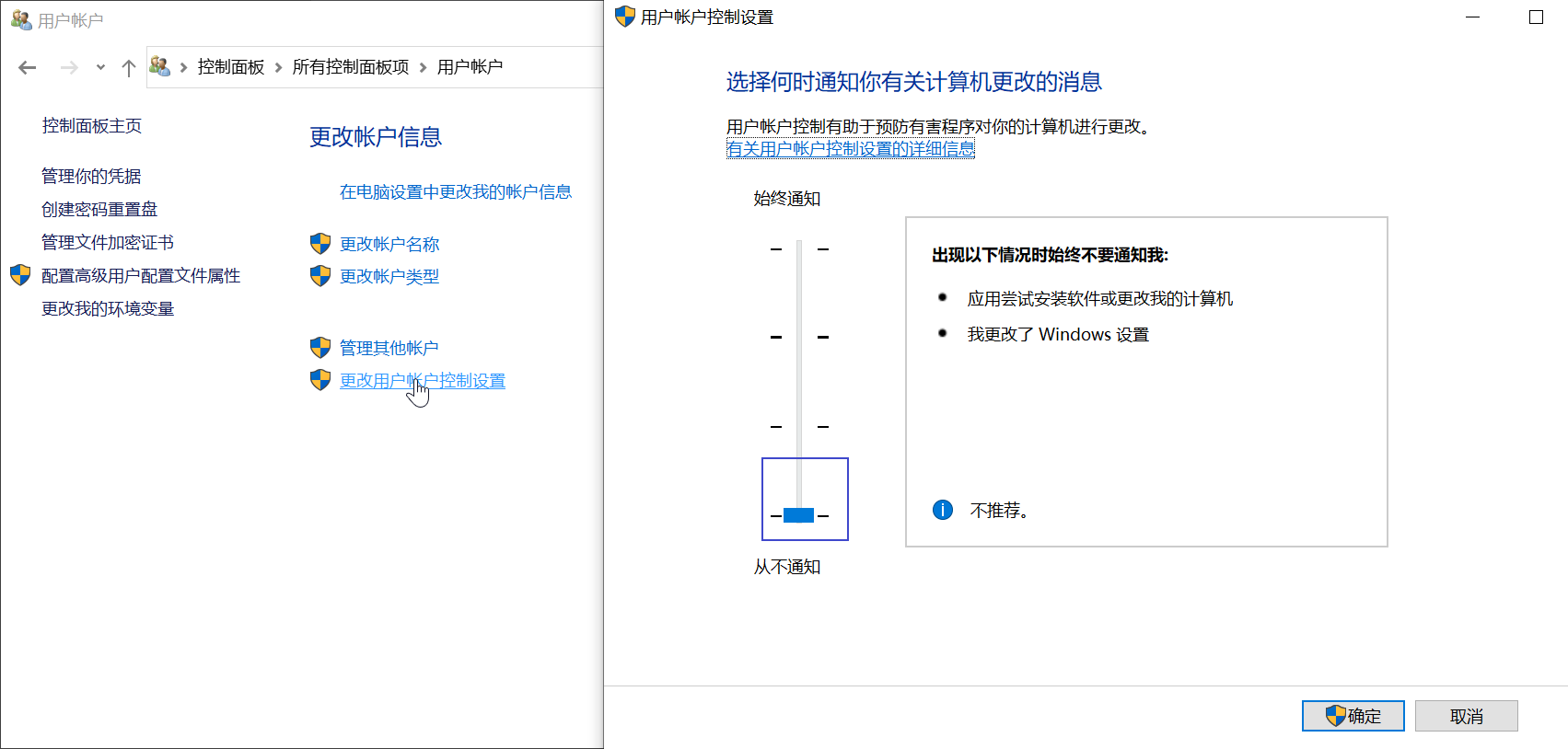
2. View by: Small icons -> User Accounts -> Change User Account Control settings
3. Adjust the slider to "Never notify"
4. Click "OK" all the way through
The following content is cited from ChatGPT 3.5 for reference (no need to master):
User account permissions in the Windows operating system can be broken down into multiple levels, each with different privileges and access capabilities. Here is a detailed introduction to Windows user account permissions:
Administrator: Possesses the highest privileges in the system and can perform all operations, including installing and uninstalling software, changing system settings, and managing other user accounts.
Standard User: Has access to their personal files and most system settings but cannot make system-level changes. Standard users typically cannot install software or modify system settings, but they can run installed applications and access shared resources.
Restricted User: The user type with the lowest privileges, only able to access their personal files and a few allowed system resources. Restricted users cannot change system settings, install software, or access other users’ files.
Audit Policy: Users with this permission can view system logs, audit logs, and security event logs to monitor system activity and security.
Remote Desktop Users: Users with this permission can connect to the computer via Remote Desktop and operate the computer in a remote session.
Backup Operators: Users who can back up and restore system data and files.
Print Operators: Users who can manage printers and print queues.
License Server Administrators: Users who can manage and distribute software licenses.
Virtual Accounts Created by the OS: Such as TrustedInstaller, LOCAL SERVICE, NETWORK SERVICE, etc. These accounts have specific permissions and purposes for running system services and applications.
It is important to note that user account permissions can be further configured and adjusted through Group Policy or Local Security Policy. The specific permissions may vary depending on the system configuration and environment.