Windows 10 Initial Setup
Initial Configuration of Windows 10
You are free to explore within your virtual machine.
Windows 10 has just “arrived” in the VM. How do you perform the essential initial configuration?
Adjusting Display Settings
Windows 10 in the VM may appear very “small.” In this case, you need to adjust the screen resolution.
Steps:
1. Click the **Start** menu and open **Settings**.
2. Click the first item, **System**.
3. In the **Display** tab, modify the resolution. The specific value depends on your computer. For the author's machine, 1920x1080 is selected.
4. Adjust the **Scale and layout** (size of text, apps, and other items) according to your preference. For the author's machine, 150% is chosen.
Activating Windows 10
At the bottom of the main Settings page, you may see a line: “Windows isn’t activated. Activate Windows now.” This means Microsoft wants you to purchase a Windows product key from its official website. However, we have no money :)
If Windows is not activated, some features will be unavailable. Please search online for specifics.
Using an activation tool can activate Windows, achieving the same effect as purchasing a key. There are many Windows activation tools available. The author provides several excellent ones below.
The download links below contain almost all the tools needed for system maintenance. It is strongly recommended that you do not attempt to use any tool without the author’s guidance on its purpose, as improper use may lead to system boot failure, data loss, and other consequences.
System Maintenance Tool Download Links:
https://www.123pan.com/s/aktYjv-ZwlLH.html

https://www.ilanzou.com/s/LRTmEE5
These two links are identical.
Introduction to Activation Tools
For activating Windows 10, my top recommendation is MAS_AIO.cmd. This tool is open-source on GitHub, extremely small in size, and its source code can be read by right-clicking and selecting “Edit.” The second choice is the Windows All-Version Activation Tool (file name: video.exe), created by a junior college student (this developer released the first version of this software in middle school). However, this tool cannot connect to the internet in a VM but works on a physical machine. Additionally, HEU is another excellent tool, developed by the WeChat public account “知彼而知己” (Know Yourself and Your Enemy). It offers more features, though many are rarely used in daily scenarios.
These recommendations are widely recognized as reliable software. Please do not download activation tools arbitrarily, as hackers may embed viruses, backdoors, etc.
This article uses MAS as an example to explain the Windows 10 activation process.
Activating Windows 10 with MAS
You may not yet know how to transfer MAS to Windows 10 in the VM. In a basic scenario, you can first copy MAS to a USB drive, then open Windows 10 in the VM, insert the USB drive into your computer, and when VM asks whether to connect the USB drive to the VM or the host, select the VM. (No difficulty involved, so no screenshot is provided.)
When using system maintenance tools, remember to close all antivirus software; otherwise, some tools may be falsely flagged as threats, leading to incomplete execution or failure to run!!! All software provided in this article is safe and virus-free. Please rest assured!!!
Open MAS in the VM, and you will see a black window. This is the cmd command-line interface.
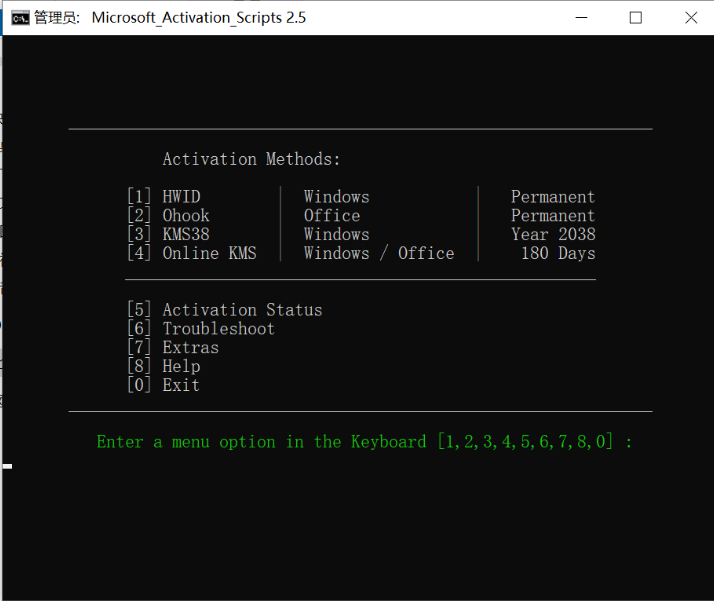
Detailed Explanation:
1. HWID: Digital license activation. Can only activate Windows. Permanent activation, never expires.
2. Ohook Activation: Activates Office via a hook method. Permanent activation, never expires.
3. KMS38: Can only activate Windows. Activates until 2038 (possibly related to the 2038 bug).
4. Online KMS: Can activate both Windows and Office. Activation expires after 180 days and requires re-activation.
Please search online for specific details.
Generally, choose HWID to activate Windows. The method is simple: just press the corresponding number on your keyboard.
Steps:
1. Press **1**.
2. Wait for the activation to complete.
Activation Success Screen:
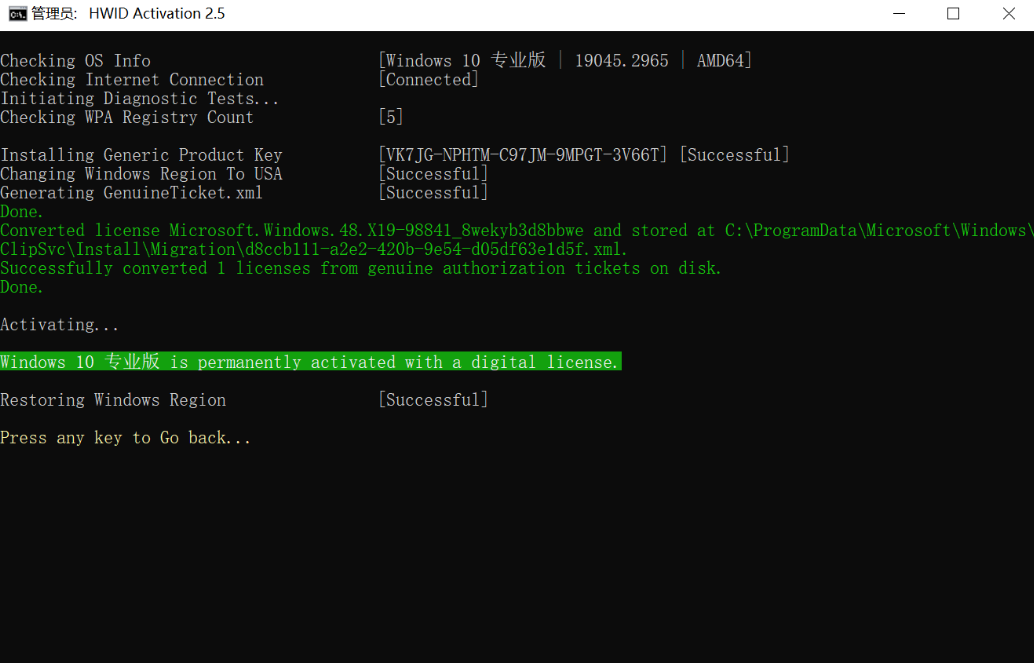
Now navigate to:
Settings > Update & Security > Activation
You will see the following:
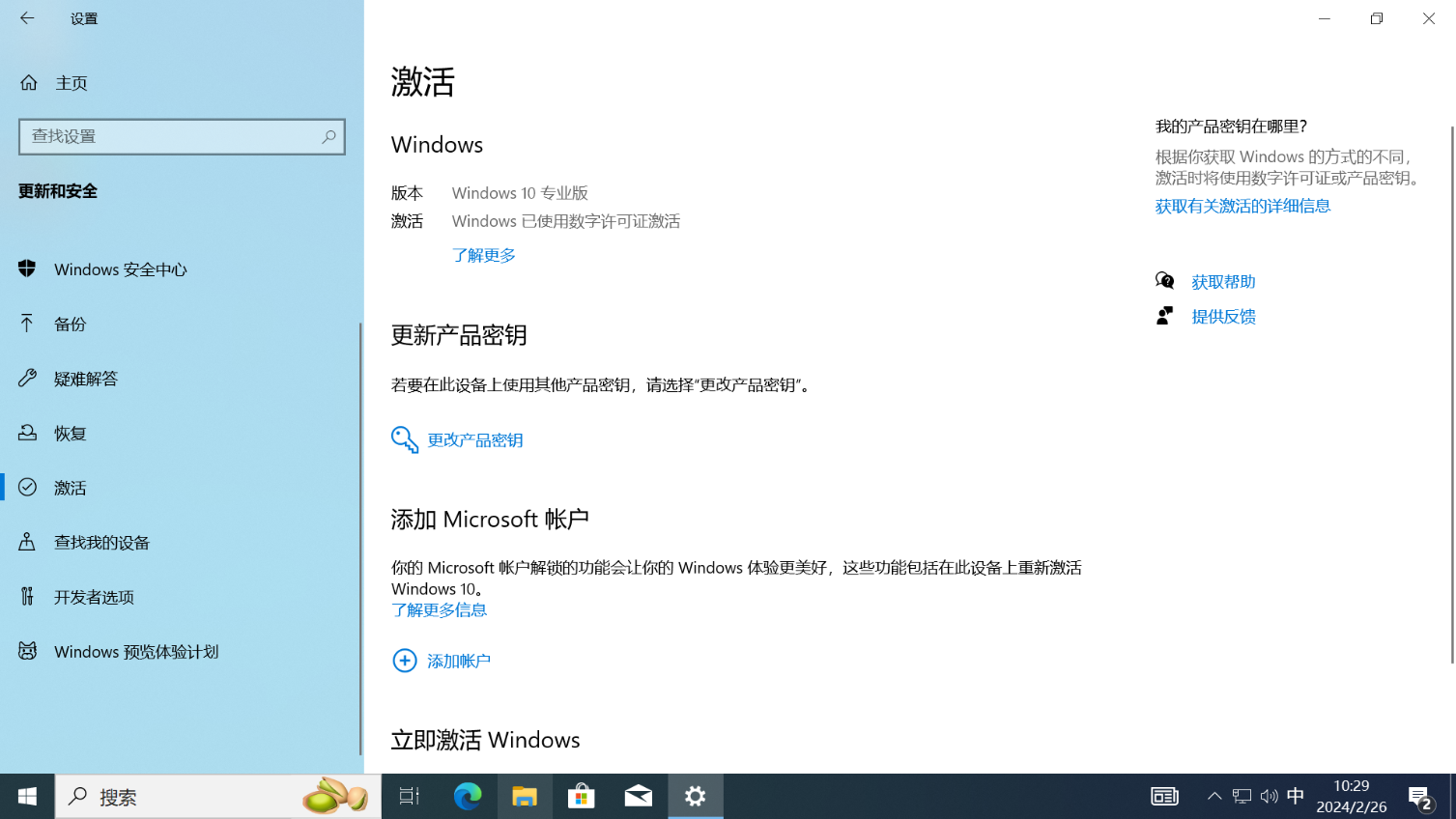
Activation is complete. If it fails the first time, try again a few times and check your internet connection.
Windows Defender antivirus can sometimes be quite annoying, even deleting our tools without notification while claiming they are potentially unwanted programs. You can use a tool to completely disable Defender:
Steps:
1. Open **dcontrol**.
2. Well, you might not be able to open it :) And it seems Defender has already automatically deleted it :)
After all, Defender has met its nemesis!
First, disable Defender’s real-time protection:
Steps:
1. Click the Defender shield icon in the bottom-right corner of the desktop to open the Defender console.
2. Click **Virus & threat protection** > **Manage settings**.
3. Turn off all four options: **Real-time protection**, **Cloud-delivered protection**, **Automatic sample submission**, and **Tamper protection**.
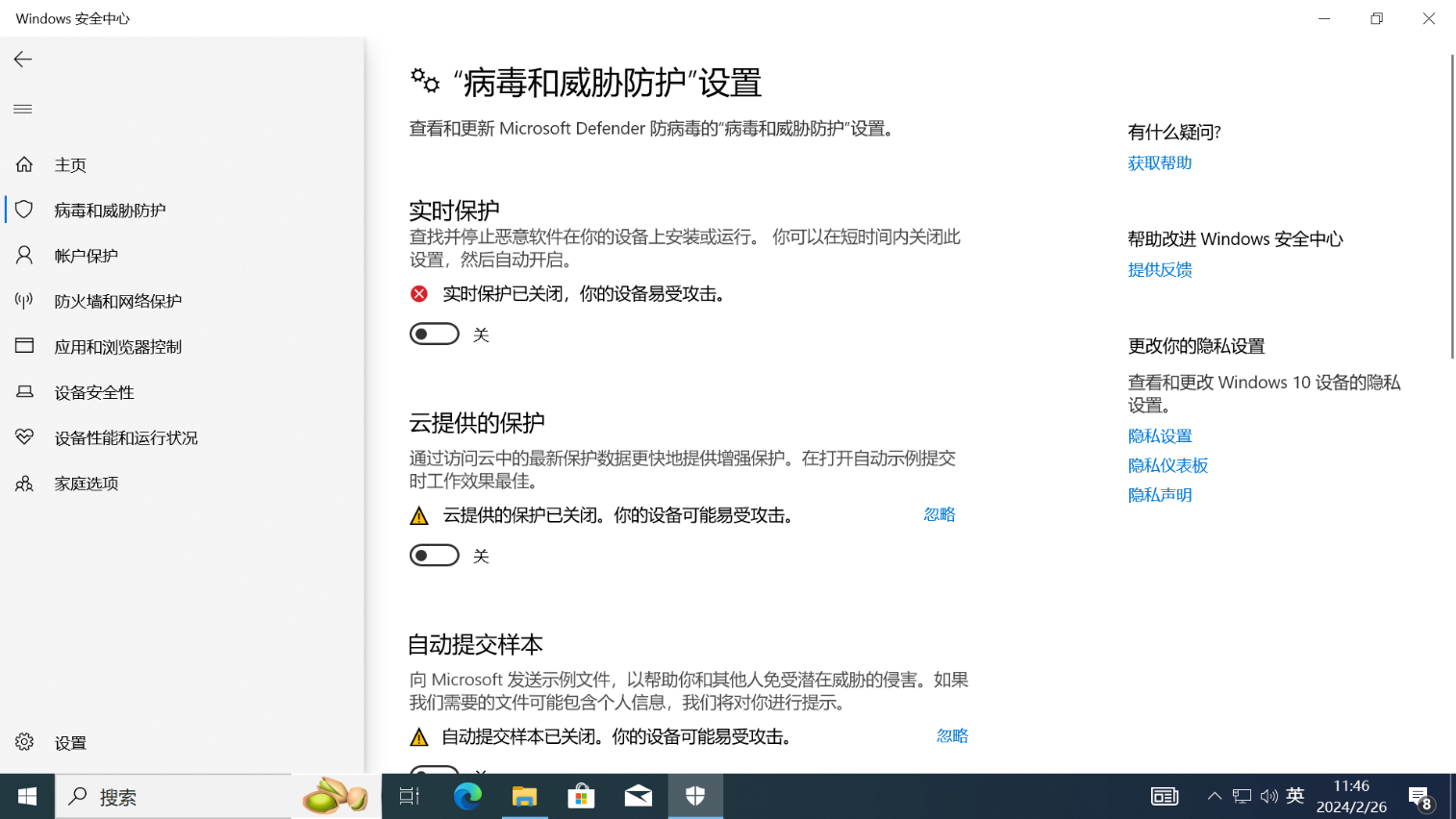
Now, open dcontrol.
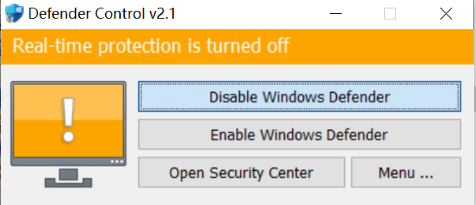
Disable Windows Defender!
Exit the software.
Windows 10 Simplified Setup Video:
https://www.ilanzou.com/s/jNbmP56
End.