Using the microPE ISO file to boot a VM virtual machine
Booting a VM Virtual Machine Using WePE’s ISO File
The process of booting a PE system via a USB drive is often cumbersome and complicated, involving steps like adding virtual disks and taking them offline. Now, with WePE’s ISO disc image file, you can directly boot a VM virtual machine into WePE.
First, you need to obtain the WePE ISO image.
Steps:
- Open the WePE Toolbox.
- Click the disc icon in the bottom-right corner to generate a bootable ISO.
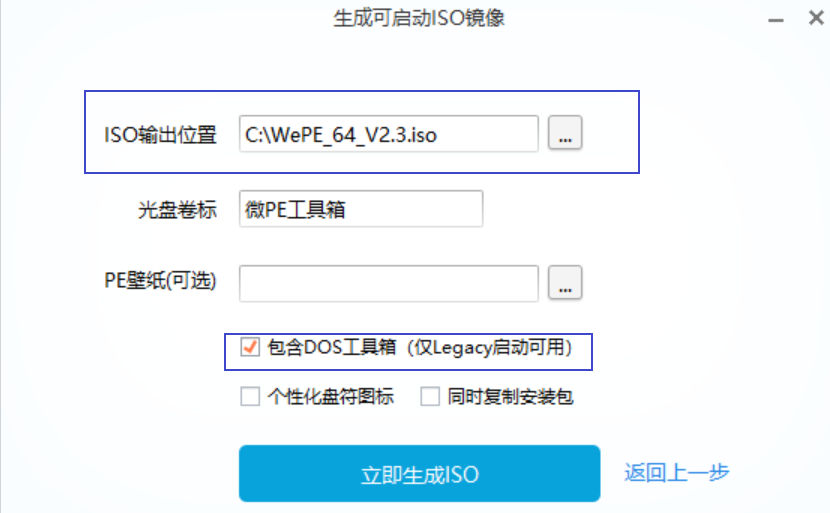
- Choose the storage location for the ISO, select your preferred wallpaper image, and include the DOS toolbox. Do not select “Copy installation package at the same time,” as it takes up a lot of space.
- Click “Generate ISO” immediately.
You will now have a bootable WePE ISO image file.
Booting the Virtual Machine Using the ISO
In fact, this step simply involves adding a virtual CD/DVD drive to the virtual machine. When selecting the ISO image file, just choose the WePE ISO.
Steps:
- Edit virtual machine settings → Add → CD/DVD Drive, then click Next.
- Select “Connect at power on,” choose “Use ISO image file,” and pick the WePE ISO file.
The WePE ISO has been successfully added.
It’s best to ensure your virtual machine has only one virtual CD/DVD drive. If there are multiple, you might not know which one to select at the boot screen.
- When starting the virtual machine, choose “Enter firmware at power on” as the boot mode.
- Select the option containing “CDROM Drive” and press Enter.
(If there are multiple CDROM drives, you can try them one by one, or select based on the order in which you added the virtual drives.)
Don’t forget to choose 1024x768 resolution.
Using the microPE ISO file to boot a VM virtual machine
https://en.lvlele.top/008-wepe-iso-boot-vm/