In-depth Exploration of VHD System Backup and Issues
VHD System Backup and In-Depth Issue Exploration
Recently, some users have asked follow-up questions about using VHD systems, including backing up child VHDs and replacing parent VHDs. I believe a unified explanation is necessary.
Disclaimer: All methods in this article are my own ideas. There may be oversights, but I have done my best. If you have better solutions, feel free to leave a comment.
Our initial system configuration is as follows:
C drive: 25GB
D drive: 35GB
Inside D drive: one parent VHD file: win10.vhdx; two child VHD files: win10son1.vhdx, win10son2.vhdx.
Inside C drive: one child VHD file: win10son3.vhdx
BCD configuration is correct. The BCD file content list includes:
win10father
win10son1
win10son2
win10son3
Issues:
1. After using a differential child VHD system for a while, I worry that one day the child VHD might fail, causing all files inside to be lost. I hope to have some reliable backup methods.
2. Can the child VHD and parent VHD be placed on different drives?
3. What if my VHD parent-child chain breaks?
Possible Solutions:
1. After using a differential child VHD system for a while, I worry that one day the child VHD might fail, causing all files inside to be lost. I hope to have some reliable backup methods.
(1) First, traditional system backup methods can achieve this goal. Inside the VHD subsystem, use Dism++ to perform a system backup, which will back up the entire current system environment.
Additionally, if the parent VHD has a prior wim backup, when backing up the child VHD, you can select the parent VHD’s wim package in the wim file save path to create an incremental backup. Incremental backups only save the differences between two system backups, avoiding duplicate file backups. When restoring the system, you can use WinNTSetup or Dism++ to select the desired system version from this wim package.
(2) The second method (not mature) involves merging the parent and child VHDs. This operation must be performed in a PE environment. After merging, the parent VHD will contain the same files as the child VHD it was merged with. From the user’s perspective, the parent VHD effectively becomes the child VHD, achieving parent-child fusion.
Operation steps:
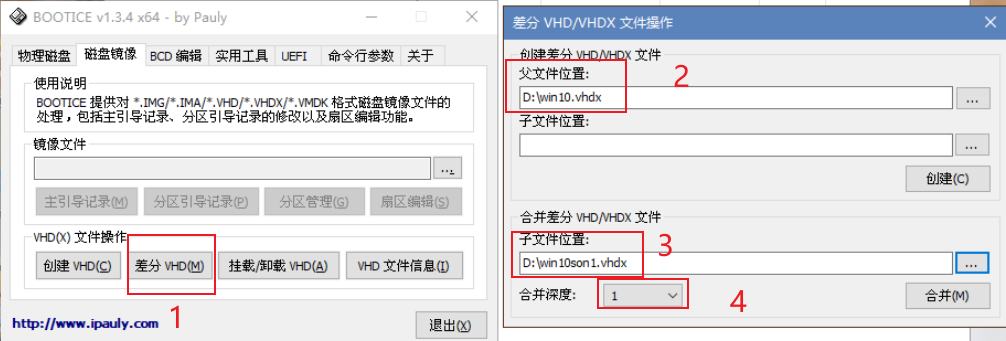
1) Open bootice.exe
2) Click on “Disk Image”
3) Click on “Differential VHD”
4) Select the parent file location. The second child file location is not needed. In the bottom “Child file location” field, select the child file you want to merge.
5) Select the merge depth. Merge depth refers to the hierarchical relationship between the child VHD and parent VHD. Simply put, if the child VHD is the direct child of the parent, the merge depth is 1. For a grandparent-grandchild relationship, the depth is 2. For great-grandparent and great-grandchild, the depth is 3.
Merge depth cannot increase indefinitely. The greater the merge depth, the larger the differences between the two systems, which may lead to instability or failure of the merged system. Therefore, bootice only supports a maximum merge depth of 3.
After merging the parent and child VHD files, the parent VHD retains its own data while also containing all the data from the child VHD.
This may seem like a good way to back up the child VHD system. However, this backup method has some potential issues.
First, we must ensure that no VHD file is mounted when performing any operations. That is, the virtual disk created by the VHD should not appear in File Explorer. If it does, be sure to eject it beforehand. Otherwise, it could lead to a series of problems, such as differential failure, parent-child chain breakage, merge failure, or differential chain repair failure.
Second, and importantly, the method described above will invalidate all child VHDs except for the two being merged. I believe this is a significant reason why merging parent and child VHDs is not recommended. To put it in context: if I merge win10.vhdx and win10son1.vhdx, the differential chain between win10son2 and its parent VHD will break, making win10son2 unbootable.
This is acceptable to some extent, since the parent VHD has been modified. I have mentioned before that once a differential child system is created for a parent VHD, the parent VHD cannot even be booted. Even a tiny change to the parent VHD can break the differential chain.
So, is there a way to avoid the differential chain breakage issue?
Analysis shows that changing one parent can cause all its children to fail to boot. What if we have multiple parents and multiple children?
Let’s revisit our initial system configuration.
One parent: win10.vhdx, two children: win10son1, win10son2.
Now the parent and win10son1 are merged, causing win10son2 to fail.
Can we do something before win10son2 fails?
The answer is obvious.
Before merging the parent and win10son1, copy and paste a duplicate of the parent, naming it win10a.vhdx. Then merge the parent with win10son1.
After that, rename the duplicate back to win10.vhdx, and rename win10a.vhdx to win10.vhdx.
With this operation, the differential chain between win10son2 and the parent VHD remains intact.
After testing, I found that this method does preserve the differential chain integrity for all child systems except win10son1. However, it damages win10son1’s differential chain. Although win10son1 has been merged with win10.vhdx, selecting win10son1 on the next boot will result in a “VHD BOOT Installation Failed” error. This indicates that win10son1’s differential chain is broken. The only way to access win10son1’s pre-merge state is to boot the merged VHD system.
But since win10son1 is no longer important after the merge, it can be deleted. This isn’t a major issue. However, I’m not sure why this happens…
Additionally, this method has two other problems:
1) Due to the copy-paste operation, we end up with two large parent VHD files, consuming double the disk space. This contradicts the original purpose of installing a VHD system.
2) Since the parent VHD and child VHD must be in the same partition, and their relative positions cannot change, the above operation will inevitably create two files with the same name (win10.vhdx) in the same directory. This is obviously not allowed. My best approach is to rename the merged VHD and modify its BCD entry to make it bootable.
I haven’t found a good solution for these two problems yet, so I’ll leave them here for now. I hope the experts in the comments can share their insights to help us overcome these challenges.
(3) The third method is to directly back up the child VHD files by copying them to a safe location or uploading them to cloud storage. As long as the parent VHD exists, you can replace a damaged child VHD with this backup.
I still recommend using Dism++’s system backup feature, as incremental backups are quite fast after the initial backup.
2. Can the child VHD and parent VHD be placed on different drives?
No.
After testing, I placed the child VHD (win10son3) and parent VHD on different drives, but it did not boot successfully. I couldn’t find the reason online. However, when I asked ChatGPT 4.0, it replied that they can be placed on different partitions. When asked for the operation steps, ChatGPT’s instructions were identical to mine.
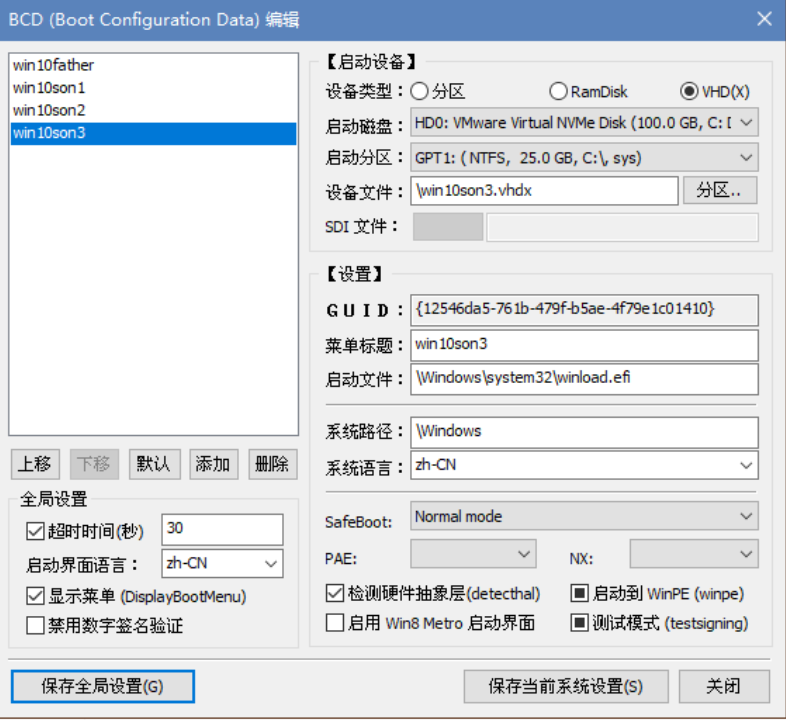
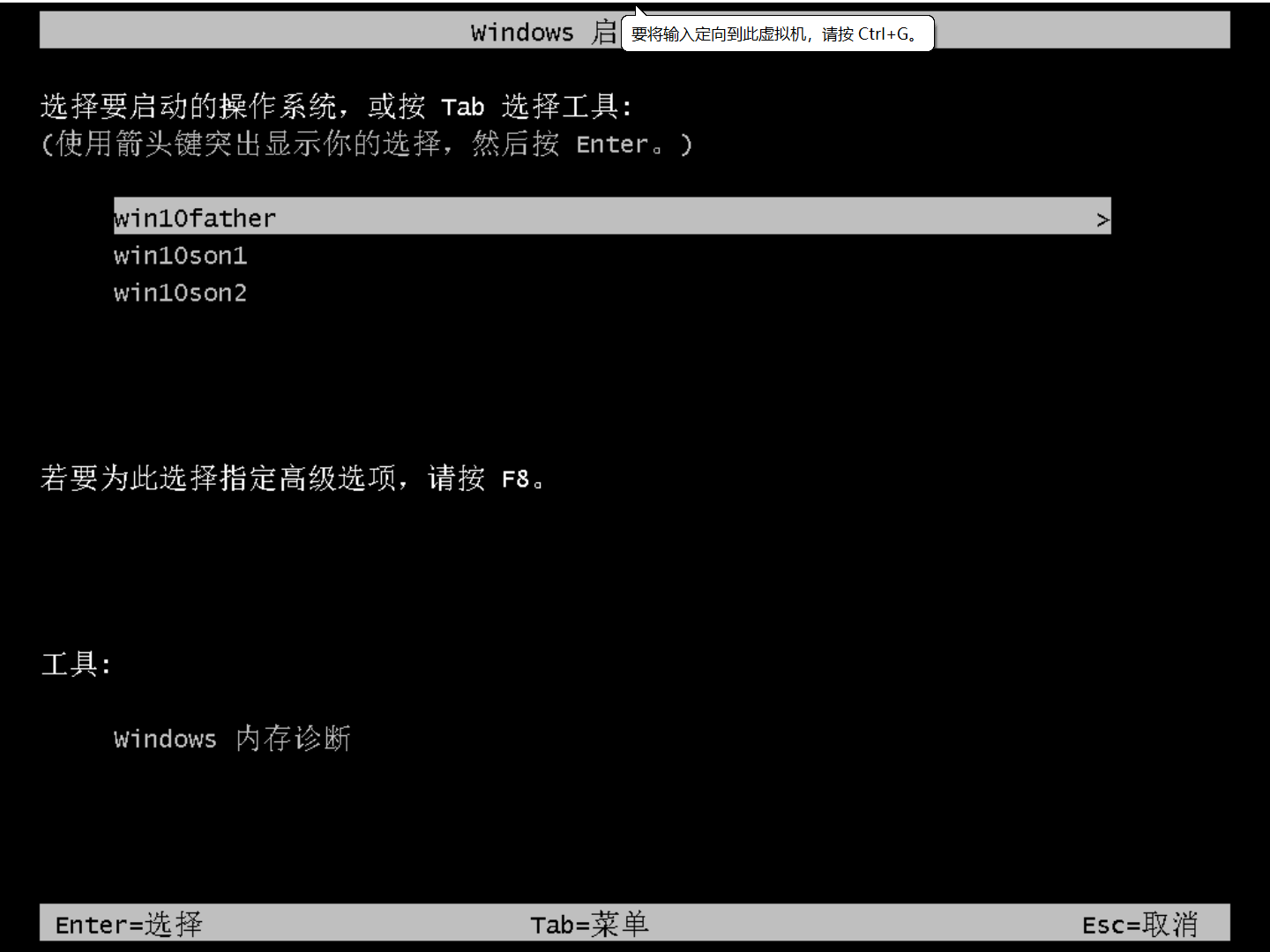
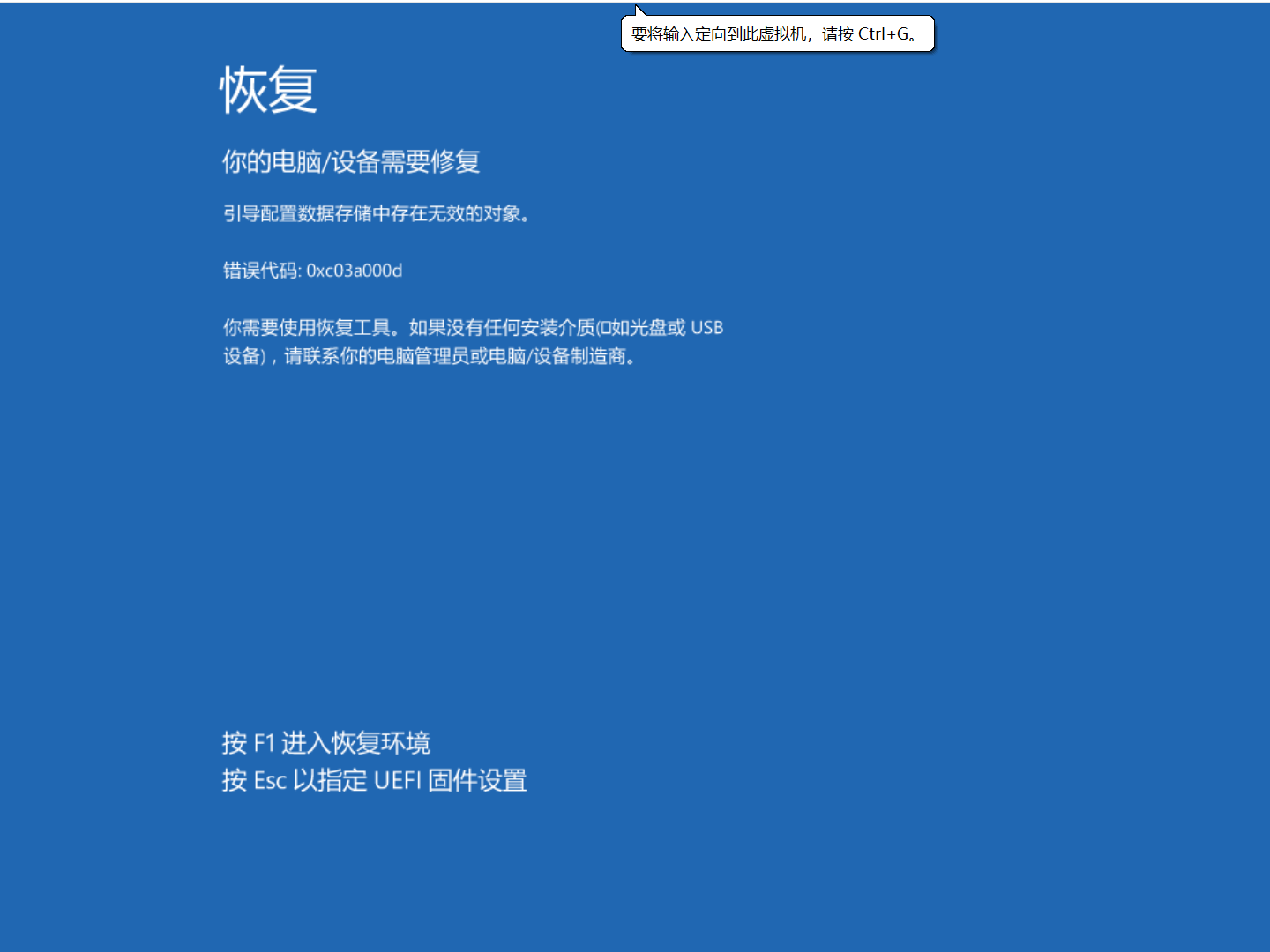
During the experiment, I added a boot entry for the child VHD in the BCD menu, but no matter what I did, this entry would not appear in the Windows Boot Manager. Pressing Esc resulted in an error: “Invalid object in the boot configuration data store.”
Here is the BCD configuration for win10son3:
I currently do not understand the underlying mechanism. I hope the experts in the comments can summarize and explain this. ❤ :)
3. What if my VHD parent-child chain breaks?
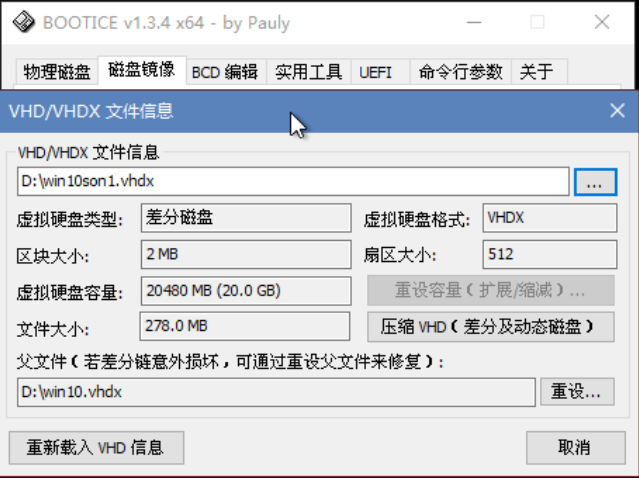
You can use bootice to repair a damaged differential chain. Open bootice, click on “Disk Image” -> “VHD File Info”, select the failed child VHD, then select the parent file to restore the VHD parent-child chain.