Difficulties with in-place upgrade of Windows 11 via setup.exe? How to bypass TPM 2.0 installation program checks?
Struggling with In-Place Upgrade via setup.exe on Windows 11? How to Bypass TPM 2.0 Installation Checks?
When reinstalling our system on a daily basis, we often don’t want to directly format the C drive in PE and then reinstall the OS. Instead, we prefer a simple upgrade or version change without losing personal data, applications, and settings. So, how can we install a system without formatting the C drive?
Using the Original ISO Image File
This is the simplest method for installing a system, and perhaps the one we most easily overlook. By directly running setup.exe from the Windows ISO image file, you can perform an in-place upgrade installation of Windows.
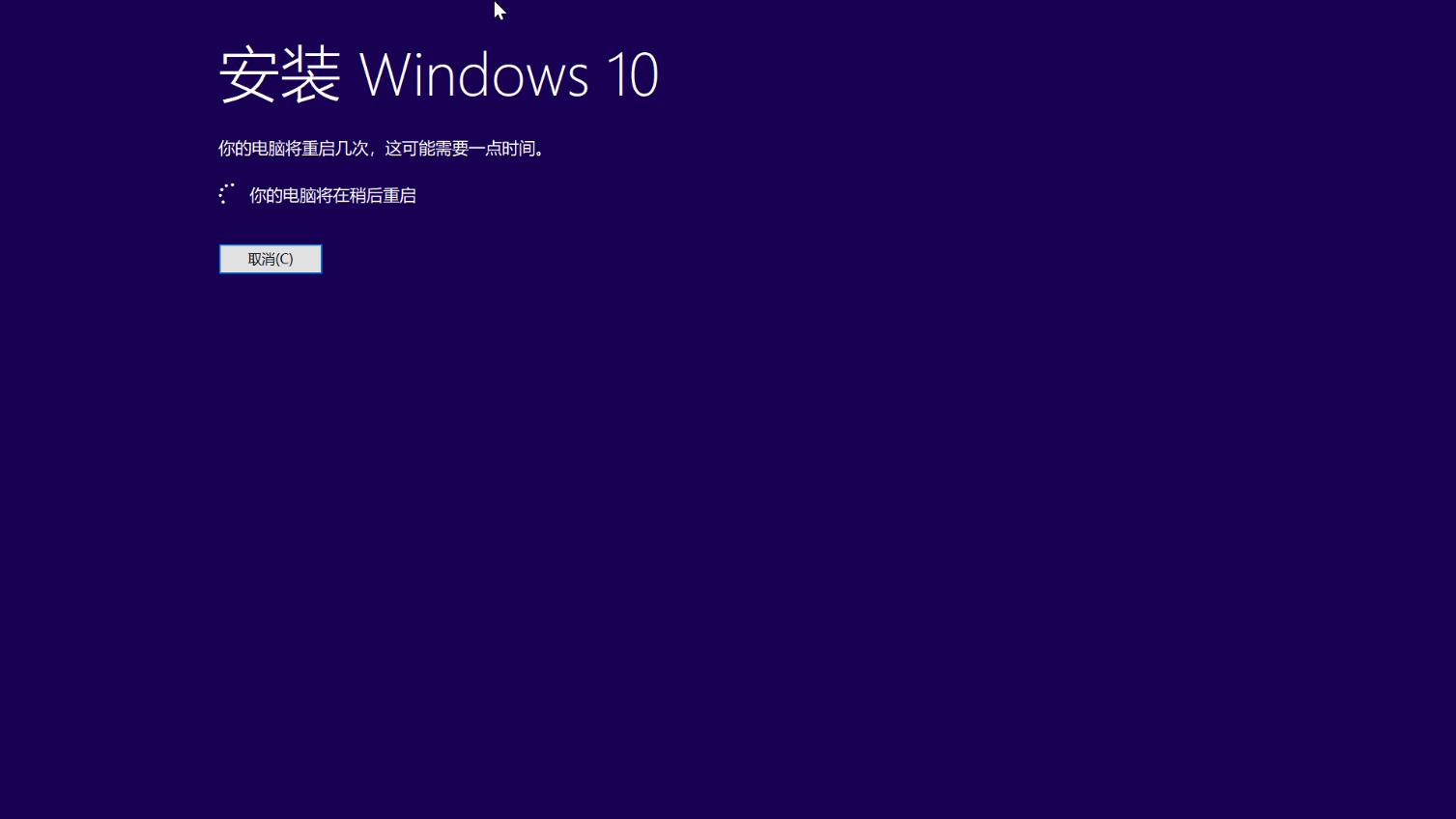
During the initial setup, you can choose from three options: keep personal files and apps, keep personal files only, or keep nothing. Then, proceed step by step (it’s not recommended to download updates while connected to the internet), wait for the installer to automatically install the system, and restart your computer a few times. The system upgrade will then be complete.

Potential Issues
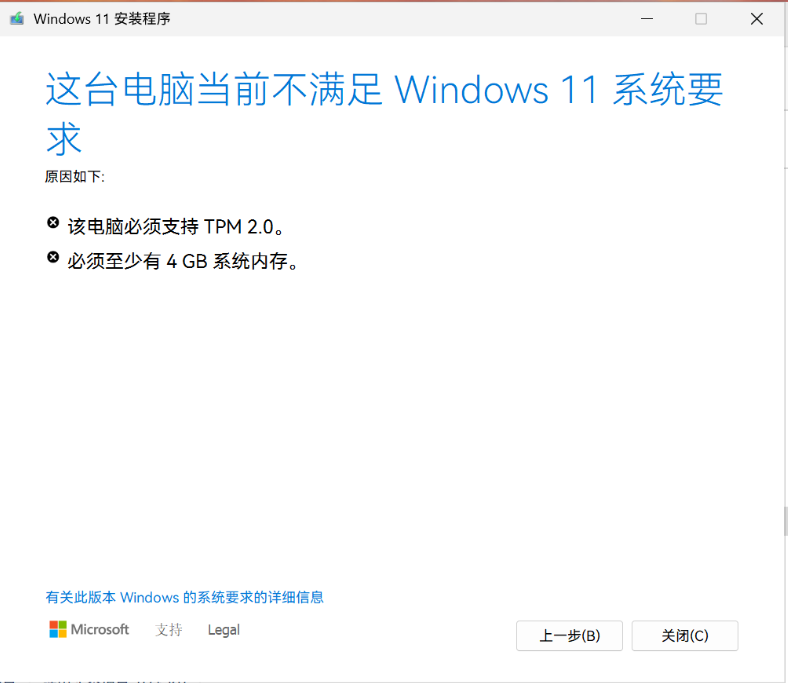
Some computers may lack a TPM 2.0 security module. While installing Windows 11 via PE for the first time works fine, attempting to use setup.exe from the Windows 11 ISO for system updates will be blocked due to the absence of TPM 2.0.
Solution
(It is recommended to perform the following operations offline.)
In the File Explorer address bar of the virtual optical drive, type
cmdand press Enter. This will quickly open a command prompt at that location.Enter the following command and press Enter:
setup.exe /product serverThis will install Windows 11 in Windows Server mode. Since Windows Server does not require TPM 2.0, this method bypasses the compatibility check.
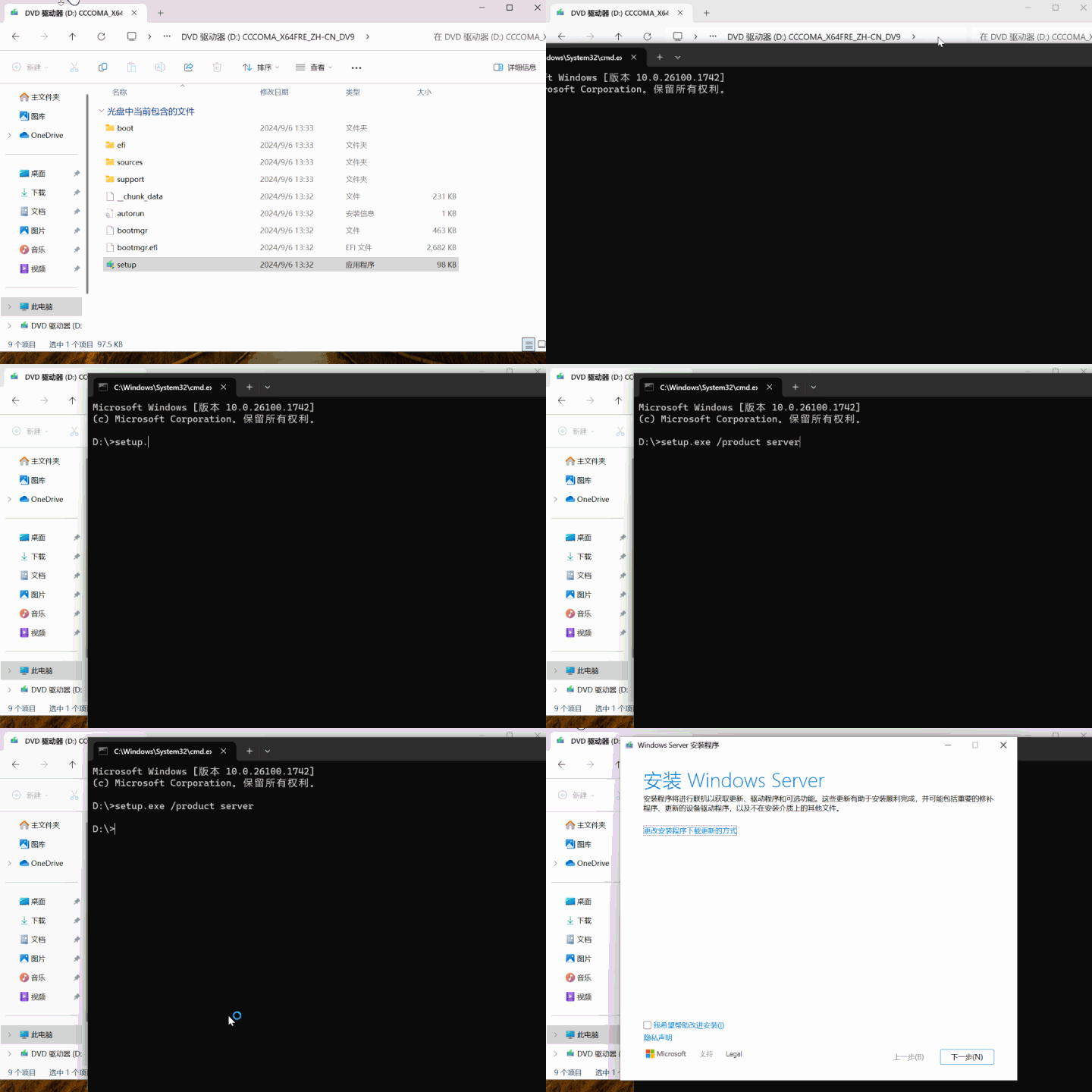
However, the Windows 10 installer will prompt you to enter a product key before upgrading, and this step cannot be skipped (Windows 11 seems to allow skipping it). This article provides KMS keys from the Microsoft official website. Enter one to proceed.
| Operating System Version | Client Product Key |
|---|---|
| Windows 11 Pro / Windows 10 Pro | W269N-WFGWX-YVC9B-4J6C9-T83GX |
| Windows 11 Pro N / Windows 10 Pro N | MH37W-N47XK-V7XM9-C7227-GCQG9 |
| Windows 11 Pro Workstation / Windows 10 Pro Workstation | NRG8B-VKK3Q-CXVCJ-9G2XF-6Q84J |
| Windows 11 Pro Workstation N / Windows 10 Pro Workstation N | 9FNHH-K3HBT-3W4TD-6383H-6XYWF |
| Windows 11 Pro Education / Windows 10 Pro Education | 6TP4R-GNPTD-KYYHQ-7B7DP-J447Y |
| Windows 11 Pro Education N / Windows 10 Pro Education N | YVWGF-BXNMC-HTQYQ-CPQ99-66QFC |
| Windows 11 Education / Windows 10 Education | NW6C2-QMPVW-D7KKK-3GKT6-VCFB2 |
| Windows 11 Education N / Windows 10 Education N | 2WH4N-8QGBV-H22JP-CT43Q-MDWWJ |
| Windows 11 Enterprise / Windows 10 Enterprise | NPPR9-FWDCX-D2C8J-H872K-2YT43 |
| Windows 11 Enterprise N / Windows 10 Enterprise N | DPH2V-TTNVB-4X9Q3-TJR4H-KHJW4 |
| Windows 11 Enterprise G / Windows 10 Enterprise G | YYVX9-NTFWV-6MDM3-9PT4T-4M68B |
| Windows 11 Enterprise G N / Windows 10 Enterprise G N | 44RPN-FTY23-9VTTB-MP9BX-T84FV |
This way, we bypass the TPM 2.0 check and can directly upgrade to Windows 11 version 24H2 locally.
Summary of Deprecated Methods
Many users online have shared their methods for bypassing the Windows 11 TPM 2.0 check. Some of these methods have been discovered and blocked by Microsoft. This article summarizes them.
1. Replacing the Appraiserres.dll file in the ISO: Replace the Appraiserres.dll file from the sources folder of a Windows 10 ISO with the one in the Windows 11 ISO. This method is no longer effective, as the installer still checks for TPM.
2. Modifying the registry: Add registry entries like Labconfig or bypasstpmcheck to bypass the TPM check. Testing has shown this method is also ineffective.
Upgrade Methods to Avoid
Some might wonder: Can I use Windows installation software in PE to directly update the Windows system?
In reality, this method is not feasible. In a PE environment, we cannot directly overwrite the system to perform an update.
Using winntsetup to overwrite the Windows system without formatting the C drive may result in various failures, such as:
- Error 0x5: Failed to apply image
- Unable to write the image
It is also possible to successfully write the image and extract the system to the C drive.
However, even if winntsetup succeeds, the system may encounter unpredictable errors upon first boot, such as getting stuck at the Windows logo spinning screen, or the Windows installer failing to start, leaving the system unable to boot.
Even if you use Dism++ to extract the WIM file to the C drive, you won’t retain the original system configuration. Instead, you’ll get a new system, and a Windows.old folder will be created on the C drive to store all files from the old system.
This does not meet our requirement for a seamless system upgrade, so this method is also unsuitable.
Conclusion
Currently, the only way to upgrade the Windows system without losing data is by using the original ISO’s setup.exe within the Windows environment, or through the “System Update” feature in Settings.