Fighting TPM 2.0 Again: Upgrading the System with Local setup.exe, How Hard Can It Be?
Tackling TPM 2.0 Again: Is It Really That Hard to Upgrade with Local setup.exe?
Microsoft has tightened TPM 2.0 hardware checks even further in Windows 11 version 24H2, blocking several popular workarounds found online. This article covers both clean installation and local/online upgrade methods for bypassing TPM 2.0 hardware checks.
Clean Installation
Microsoft updated the Windows installer (setup.exe) interface in Windows 11 version 24H2, removing the “Go back” button in the top-left corner. This means we must modify the WindowsPE registry entries right when WindowsPE boots up, rather than after TPM detection fails and installation is blocked. (Note: registry key names are case-insensitive, so feel free to use any capitalization.)
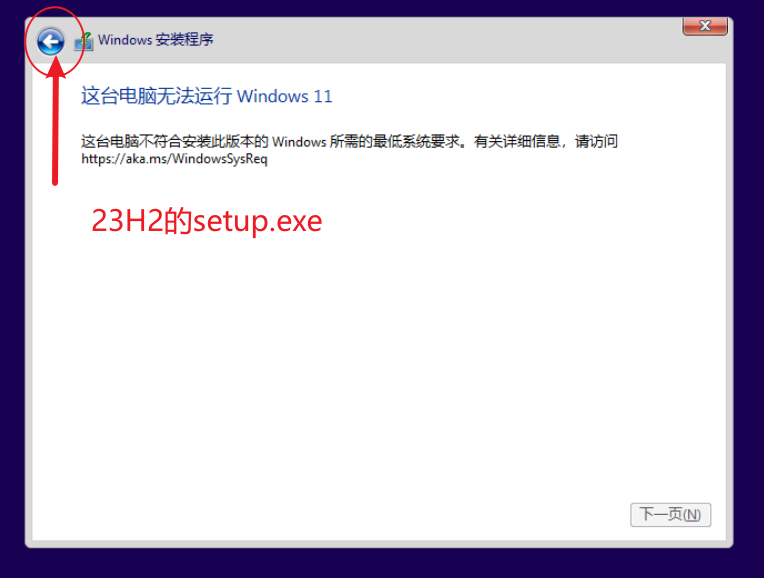
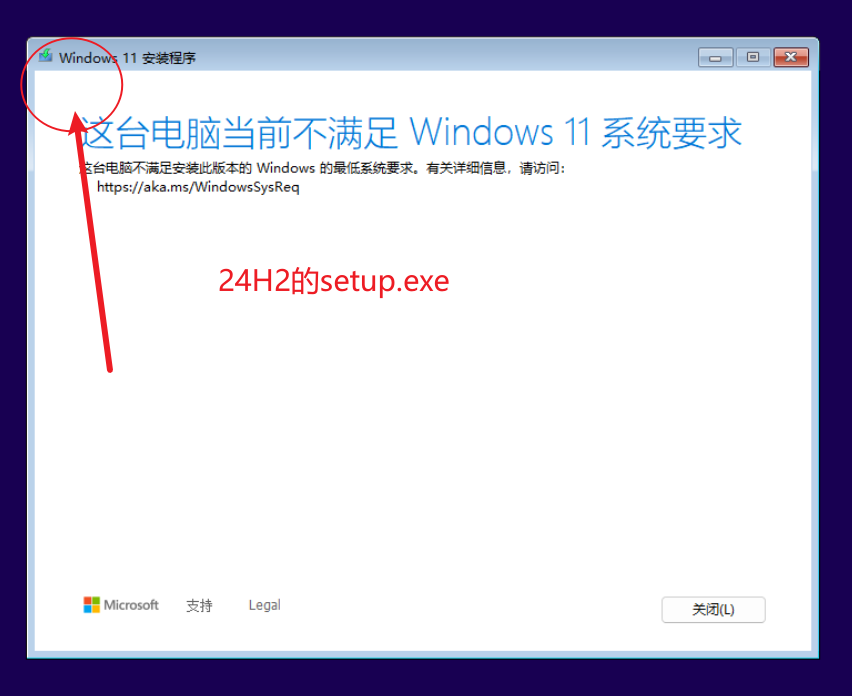
Boot from a USB drive created with the original ISO to perform a clean Windows 11 installation. After booting, press Shift+F10 to open cmd.
Type
regeditand press Enter to open the PE system registry for editing.Navigate to
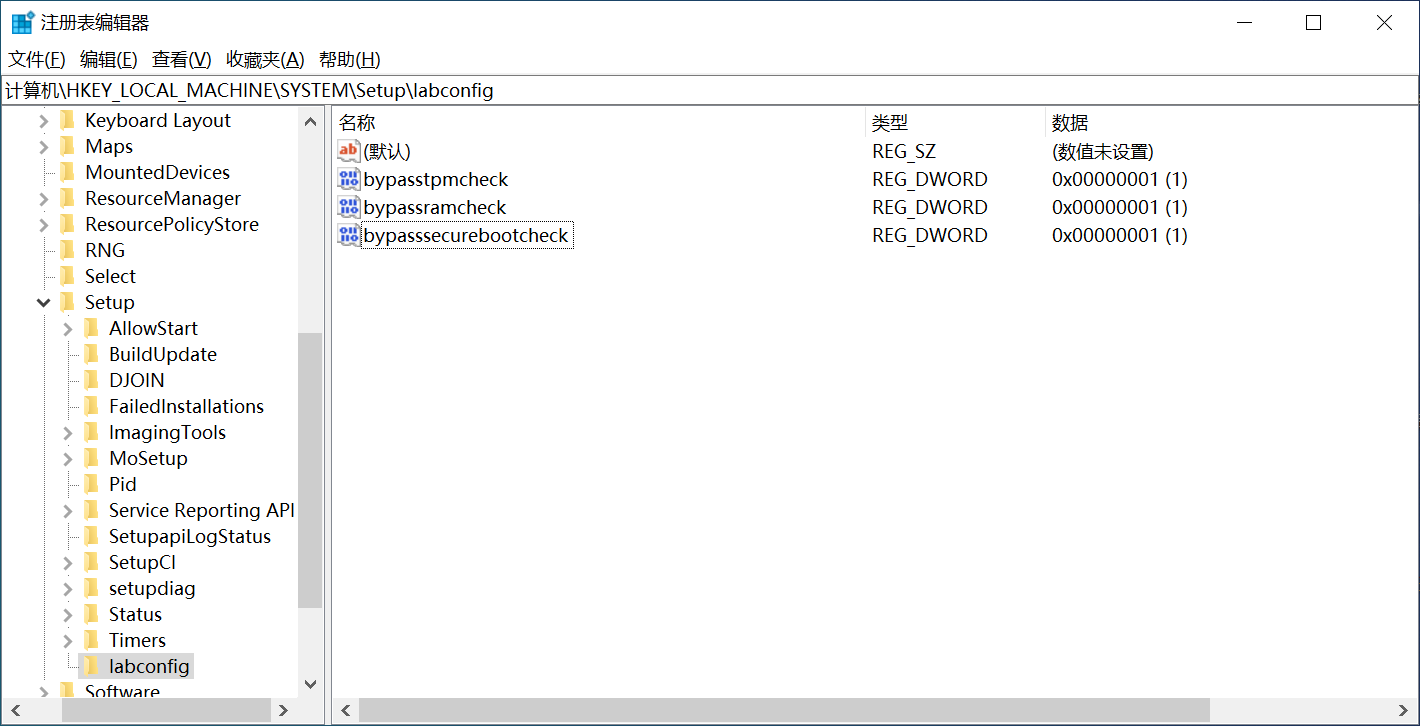
Computer\HKEY_LOCAL_MACHINE\SYSTEM\Setup. Right-click onSetup, selectNew→Key, and name itLabConfig.Inside
LabConfig, create a new DWORD (32-bit) value namedBypassTPMCheckand set its value to1.Repeat the above step: create two more DWORD (32-bit) values inside
LabConfig, namedBypassRAMCheckandBypassSecureBootCheck, both set to1.These two bypass memory check and Secure Boot check, respectively.
Close the registry editor and cmd window, then proceed with the Windows installer.
Alternatively, you can use the disk writing tool Rufus to create a bootable USB drive. Rufus offers a feature to bypass TPM 2.0 detection, which can be applied to the USB drive during the writing process.
Special thanks to @CDsidi for analyzing Rufus’s source code. @CDsidi noted that Rufus uses an unattended.xml file, which is loaded and executed when WindowsPE boots, modifying the PE system’s registry.
Furthermore, @CDsidi analyzed the registry keys modified by unattended.xml and found that they match the registry keys I described above. Therefore, either method works—they are equivalent.
@CDsidi also discovered that Rufus modifies the current system’s registry after writing the USB drive, adding the same three registry keys. However, testing shows that adding these three keys to the current system does not bypass setup.exe’s TPM check for local or online upgrades. So this feature may still be experimental in Rufus.
Local or Online Upgrade
We can still modify the registry to bypass the TPM check.
Since the registry modification method is more complex this time, I’ve prepared a one-click import registry file (.reg) for you to use safely.
24H2 TPM Check Bypass Registry Download Link:https://wwkd.lanzn.com/iWcL82brojva
Double-click to import the registry file, and you’ll be able to use setup.exe for local or online upgrades to Windows 11 24H2.