A small tool to kill Windows Defender! Rogue 'Defender's life and death power is now in your hands!
A Handy Tool to Obliterate Windows Defender! Take Full Control of the “Rogue” Defender!
Windows Defender is a built-in antivirus tool in the Windows system. By default, it loads and runs at startup, and cannot be completely disabled or uninstalled. Even if you disable its automatic startup, Windows Defender still diligently runs in the background, constantly monitoring the security of your Windows system.
In global antivirus software rankings, Windows Defender typically sits in the middle tier—around 20th out of 28 tested antivirus programs.
As you can see, Windows Defender’s antivirus capabilities are decent, falling into the mid-range category. However, what Windows Defender excels at most is “quietly doing big things.” Experienced users know all too well that Windows Defender has a habit of silently deleting files—not just once or twice. It often deletes your files and software without notifying you, or notifies you only after the fact.
While we understand Defender’s good intentions in protecting our computers, this “quietly doing big things” behavior is simply unacceptable. So how can we make Defender “shut up for good”? Here are two methods.
Install Another Antivirus Software
Installing any other antivirus software will prevent Windows Defender from running. Since having multiple antivirus programs installed on the same computer can cause conflicts, Windows Defender will automatically step aside when you install another antivirus. This way, Windows Defender will no longer frequently prompt you or delete your files.
Here are a few antivirus software recommendations:
- Kaspersky
- Huorong
- McAfee
- 360 Antivirus
These programs are generally free of bloatware (though 360 Antivirus may come with some 360 suite components), offer strong detection and removal capabilities, and have good reputations across the web. In particular, Huorong Antivirus is excellent at blocking pop-up ads.
Use the dControl Tool
The second method brings us to today’s star: the one-click disable tool, dControl.
This is an English-language tool, but I’ve localized it into Chinese for your convenience.
Follow the official account, reply with “dcon” in the background, and you’ll get the localized version with an unlimited-speed download link.
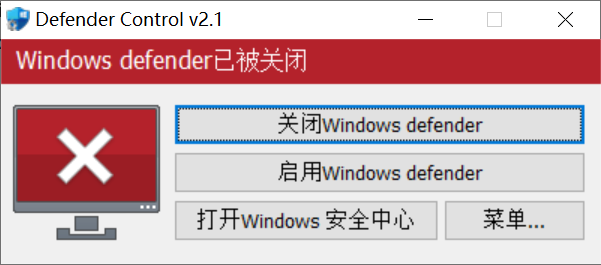
Open the software and click “Disable Windows Defender.” A prompt will appear: “To continue the task, you need to manually disable Defender’s real-time protection. Do you want to proceed?”
At this point, you need to manually open Windows Defender and turn off its “Real-time protection” feature. If you don’t, the dControl tool may fail to run, or even be deleted by Windows Defender as a virus.
After that, you can directly click to disable Windows Defender.
If you ever want to re-enable Windows Defender, simply reopen the tool and click “Enable Windows Defender” to restore its functionality.