How to run software from your USB drive in Windows RE
How to Run Software from Your USB Drive in Windows RE
In the previous article, we covered the basics of Windows RE.
Today, I’ll show you how to run system maintenance tools from your USB drive when Windows RE is the only PE system available to you.
Checking If Your System Includes Windows RE
First, we need to determine whether your computer has Windows RE. The method is simple:
- Open “Disk Management” (right-click the Start menu and select “Disk Management”).
- Look for a hidden recovery partition (size may range from 0.5GB to 2GB).
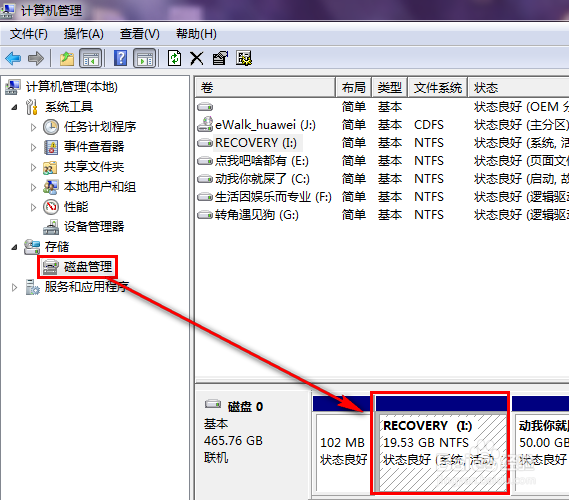
If you see one, congratulations—your system has Windows RE built in.
How to Enter Windows RE
The easiest way: When the boot logo appears and the spinning dots are showing below it, force a power-off and restart. Repeat this process three times, and your computer will automatically boot into the Windows RE recovery environment.
Click “Troubleshoot → Advanced Options” to enter the main Windows RE interface.

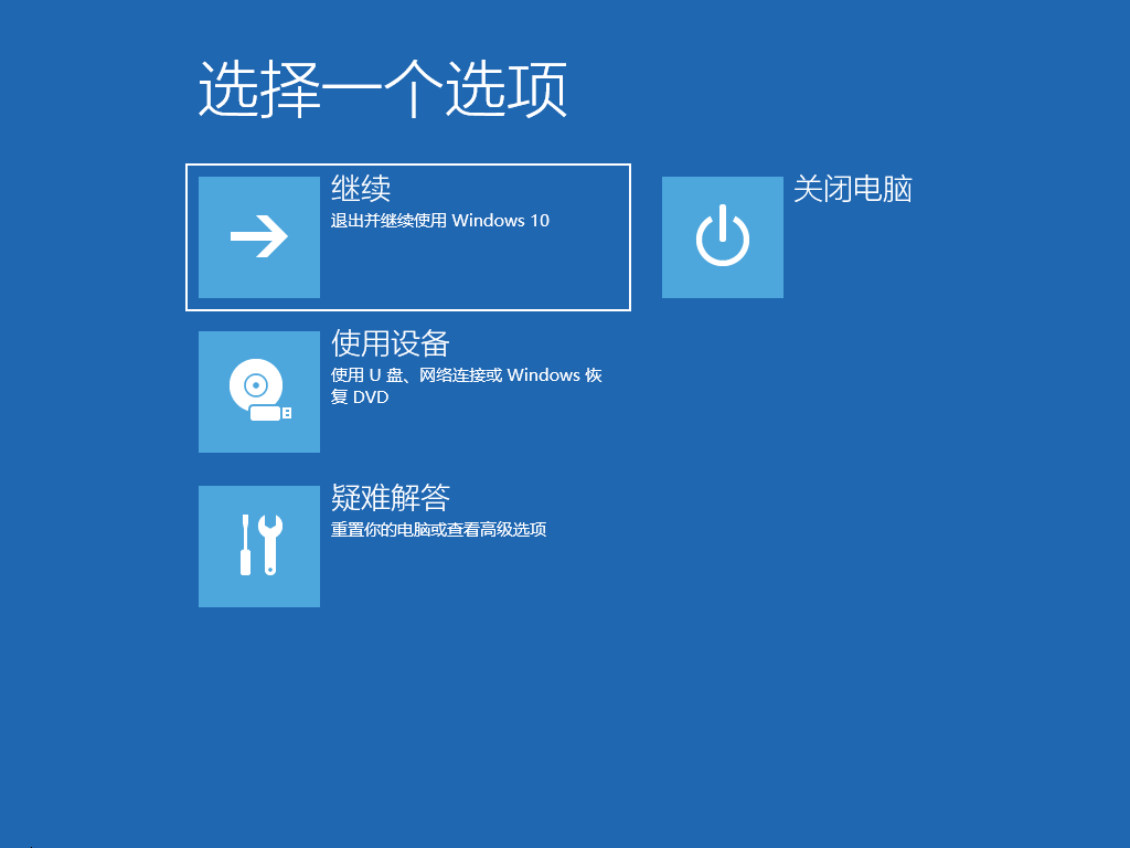
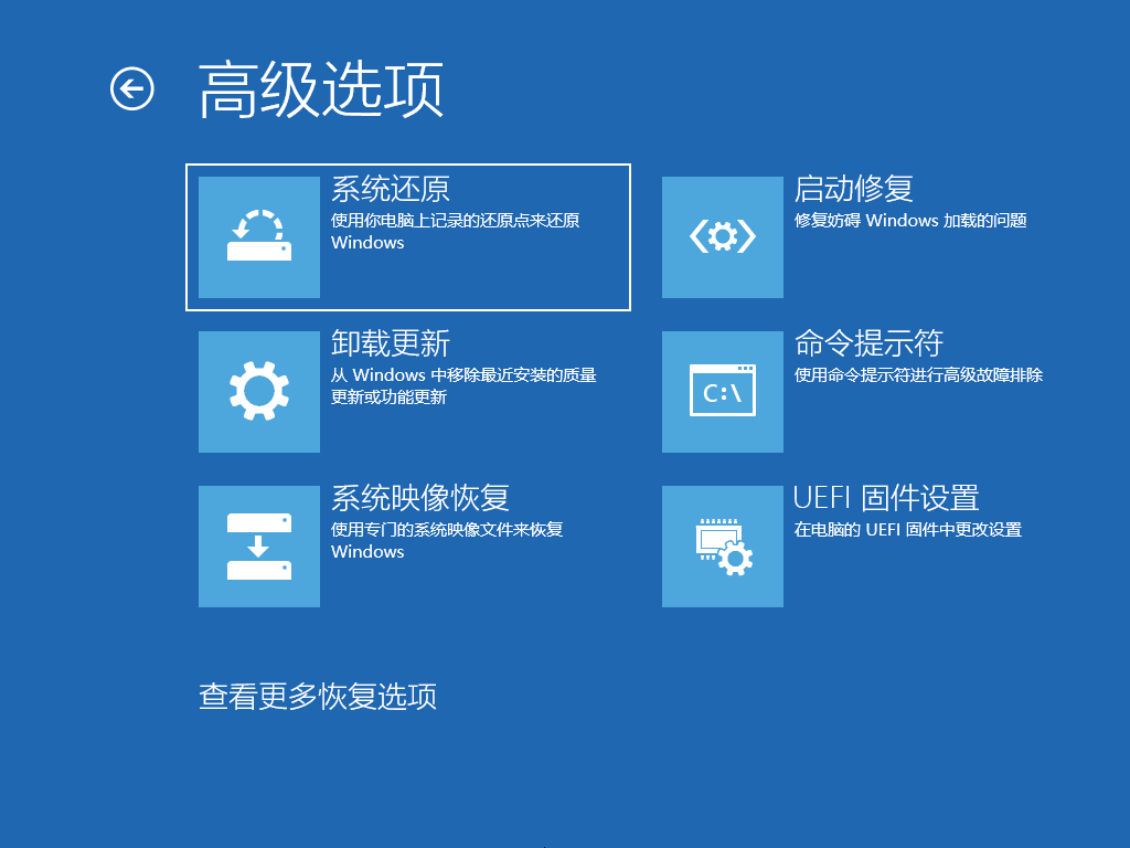
As you can see, Windows RE has limited functionality—at least from the graphical user interface perspective. It only offers a few basic options.
That said, the clean and elegant tile-based interface is unmistakably Microsoft.
To use tools from your USB drive, you’ll need to select the “Command Prompt” option.
Running Software from Your USB Drive in Windows RE
Plug in your USB drive. Click the “Command Prompt” option in Windows RE. A cmd window will appear—this is where we’ll enter some basic commands.
Use the diskpart tool to check whether your USB drive is recognized in Windows RE and to find its drive letter and other basic information.
1 | |
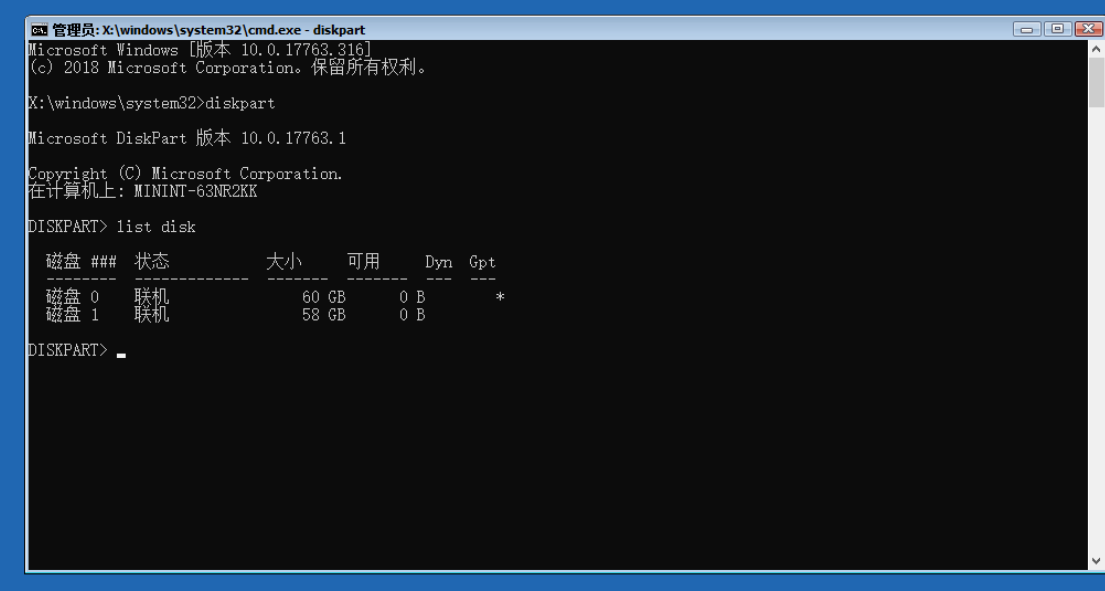
As shown above, my computer has two disks. Based on capacity, the first disk is my computer’s internal drive, and the second is my USB drive.
Let’s continue:
1 | |
This lists all disk partitions on the computer.
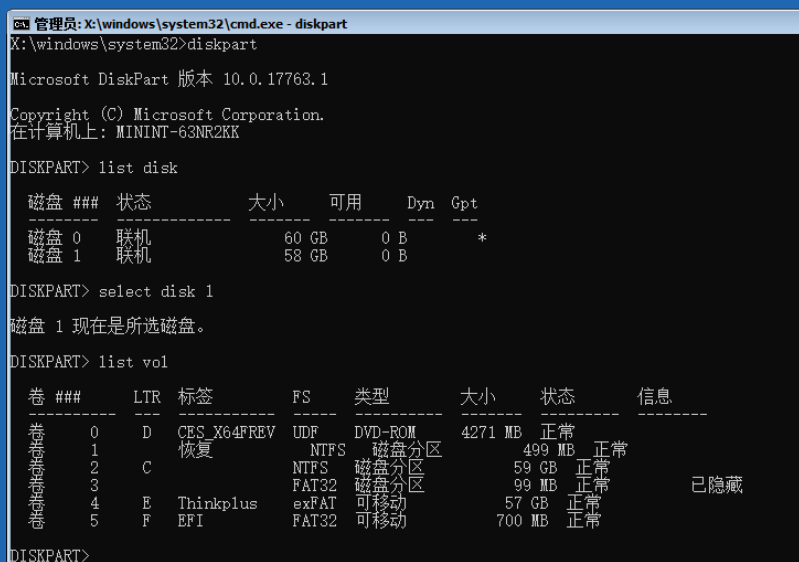
From the image, drive E:\ on my computer is a removable disk labeled “ThinkPlus.” That’s my USB drive.
Now, we can exit the diskpart tool by typing exit and pressing Enter.
Our goal is clear: access the files on drive E and run the software inside!
So, in the cmd window, type:
e:
Press Enter.
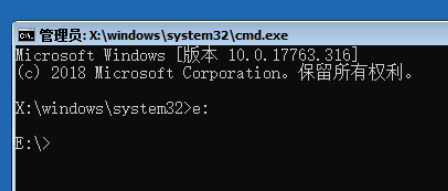
Now, the cmd working directory has moved to drive E:, which is my USB drive.
You can use the tree /f command to list the files and folders on the USB drive and find the software you want to run.
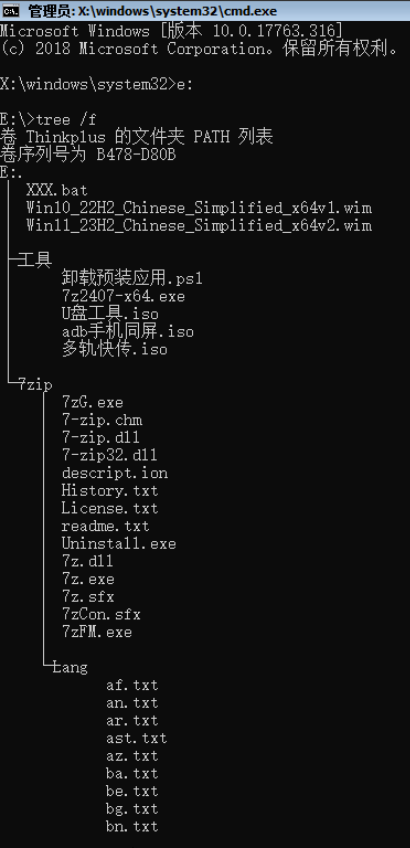
Example:
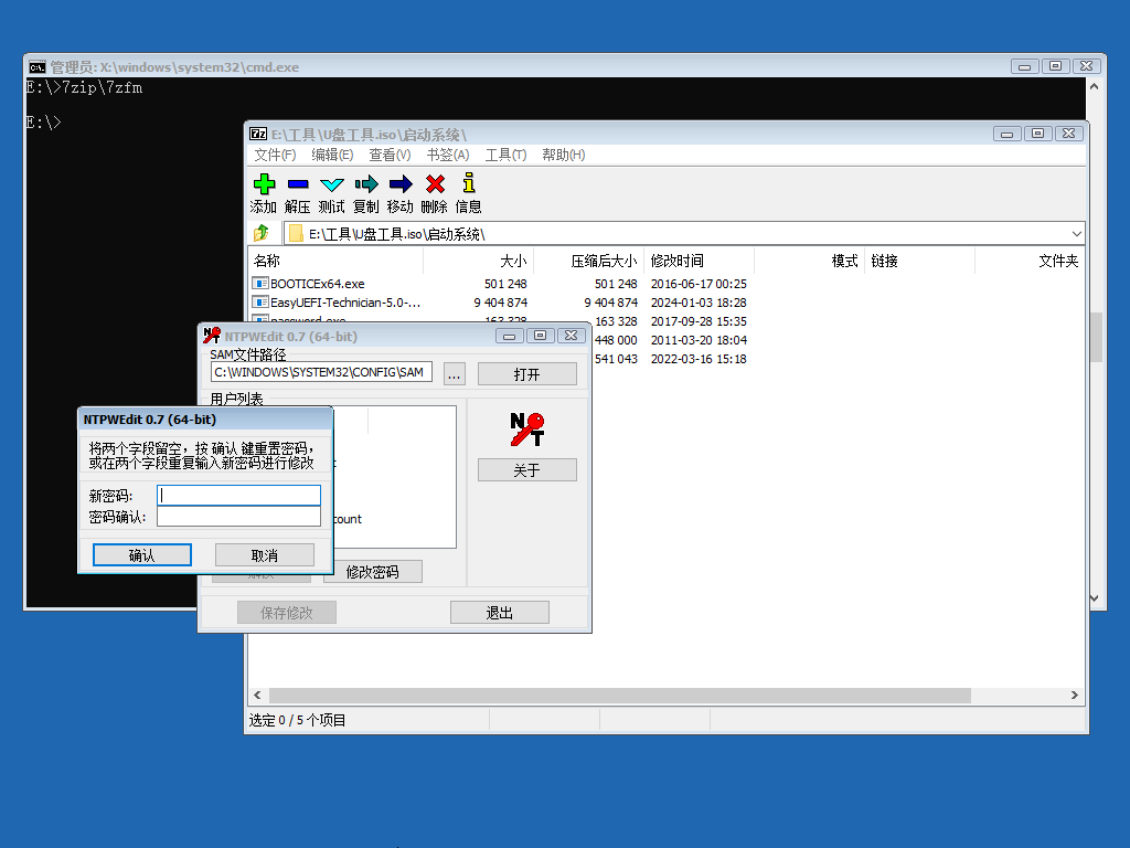
I want to run \7zip\7zfm.exe (the 7-zip software) from my USB drive.
So, I type:
1 | |
Press Enter to run it.
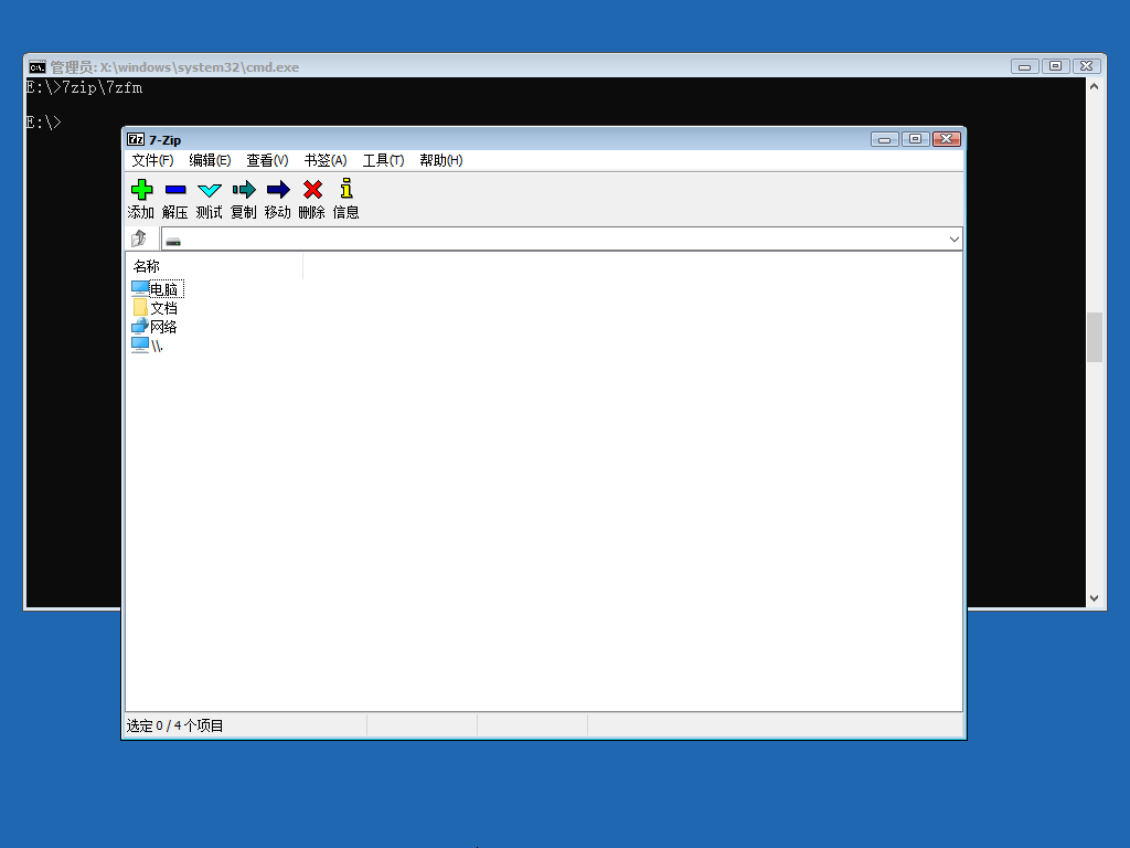
Now you can use 7-zip as a file explorer to browse files on your computer and run PE tools.
If you only need to run a specific software, simply type its path and press Enter. The method is the same as opening 7-zip.