Hide common folders in This PC
Hide Common Folders in This PC
An interface like this might look clean and comfortable:
(PS: Don’t you think the C drive usage looks satisfying too?)
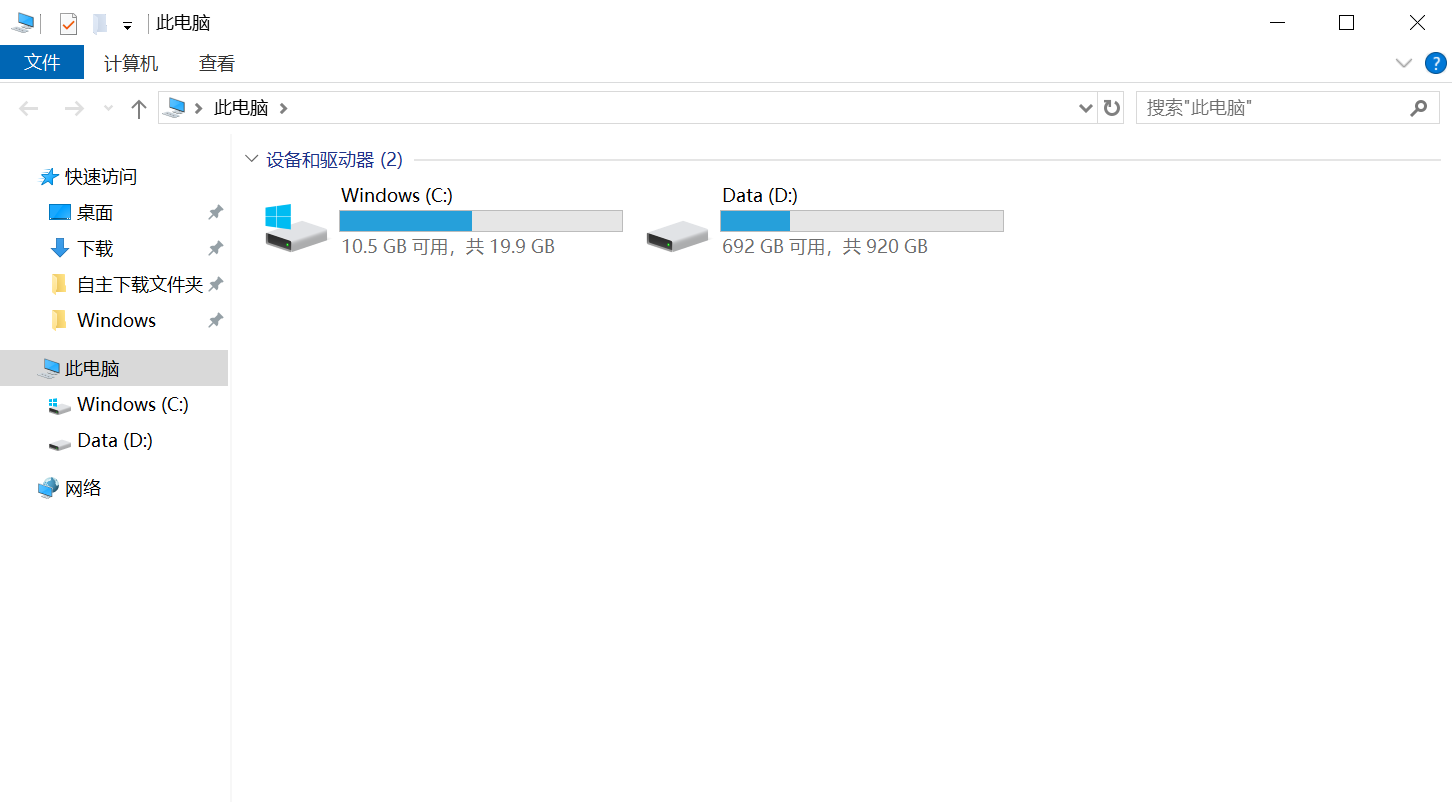
Without the clutter of folders like 3D Objects, Downloads, Music, Pictures, Videos, Documents, etc., wouldn’t you like to give it a try?
Today, I’ll show you how to hide these annoying folders!
Let’s cut to the chase and get started!
Get the Registry Files
By modifying the Windows Registry, we can hide them.
Follow me and reply “hide” in the background to get the complete set of .reg files.
Import the Registry Files
Simply double-click to import the registry (.reg) files.
Open File Explorer
After importing the registry files, open File Explorer, and you’ll see that all the common folders are now hidden.
Are They Deleted?
No, no, they haven’t been deleted—just hidden. The actual locations of these folders are:
C:\Users\YourUsername\