How to merge partitions?
How to Merge Partitions?
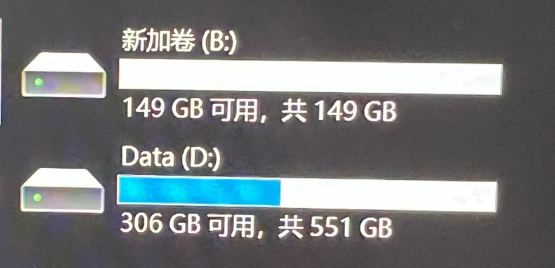
As shown in the image, I want to merge drives B and D. Is there a universal solution?
Before Merging, Keep a Clear Head!
Why is that? Because if both partitions you want to merge contain data, you need to proceed with caution!
For example:
I want to merge drives D and E. Drive D contains my office files, while drive E is where my installed software resides.
What happens if I merge them?
- Drive E disappears, leaving only a merged drive D.
- All files and software programs from drive E are moved into drive D.
- All links pointing to drive E (including software shortcuts, symbolic links, and soft links) will break!
Data is invaluable, and sometimes the location of data is equally invaluable. Think twice before merging partitions!
The Ideal Scenario
What is the ideal scenario for merging partitions?
One partition has data, and the other partition is empty.
In this case, there are no worries when merging.
Using DiskGenius or Windows Disk Management, we can easily merge two partitions together.
Disk Management
Using Disk Management for merging has certain technical limitations.
The empty partition with no data must immediately follow the other partition you want to merge.
Please note, it must be immediately adjacent.
Right-click the Windows logo and open Disk Management.
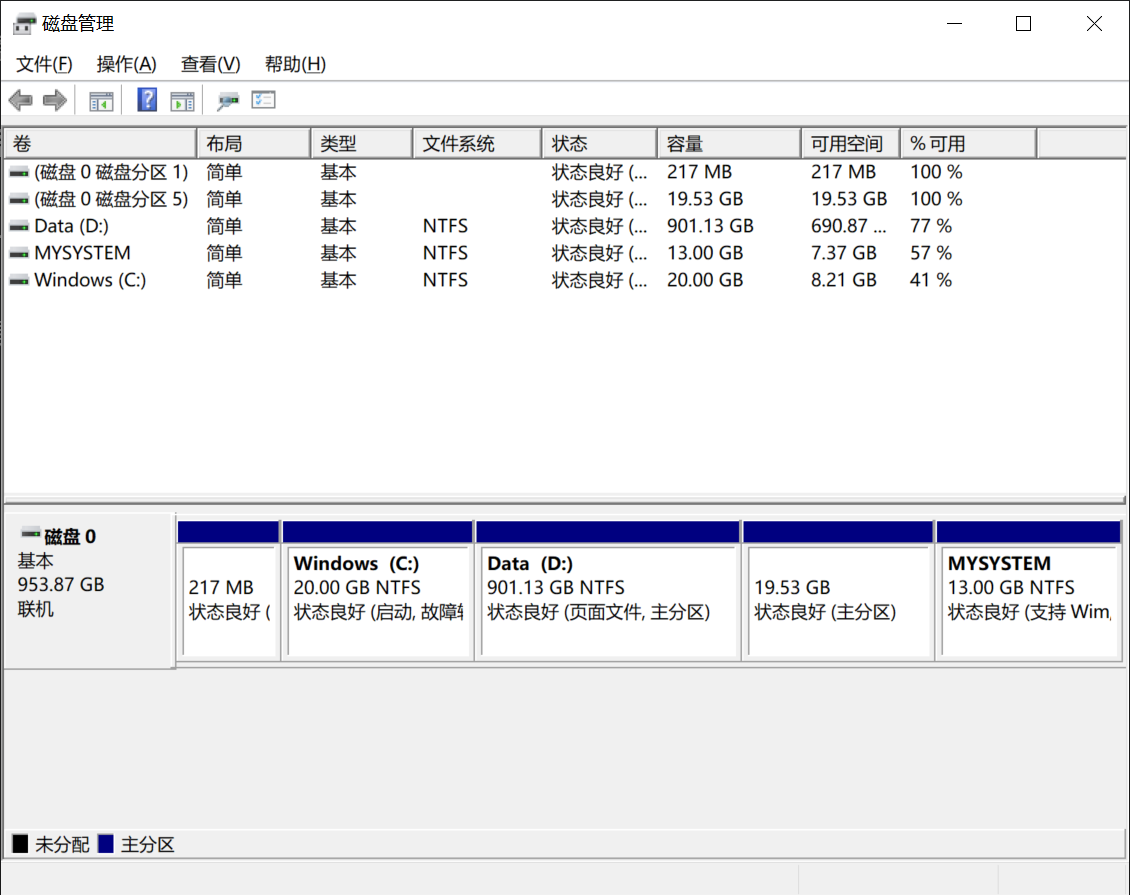
In this image, drives D and C are adjacent. Drive D directly follows drive C.
Under these conditions, you can directly use Disk Management to merge drive D into drive C.
However, this will delete all data on drive D!
Right-click drive D and select “Delete Volume”
Confirm the deletion of drive D.
Again, this will delete all data on drive D!
At this point, drive D’s space will become unallocated.
Right-click drive C and select “Extend Volume”
Click “Next” all the way through.
This will merge drive D’s space into drive C.
DiskGenius
With DiskGenius, you can freely merge any two partitions on the same disk without worrying about whether they are adjacent.
- Open DiskGenius, right-click the empty partition with no data, and select “Delete Current Partition”
- Click “Save Changes” in the top-left corner
- After DiskGenius finishes, right-click the newly created gray free space and select “Allocate Free Space To” → drive C (or whichever drive you prefer)
- Confirm all the way and wait for DiskGenius to complete.
DiskGenius does not offer a direct “Merge Partitions” feature, as such an operation would likely cause the issues mentioned at the beginning of this article.
If you want to merge two partitions that both contain data using DiskGenius, please back up the data in one partition first, then delete that partition to convert it into free space before proceeding.
AOMEI Partition Assistant
Unlike DiskGenius, AOMEI Partition Assistant offers a “Merge Partitions” feature. However, this feature also has certain limitations, and the underlying logic of AOMEI’s implementation is essentially to back up a partition first, delete it, and then merge a partition with free space.
AOMEI Partition Assistant can only merge two adjacent partitions.
If the total size of files in the second selected partition exceeds the remaining space of the first selected partition, the merge will fail. This is because, before merging, AOMEI copies all files from the second selected partition into the first selected partition. Therefore, AOMEI Partition Assistant’s merge feature has quite a few limitations.
Additionally, here’s a known issue with AOMEI Partition Assistant: For GPT partition table disks, AOMEI still offers the “Rebuild MBR” option and claims it can succeed. This is likely a minor bug in the software.