Windows updates are annoying, but not updating is worse? Here's an optimal solution!
Windows Updates: Annoying but Necessary? Here’s the Optimal Solution!
Windows updates can sometimes be a real headache. With minor updates every few days and major ones every week, they often disrupt our normal work and study routines.
What’s more, Microsoft (aka “Mighty Hard”) can be a bit careless at times, releasing problematic updates that make your PC less stable than before—or even cause system crashes. This has been jokingly referred to as “Bug11’s new bugs.”
That said, if you forcibly prevent Windows from updating, you often miss out on timely security fixes and the latest features.
So how do we strike a delicate balance between the pros and cons of Windows updates to maximize the benefits?
Here’s a pretty solid solution.
In simple terms, the philosophy of this solution is: Switch from “many small meals” to “feast and famine.”
Humans can’t do this, but Windows can : )
Since frequent small updates might introduce bugs, why not wait until a bunch of smaller updates have accumulated and stabilized, then install them all at once?
So, the core idea is:
Manually and permanently disable the Windows Update service, wait for a period (recommended 2–3 months), download a Windows update rollup package, re-enable the Windows Update service, manually install the updates offline using the package, and then permanently disable the Windows Update service again.
Here’s the step-by-step guide.
Permanently Disable Windows Update
I recommend using the handy little tool Wub.exe. Its interface is extremely simple and needs no detailed explanation.
Follow me and reply with the keyword “wub” in the official account to get the download link.
Click Disable Updates to permanently disable the Windows Update service.
2–3 Months Later… Waiting…
Download the Windows Update Package
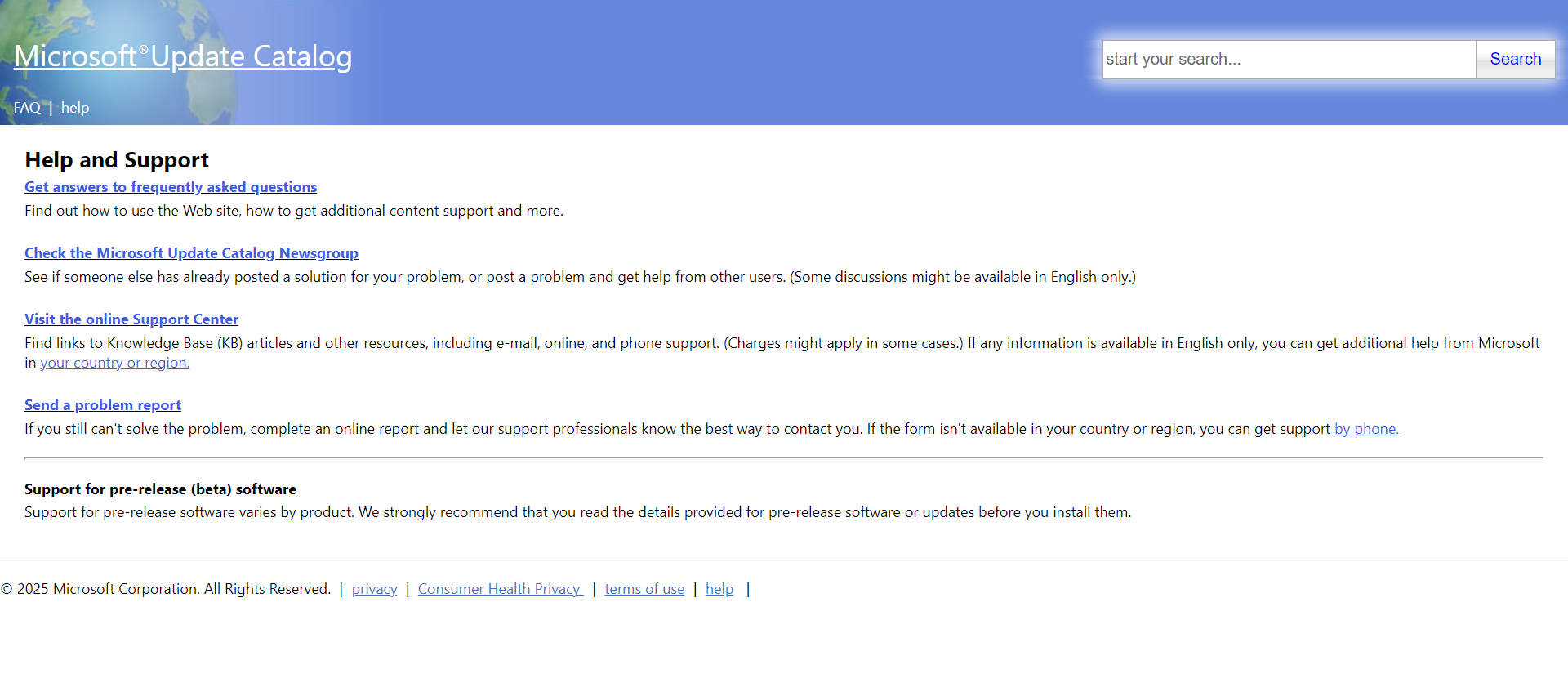
How do you download a Windows update package in your browser? You need to find Microsoft’s official channel: Microsoft Update Catalog.
Microsoft Update Catalog
https://www.catalog.update.microsoft.com/Support.aspx
Open the webpage, search for the KB number of the Windows update you need, and download the corresponding .msu package.
So, how do you find the KB number of the latest Windows update package?
Check Microsoft’s Windows 10/11 release information page.
Windows 10 release information:
https://learn.microsoft.com/en-us/windows/release-health/release-information
Windows 11 release information:
https://learn.microsoft.com/en-us/windows/release-health/windows11-release-information
From these pages, you can find the KB number of the latest update package for your system version.
Example:
- Test Windows system: Windows 10 LTSC 2019.
- Get the current OS build number and version:
- Press the keyboard shortcut:
Win + R - Type:
winver, press Enter - Check the OS build number (e.g., 17763.913)
- Check the version number (e.g., 1809, 22H2, 24H2, etc.)
- Press the keyboard shortcut:
- Open the Windows 10 release information page.
- Find the release history list for your Windows version.
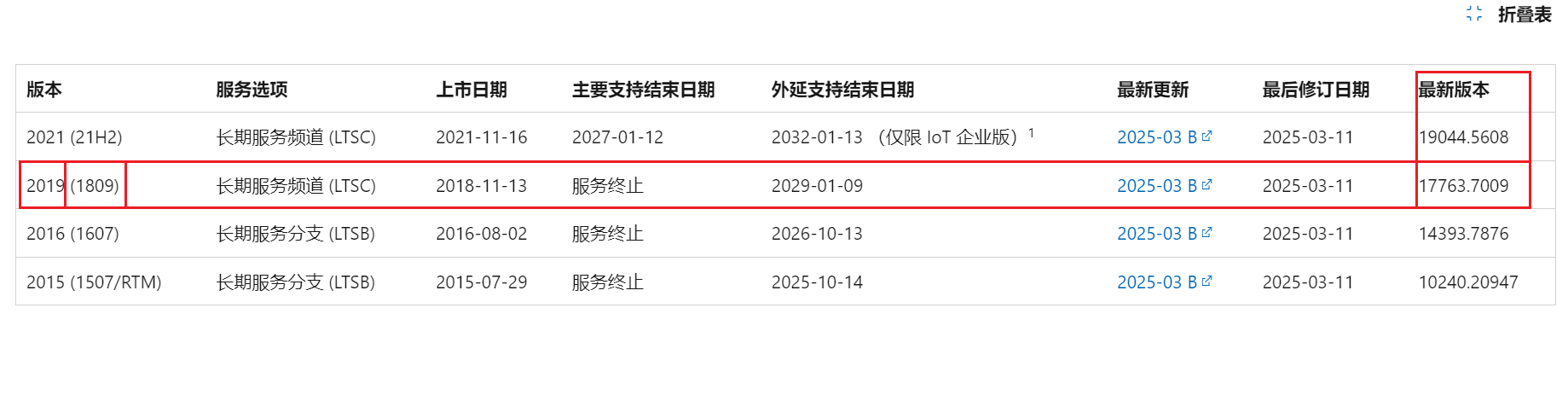
- You can see the latest version is: 17763.7009
- Scroll down to find
Windows 10 release history, then locate the table corresponding to your version and build number.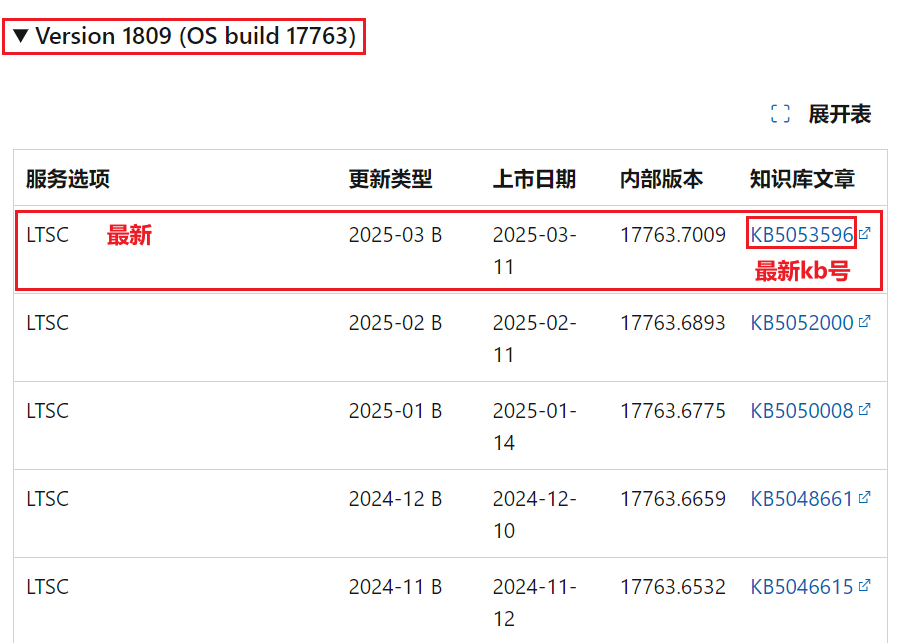
- You can see that
KB5053596is the latest update package for your system. - Open the Microsoft Update Catalog.
- Search for KB5053596.
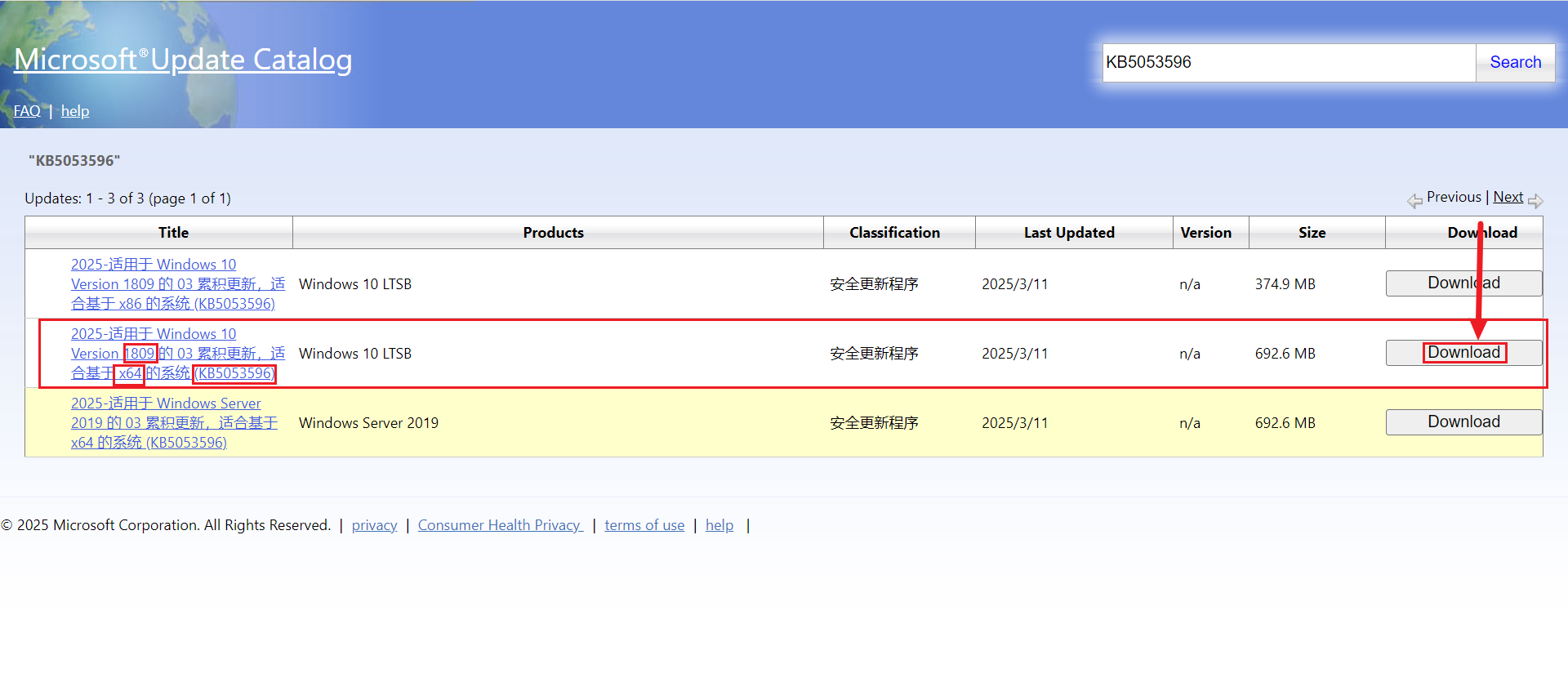
- Download the appropriate update package. Make sure the version number, KB number, and OS architecture (x86/x64) match your system. Click Download.
- You’ll get an .msu package. Open the Wub tool, unlock Windows Update and allow the service, then restart your PC to apply the changes.
- After restarting, double-click the downloaded .msu package to run it. The update will install automatically.
- Follow the prompts to restart when needed.
- After installation, run the Wub tool again and disable updates.
If you’re satisfied with the updated system, you can run the Disk Cleanup tool, clean up system files, delete the Windows update cache, and free up space on your C drive.
Will This Cause Missing Intermediate Updates?
Some might ask: If you only install the latest update from Microsoft, won’t you miss all the updates between the last one you installed and this one?
In fact, Microsoft has introduced an update strategy called Cumulative Updates.
Cumulative Updates:
Each system update package includes all previous update packages.
It is essentially the sum of the current package and all prior packages.
So, there’s no need to worry about missing intermediate updates.