No Reinstall | The Easiest Windows Edition Conversion Method
No Reinstall | The Easiest Way to Convert Windows Edition
When you’re using Windows Home edition, you’ll notice:
- No Group Policy Editor (gpedit.msc)
- No BitLocker full-disk encryption control panel
- No Remote Desktop
- No Hyper-V virtualization technology
- No Windows Sandbox
- Windows Defender only offers basic protection
- No ReFS file system support
- Unable to encrypt folder contents
Additionally, Windows 10/11 Home edition only supports up to 128GB of RAM, and updates can only be paused for 3-7 days. It doesn’t support domain (AD) joining.
(Though most of us probably won’t need these features…)
But instead of putting up with all these limitations, why not convert your system directly to the most feature-rich Windows Enterprise edition?
Windows Edition Conversion
I recommend two conversion tools:
- HEU KMS Activator.exe
- MAS_AIO_v3.10.cmd
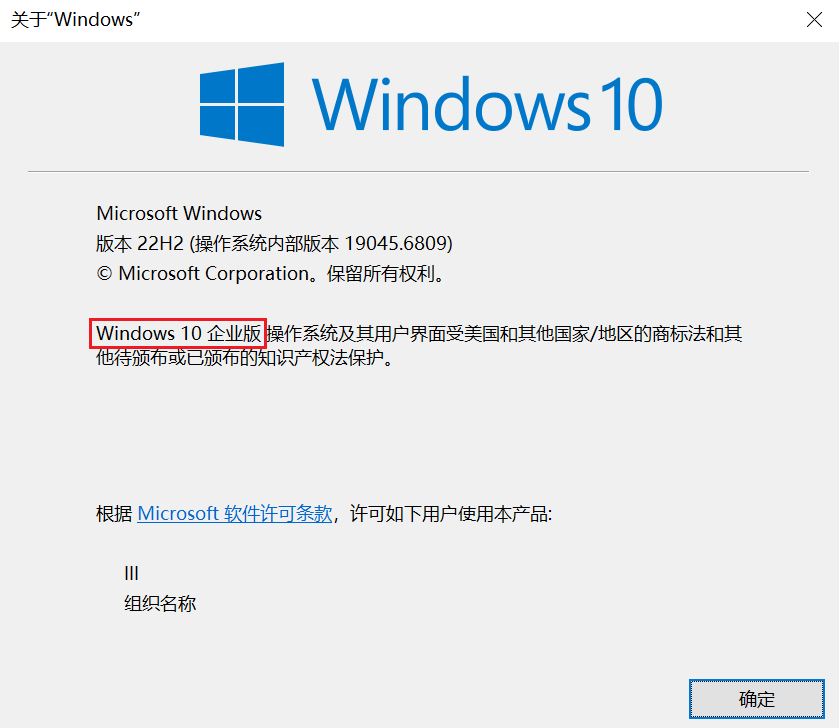
First, check what version of Windows you’re currently running. Press the keyboard shortcut
Win+R, typewinverand press Enter. A window will pop up showing your version.
These two tools are actually focused on Windows system activation. However, they also include system edition and Office edition conversion features.
For HEU KMS Activator, click the “Other” tab at the top, select the Enterprise edition, then click the button on the right to run it. Wait for it to finish, and you can easily change your system edition.
HEU KMS Activator displays all system editions by default, but not all editions can be converted. The conversion rules still follow the principles I mentioned in my previous article.
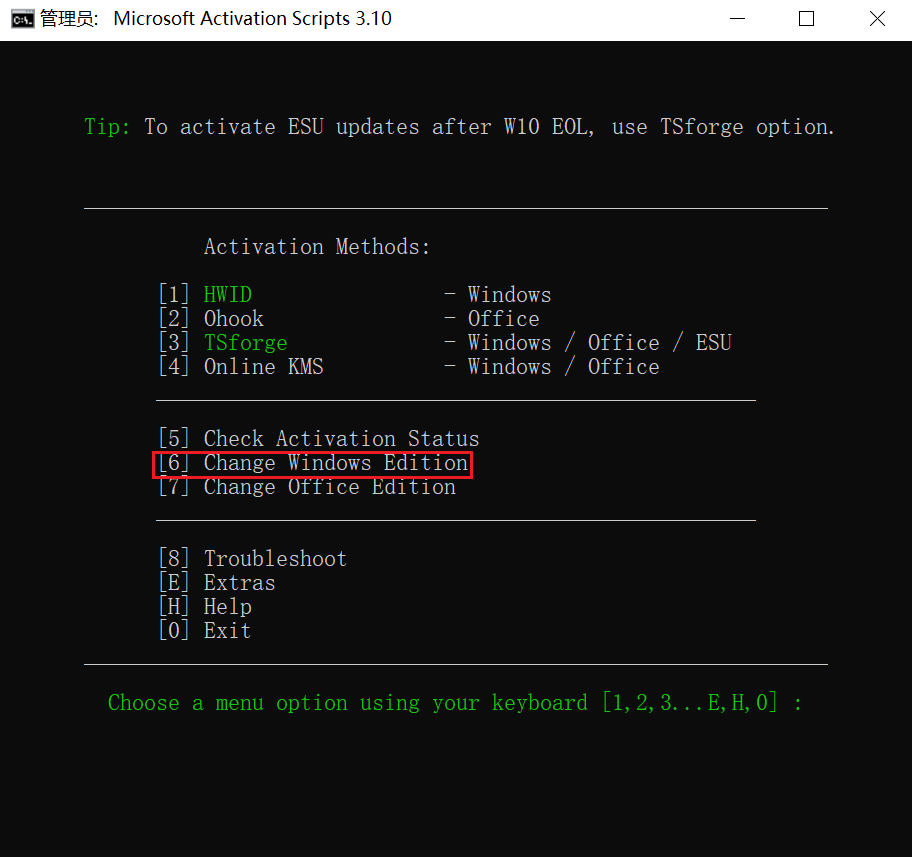
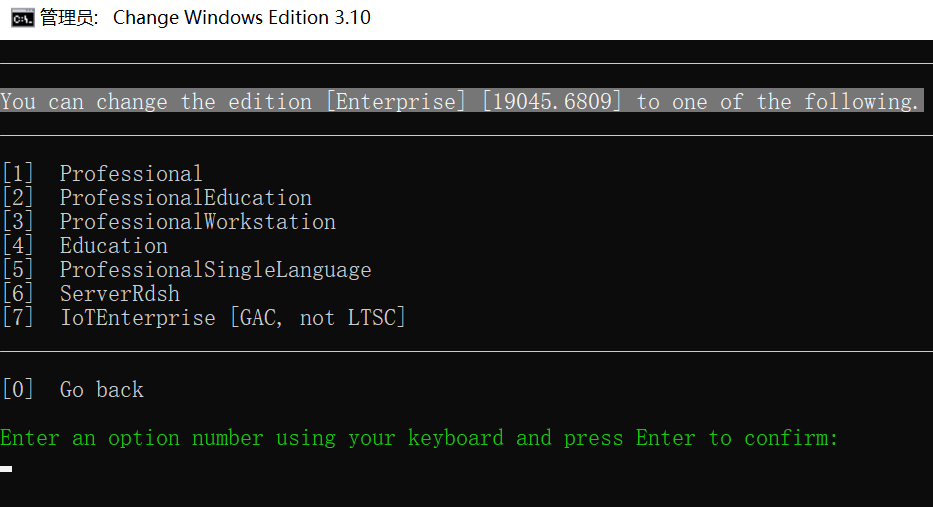
MAS_AIO_v3.10 is a bit smarter — it only lists the editions you can convert to, and won’t show editions that aren’t available for conversion.
MAS_AIO_v3.10 is slightly more complex to operate, so keep it as a backup option. If HEU has issues, we can try this one. The “change Windows edition” option is what you need to change the Windows system edition. Select “Enterprise” on the following page.
How to convert Windows edition using HEU:
- First, make sure the
Windows Update serviceis running and can update normally in Settings. - Click the “Refresh” button above the version selection box in the HEU software (without clicking it, HEU can’t determine which editions your current system can convert to).
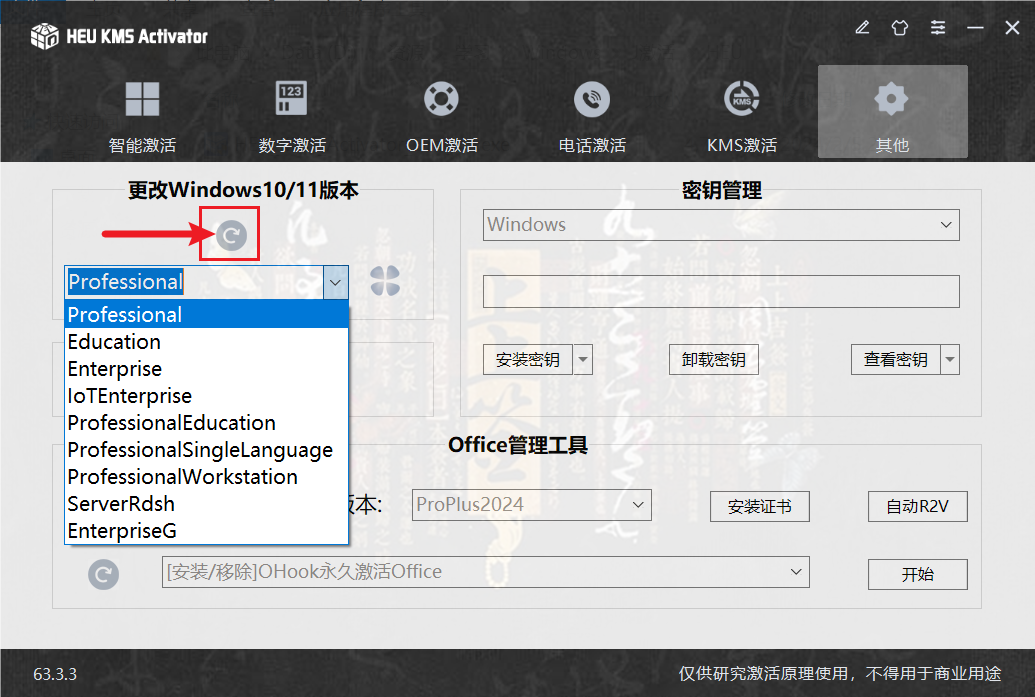
- Click the dropdown menu, select the edition you want to convert to, click “Start Conversion,” and wait a moment. Be sure to restart your computer after the conversion.
- After restarting, your Windows edition will be converted.
- Check in Settings whether the system is activated. If it shows as not activated, reopen MAS or HEU and activate the system.
This process doesn’t require an internet connection because the system underlying the convertible editions is the same. The only difference is which features are enabled or disabled.
For a comprehensive introduction to the differences between Windows editions, please read my previous article.