How to Change C Drive Partition Size? Tutorial Here!
How to Change C Drive Partition Size? A Step-by-Step Guide!
You Need to Use a PE System.
No matter what, you cannot resize the C drive partition while running the current system. Changing the partition size requires unmounting the C drive first. Once the C drive is unmounted, the current system will crash, making it impossible for the partition resizing software to run.
Unmounting the C drive does not mean deleting all data on it. Rest assured, the methods I’ll introduce will not cause any data loss.
So, you’ll need a PE system to solve this problem.
What Is a PE System?
Think of a PE system as an extremely stripped-down version of Windows. This mini system can be installed on a USB drive and carried with you wherever you go.
What Do You Need to Prepare Before Creating a PE System?
You’ll need a USB drive. Ideally, one with moderate read/write speeds. A good rule of thumb is about 1GB per 1 USD. A copy speed of around 30MB/s is sufficient.
After creating the PE system, all data on this USB drive will be erased. In other words, the USB drive will be formatted.
Actually, there is a method to create a PE system without formatting the USB drive, but there are no tutorials online for it.
I figured this out myself. If you’re interested, check out my homepage.
Additionally, you’ll need a working Windows computer.
How to Create a PE System?
Alright, now that you have a USB drive and a computer, you can create a PE system.
By the way, the full name of a PE system is Windows Preinstallation Environment.
This system was originally designed for installing Windows.
However, its rich functionality goes far beyond just installing Windows. (Like resizing partitions, as you mentioned.)
Choose a PE System
My top recommendation is: WePE Toolbox.
There are many fake websites for it online, so here’s the official link:
WePE Toolbox:
- Don’t worry, it’s free.
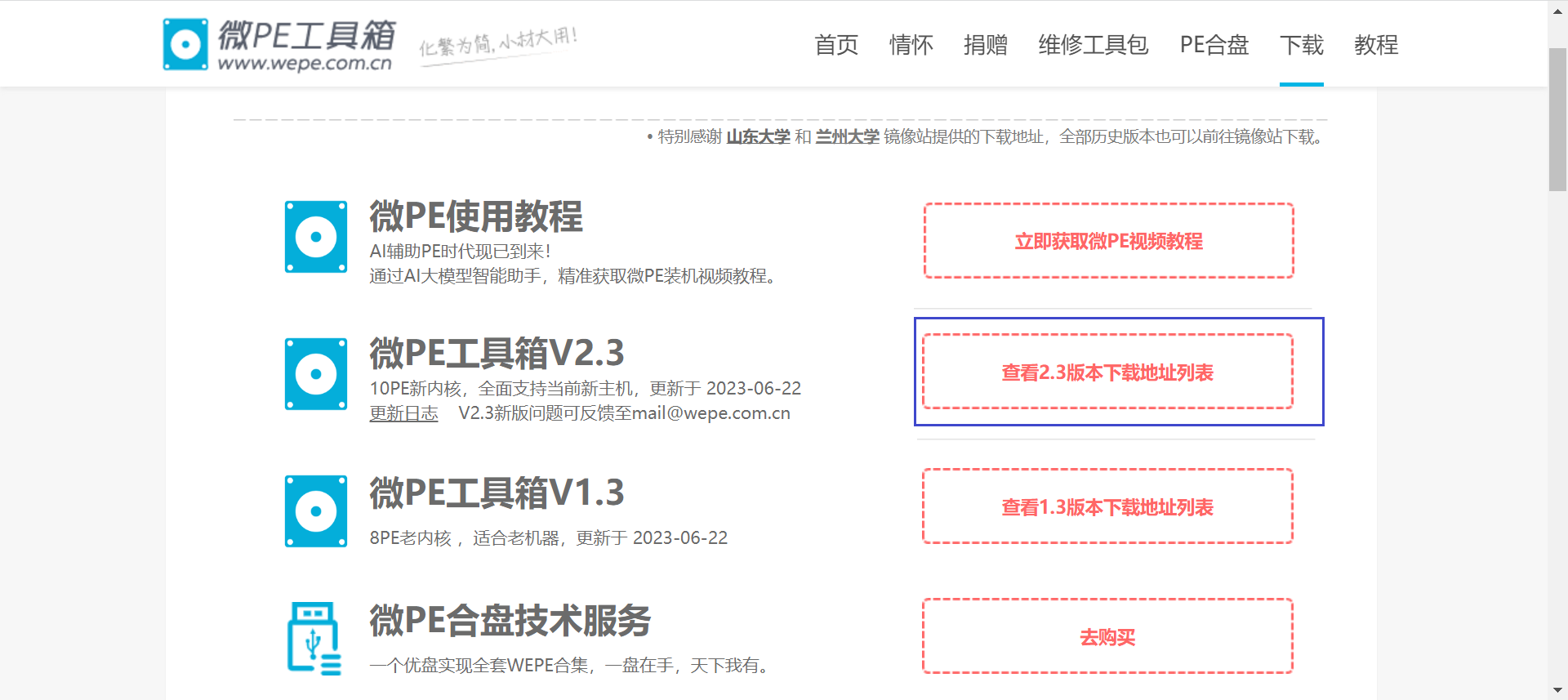
Click “View 2.3 Version Download Links” -> Skip the donation for now, and download the 64-bit installer.
Once downloaded, open the software, insert your USB drive, and create the PE system.
Click the USB drive icon in the bottom right corner (Install PE to USB Drive), then check that the target USB drive is the one you inserted. Don’t select the wrong one—because it’s about to be formatted!!!
Leave everything else as is and just install the PE to the USB drive!
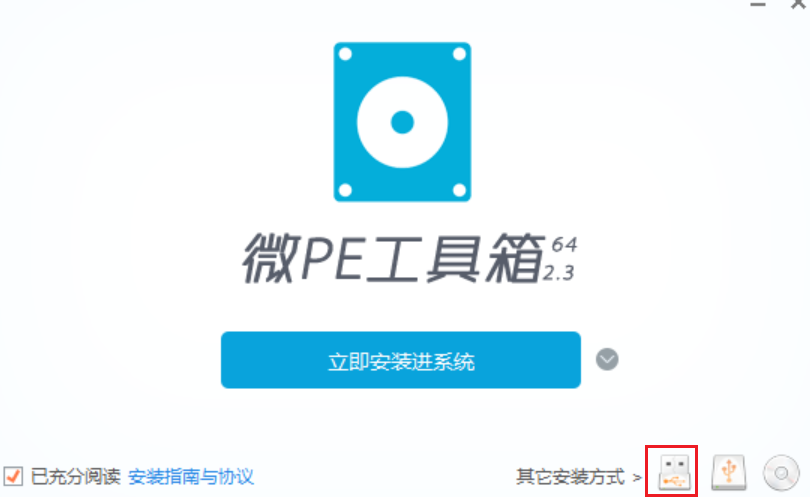
Please back up your data on the USB drive! Installing the PE will format it!
It won’t take long (1-2 minutes), and your USB drive with the PE system will be ready.
Booting into the PE System
This step can be tricky or easy, depending on your computer model.
First, shut down your computer and insert the USB drive.
Then, look up your computer’s boot key online.
For example, if you have a Huawei computer, search “Huawei computer boot key,” and you’ll find the answer is F12 (Lenovo is also F12). The same logic applies to other computers.
Once you know the key, press the power button, then immediately and repeatedly press the boot key. (If your keyboard has an Fn key, you may need to press both the boot key and Fn simultaneously.)
You should see a boot menu with several items. One represents your computer’s hard drive, and another represents your USB drive.
How to tell which one is the USB drive?
The USB drive’s name is usually related to its brand, model, or capacity.
Use the up and down arrow keys to select the USB drive item, then press Enter to confirm.
You’ve now successfully entered the WePE system.
Resizing the C Drive
Now you can finally resize the C drive.
In the PE system, there’s a software called DiskGenius. Its icon is orange with a big letter G on it.
Open this software, and you’ll see various disk information.
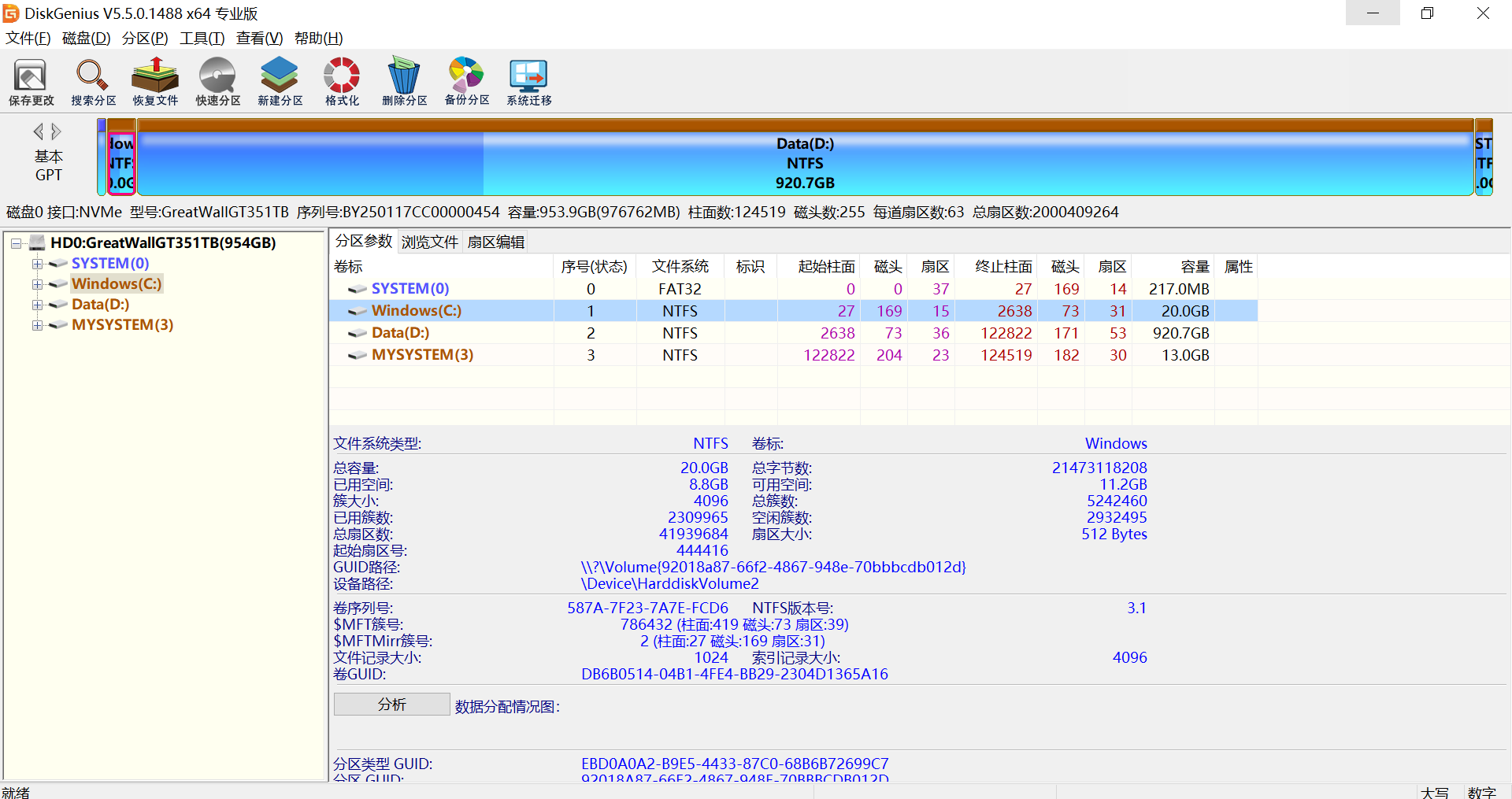
Select the D drive, right-click -> Split Partition.
In the “Space after partition” field, enter the amount of space you want to add to the C drive, and select “Keep unallocated” next to it.
Then, just click OK all the way through.
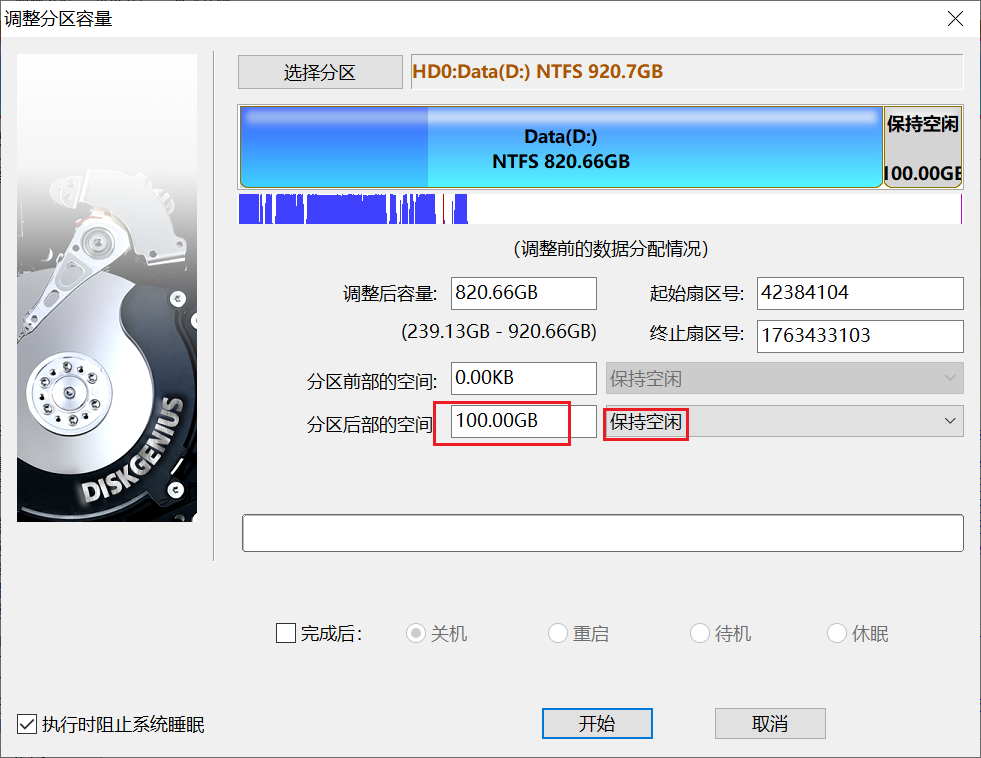
This operation won’t cause data loss, so feel free to proceed.
A gray area will appear after the D drive—this is the space you just freed up.
Now, assign this gray space to the C drive.
Right-click the gray unallocated space, click “Allocate free space to” -> C drive.
Wait a moment for the software to respond.
Then, click OK all the way through.