Unveiling the Windows Boot Process with Legacy BIOS
Demystifying the Legacy BIOS Boot Process for Windows
Series Reading Order:
- Computer Firmware Boot Principles: Windows Boot Process Part 1
- A Comprehensive Guide to UEFI Firmware Booting Windows
- In-Depth BCD File Analysis and BOOTICE Editing Guide
- Booting Windows with BIOS Firmware
- General Methods for Repairing Windows Boot
Booting Windows with BIOS Firmware
With a solid understanding of UEFI firmware, understanding how BIOS firmware boots Windows becomes much easier.
As a legacy firmware, BIOS will inevitably be phased out in the near future. However, since a significant number of computers still use this firmware, it remains worthwhile to study and understand.
Disk Requirements for Booting Windows with BIOS Firmware
Unlike UEFI, BIOS firmware has specific requirements for disks that have Windows installed. Specifically:
- The disk partition table must be MBR
- There must be an active primary partition (bootable partition)
BIOS Firmware Has No Version Requirements for Windows
How BIOS Firmware Boots
Unlike UEFI’s file-dependent booting model, BIOS firmware boots the system by executing code, making it less flexible.
Partition Tables:
Currently, there are two types of disk partition tables: MBR and GPT (also called GUID). MBR is an older partition table type, while GPT is a newer one.
BIOS firmware can only recognize MBR partition tables, while UEFI firmware can recognize both.
These two partition table types can be converted between each other without affecting the existing data on the hard drive (non-destructive conversion).
Disks using MBR partition tables support a maximum of 4 primary partitions and can only recognize disks up to 2TB. However, you can create more partitions by using logical partitions.
Disks using GPT partition tables support up to 128 partitions and can recognize disks up to 9.4ZB.
Clearly, GPT is a more advanced partition table type that offers greater flexibility in management.
As long as a disk uses the MBR partition table and is intact, it can be recognized by BIOS.
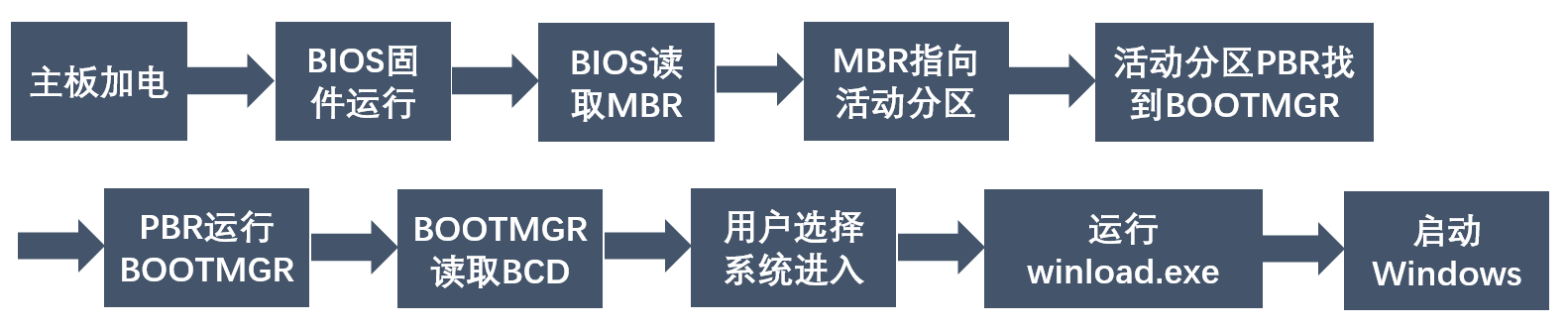
The first step in BIOS booting is to read the Master Boot Record (MBR) of the disk.
Master Boot Record (MBR)
First, note there is a naming conflict:
The Master Boot Record is called MBR. A type of disk partition table is also called MBR. To avoid confusion, we will refer to the Master Boot Record simply as “MBR” and the partition table type as “MBR partition table.”
What is MBR?
The Master Boot Record (MBR) is a piece of code stored in the first sector of a hard drive that uses the MBR partition table.
Simply put, MBR is a piece of code located in the first sector of a disk.
What Does MBR Do?
MBR has two main functions:
Records the partition structure of the entire hard drive. For example, if an MBR partition table disk has 3 partitions, information about which sectors these partitions occupy is recorded in the MBR for BIOS to read.
Records the active partition. If an MBR partition table disk has an operating system installed, the partition containing the OS may be the active partition. If the disk has no operating system and is only for data storage, the active partition is optional.
A disk with an operating system must have an active partition.
Which partition is active is recorded in the MBR using 1 byte of space.
The active partition can be manually selected using tools like DiskGenius.
So, BIOS takes its first boot step: by reading the MBR, BIOS now knows which partition is the active partition.
Everything from here on happens within that active partition.
Partition Boot Record (PBR)
The Partition Boot Record (PBR) is, like MBR, a piece of code.
It continues the work started by the Master Boot Record and is responsible for the next step in booting the system.
If MBR manages the entire disk, PBR manages its own partition.
For disks using MBR partition tables, every partition has its own PBR. The PBR is located in the first sectors of its partition.
The PBR of a regular partition stores various parameters about that partition, such as the file system type, partition size, etc.
The PBR of the active partition also stores the location of
BOOTMGR.
What is BOOTMGR?
BOOTMGR is a file, the Windows Boot Loader, a program that runs within the BIOS environment. It is the counterpart to bootmgfw.efi.
In other words, BOOTMGR is equivalent to bootmgfw.efi in UEFI firmware. They have similar functions, both serving as the Windows Boot Manager.
Its location is fixed: it can only be in the root directory of the active partition, because the PBR expects it to be there.
One of the functions of the active partition’s PBR is to find BOOTMGR and execute it.
Once BOOTMGR runs, the process becomes largely similar to the UEFI boot flow.
How BOOTMGR Works
BOOTMGR is typically located in the root directory of the active partition, which is usually the C: drive. So it’s generally found in the C: drive root.
It is a protected operating system file. Even if you enable “Show hidden files” in File Explorer, it won’t be displayed unless you also uncheck “Hide protected operating system files.”
This is because it is critical for Windows booting.
BOOTMGR’s role is the same as bootmgfw.efi in UEFI: read the BCD file and display the operating system menu listed within it.
In BIOS mode, the BCD file is located in the boot folder of the active partition. Typically, this is C:\boot\BCD.
Editing the BIOS BCD File
Compared to the BCD file in UEFI, there is only one difference:
- The boot file becomes
\Windows\system32\winload.exe
All other configurations are the same as in UEFI.
This makes sense. UEFI must run .efi programs, hence winload.efi. In BIOS, the program to run can only be winload.exe.
After BOOTMGR displays the menu from the BCD file, the user selects a valid system and presses Enter.
Then, based on the information in the BCD file, BOOTMGR runs winload.exe, located in the \Windows\System32 folder.
After that, winload.exe loads the Windows operating system kernel.
The BIOS boot process ends here.
UEFI Boot Flowchart
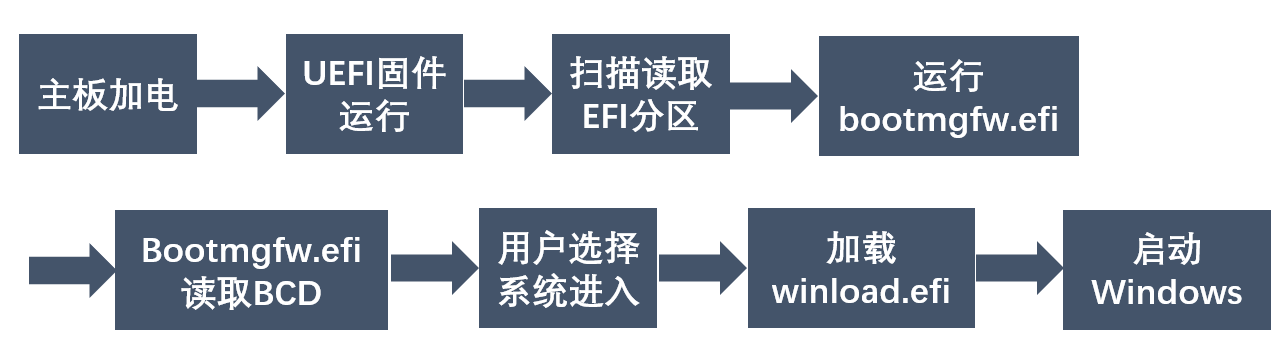
BIOS Boot Flowchart
Series Reading Order:
- Computer Firmware Boot Principles: Windows Boot Process Part 1
- A Comprehensive Guide to UEFI Firmware Booting Windows
- In-Depth BCD File Analysis and BOOTICE Editing Guide
- Booting Windows with BIOS Firmware
- General Methods for Repairing Windows Boot