Install Multiple Operating Systems with BIOS Firmware
Installing Multiple OS on BIOS Firmware
Previously, I detailed how to install multiple OS on UEFI firmware. This time, I’ll introduce the principles and methods for installing multiple OS on BIOS firmware.
Let’s first consider the differences between BIOS and UEFI.
Installing Multiple OS on UEFI
- Requires an EFI partition (FAT32 file system type) to store boot files
- Each OS occupies one disk partition
- Requires configuring the BCD file within the EFI partition
Installing Multiple OS on BIOS
- No EFI partition required
- Each OS occupies one disk partition
- Requires configuring the BCD file within the active primary partition
So, what are the key considerations for installing multiple OS on BIOS firmware?
What should be placed in the active primary partition on the disk?
Disk partition layout (depends on the number of OS installations)
- This article covers installing three Windows 10 systems
Should the OS be installed on a primary partition or a logical partition?
How to configure the BCD?
If you can clearly describe the boot flow for multiple OS on BIOS, answering the above questions should be straightforward.
BIOS Firmware Multi-OS Boot Flow
We need to be clear about the following:
The MBR is unique (since there is only one disk)
The active primary partition is unique
- Remember what role the active primary partition plays during the BIOS boot process?
That’s right—it stores the
bootmgrOS boot loader and the\boot\BCDBCD file in its root directory. Beyond that, the active primary partition has no other function. Therefore, Windows systems do not need to reside in the active primary partition. In other words, we can place only the
bootmgrandbootfolder in the active primary partition. Then, we configure the BCD file to redirectbootmgrout of the active primary partition. Windows systems can be installed on non-active primary partitions and logical partitions. By properly configuring the BCD file, we can boot Windows from any partition.
Thus, the BIOS firmware multi-OS boot flow is:
BIOS reads the MBR and locates the active primary partition
The PBR of the active primary partition finds
bootmgrin its root directory and launches itbootmgrlocates and reads the BCD file at\boot\BCDwithin the same partitionbootmgrlists all OS entries from the BCD file and presents them to the user for selection
By sharing a common boot loader, the BCD file is read to differentiate boot paths, ultimately directing to the OS in the target partition.
Creating Multiple OS on BIOS Firmware
With an understanding of the BIOS firmware multi-OS boot flow, creating multiple OS setups becomes easy.
Example: Installing Three Systems
Disk Preparation
- Partitions: Three partitions, each large enough to install an OS. I divided them into: two primary partitions and one logical partition. Partition names: primary partitions: m1, m2; logical partition: e1
- Use DiskGenius. Activate one primary partition (m1), then rebuild the Master Boot Record (MBR)
Use WinNTSetup to install the systems into the m1, m2, and e1 partitions respectively. Note that the boot drive must always be the active primary partition (m1)
- WinNTSetup will automatically create and modify the BCD file for us, no manual intervention needed.
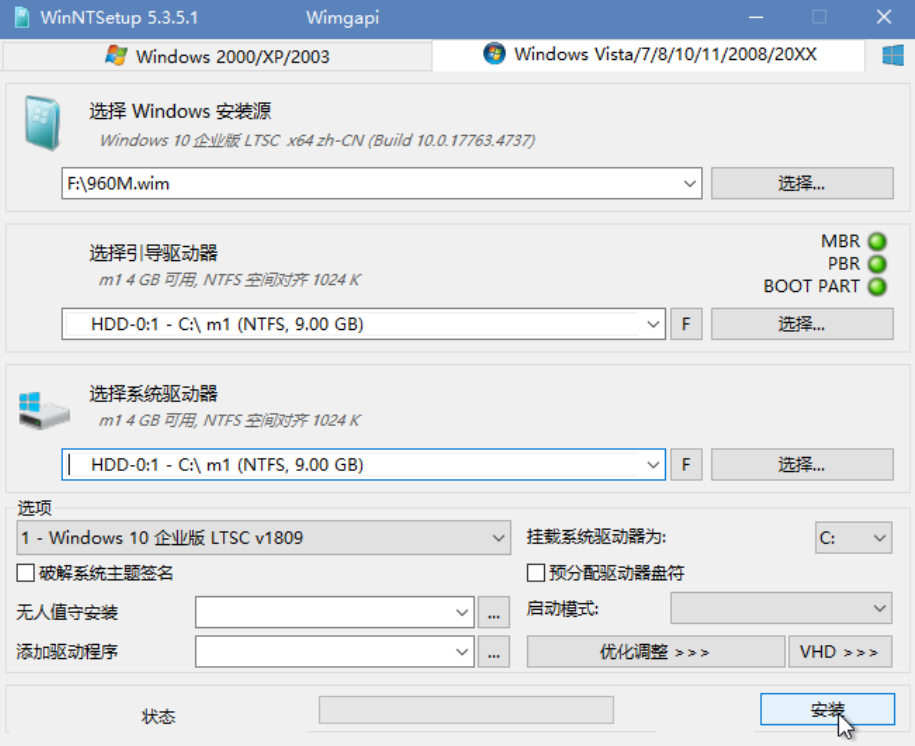
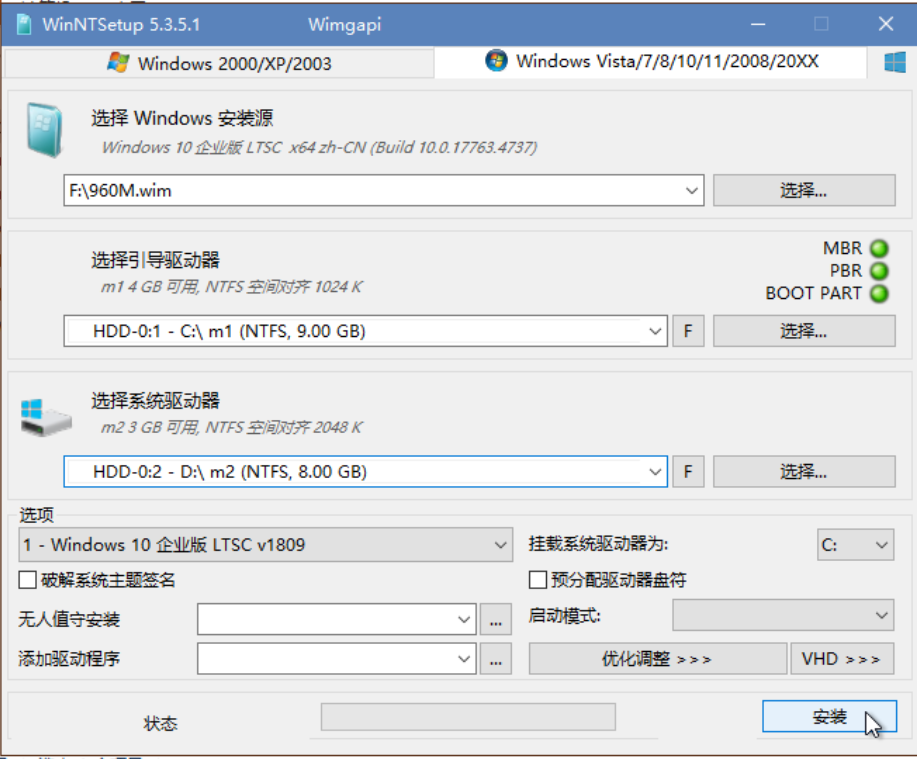
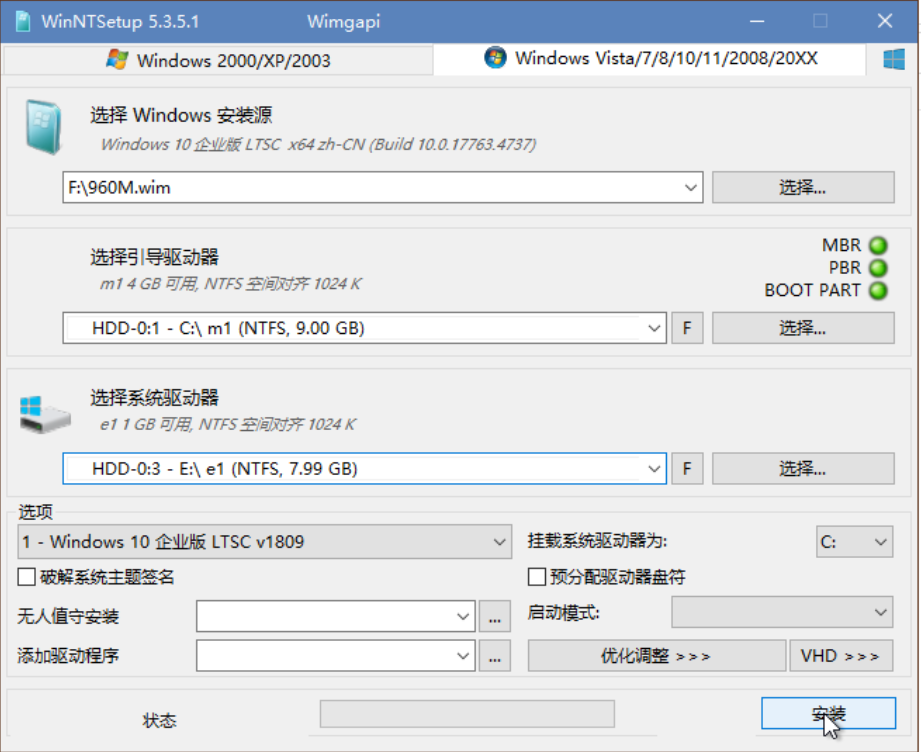
- Open BOOTICE, edit the BCD file, and rename the entries to m1, m2, and e1 based on partition names for easy management.
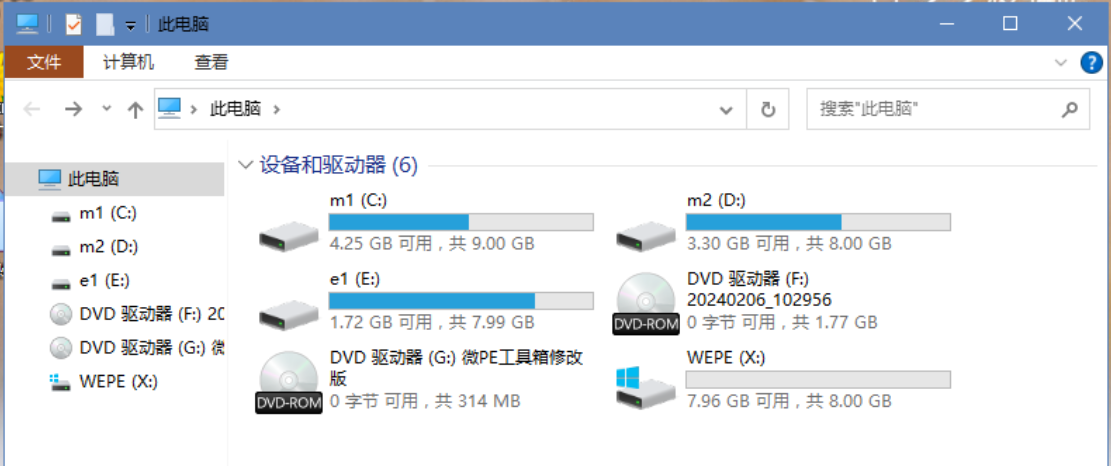
- Restart the computer, initialize m1, m2, and e1 respectively, and complete their OOBE (Out-of-Box Experience) process.
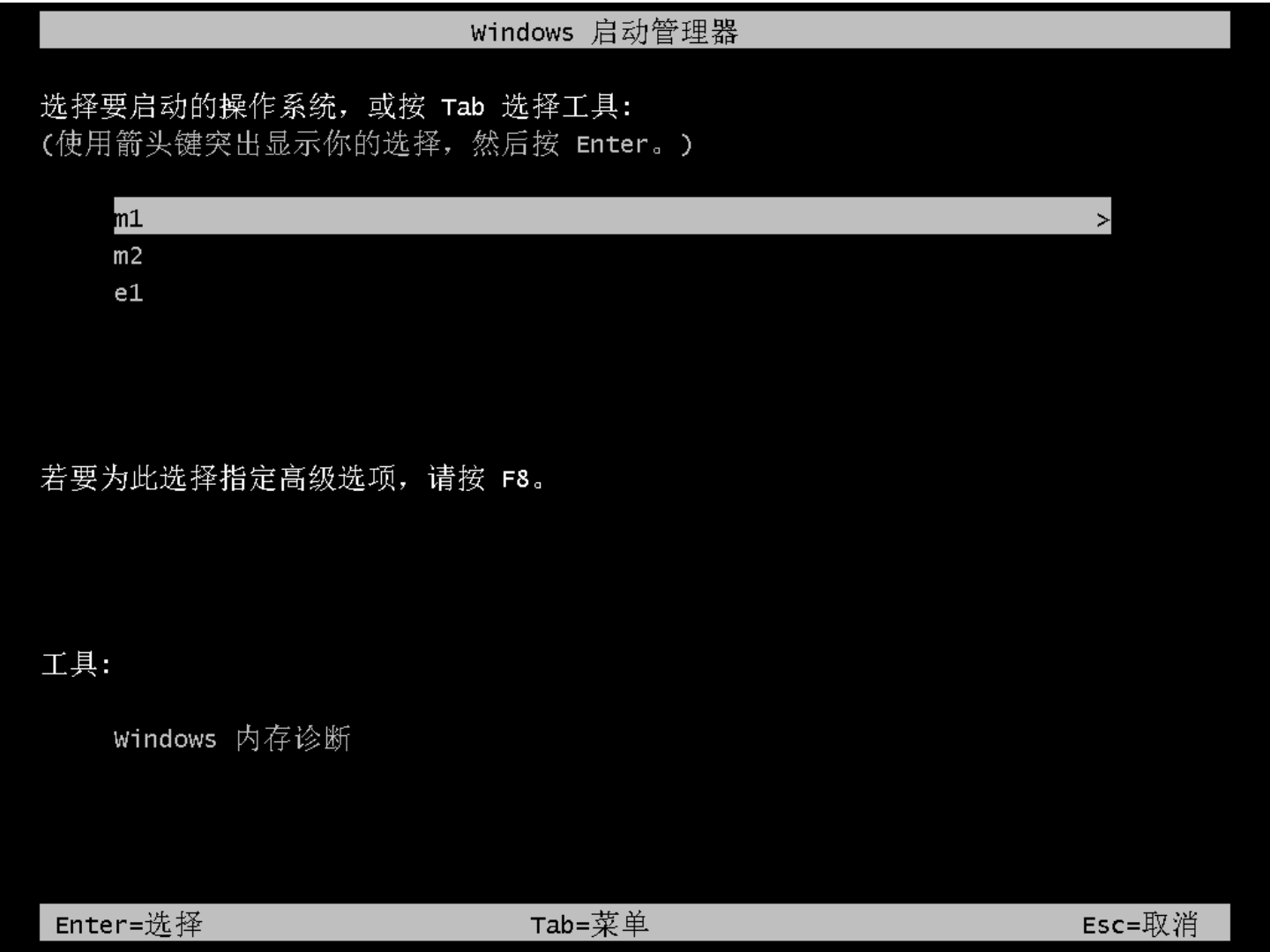
Analysis
We use the bootmgr in the root directory of the active primary partition (m1) and the BCD file at \boot\BCD within m1 to boot all systems. If either of these two files in the m1 partition becomes corrupted, all systems will fail to boot.