Analysis and Exploration of the Differences and Essence of Three Boot Menus
Analysis and Exploration of the Three Boot Menus
Are you still confused about the true nature of these three boot menus?
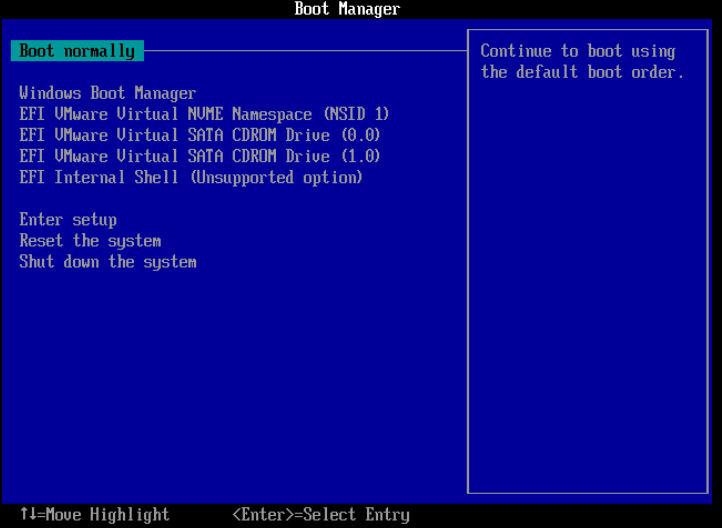
One looks very old and clunky, with a large blue background and ugly fonts;
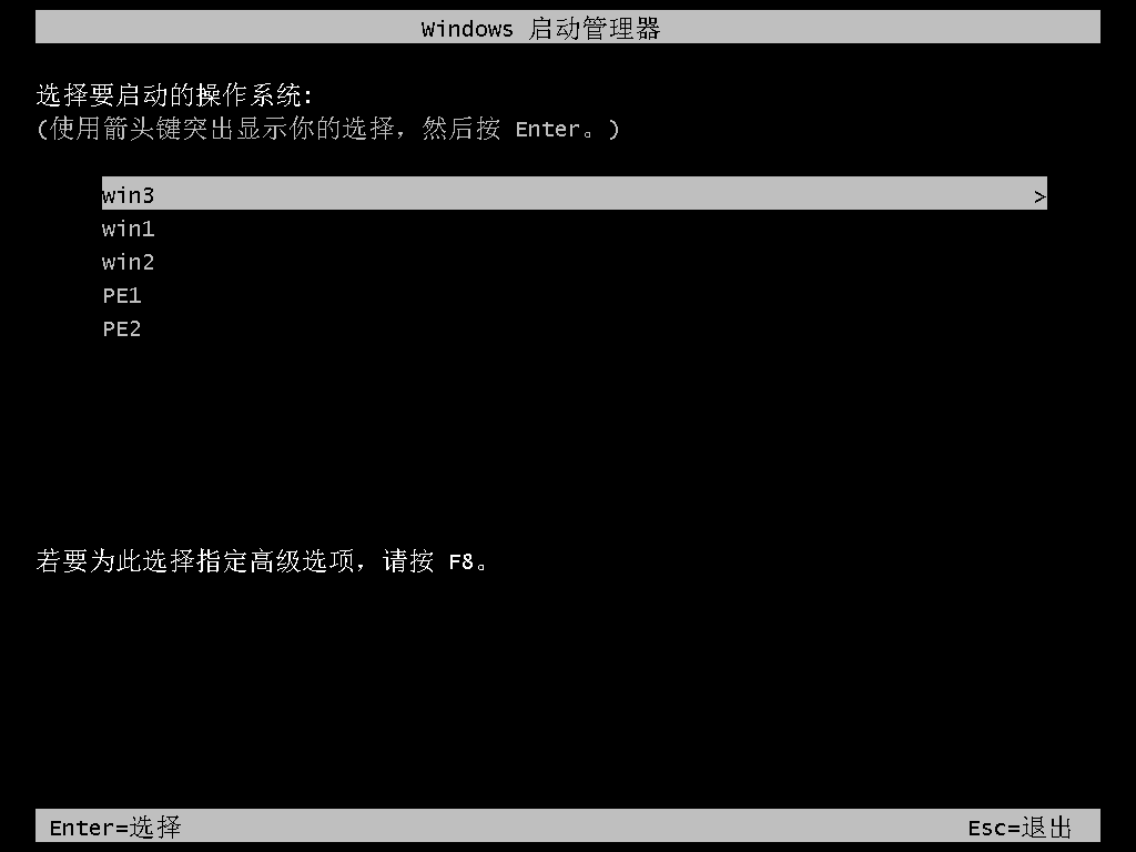
Another looks outdated, with a black background and white text, resembling a computer from the ancient era about to crash (
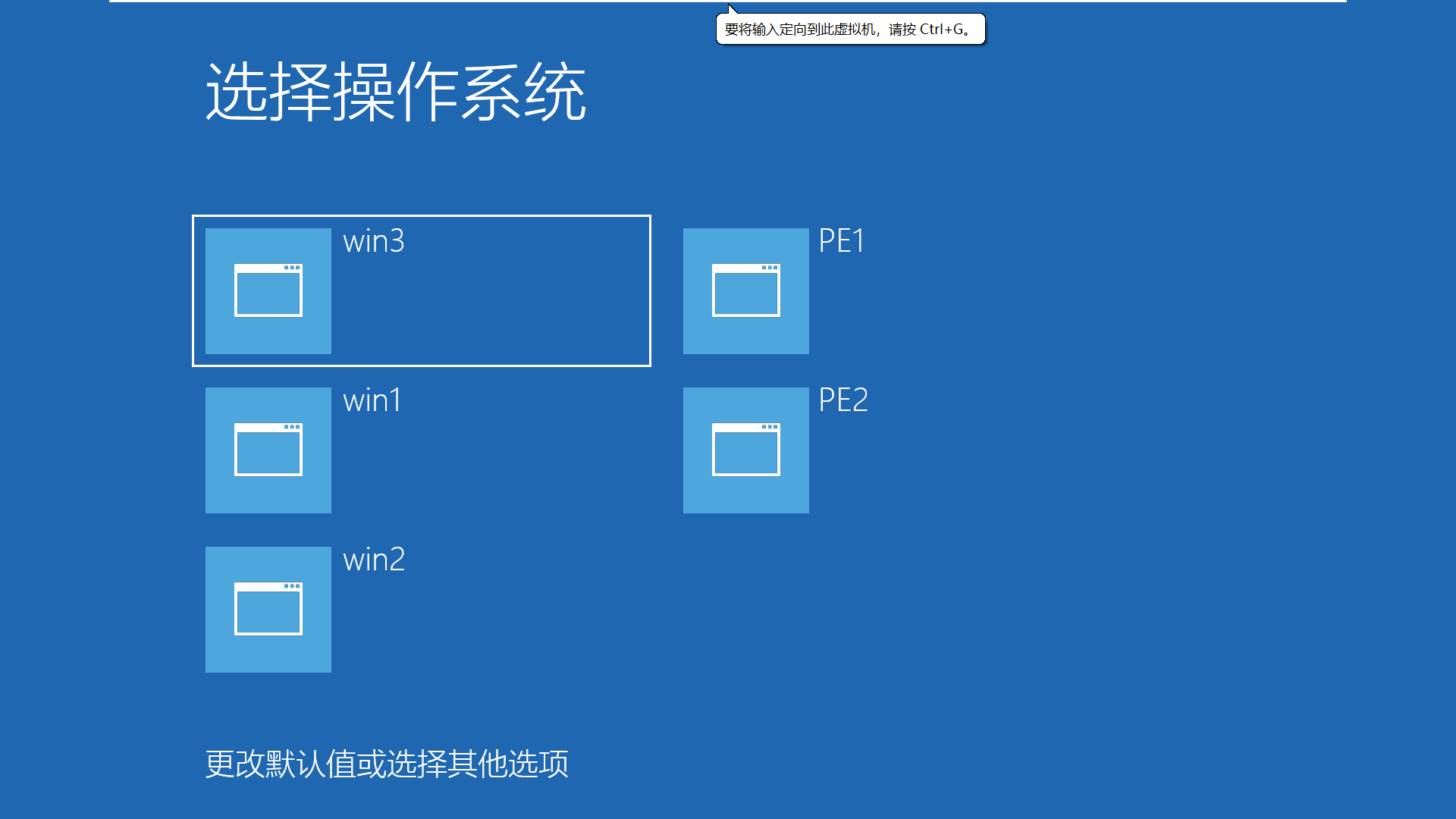
The third one, however, looks premium and sophisticated—elegant, minimalist, with a Metro-style design and a strong business feel.
(Not to mention, the same blue background can evoke such different impressions :)
Now let’s explore what each of these three boot menus is associated with.
UEFI Boot Menu
The old, clunky boot menu with a large blue background and ugly fonts is the UEFI boot menu. If you look closely at the names of the items in this menu, they don’t seem to be names of the Windows operating system but rather names of firmware components, such as disks (NSID), USB drives, and CDROM drives.
From this, we can infer that the UEFI boot menu has little to do with the Windows operating system, right?
In fact, there is very little connection between them. Remember the role of UEFI firmware when booting the operating system? It loads the EFI program.
Step one: Find partitions with file systems that UEFI can recognize. This essentially means locating partitions formatted with FAT32, FAT16, or FAT12.
Step two: Find EFI programs within those partitions. Of course, UEFI firmware doesn’t blindly search for EFI programs; it follows a fixed directory structure. This directory structure is explained in detail in my 19th article: “Windows Computer Boot Process Analysis 1.”
Through this fixed directory structure (EFI -> Microsoft -> Boot -> bootmgfw.efi), the UEFI firmware locates the bootmgfw.efi program and adds its information to the UEFI boot menu as a boot entry.
When we select a boot entry via the keyboard and press Enter, we are essentially running that EFI program.
Therefore, at the UEFI boot menu stage, there is no involvement with the Windows system’s startup process—it merely runs bootmgfw.efi.
However, bootmgfw.efi is a special EFI boot program created by Microsoft for booting Windows. Its Chinese name is “Windows Boot Manager.” We can guess that its full name might be “boot manager for Windows.”
Operating System Boot Menu
For Windows systems, after selecting the bootmgfw.efi entry in the UEFI firmware, UEFI hands over control of the computer to this program. From this point onward, until Windows successfully boots, all operations are the work of bootmgfw.efi.
The black-background, white-text “Windows Boot Manager” interface is the interface of bootmgfw.efi. It lists the names of operating systems for us to choose from and boot. So, where does this list of operating systems come from?
There are two possible guesses:
First: The list is built into the bootmgfw.efi program itself.
Second: Another file stores this list, and bootmgfw.efi simply reads that file and displays the list.
The answer is definitely the second guess. The file that stores boot information is the BCD file.
For details on configuring and editing the BCD file, refer to my 20th article: “Windows Computer Boot Process Analysis 2.”
When Microsoft released Windows 8, they increasingly felt that the black-background, white-text Windows Boot Manager was quite unattractive. Therefore, starting with Windows 8, Microsoft introduced a brand-new Windows Boot Manager interface—the modern, premium, and sophisticated light blue interface we see today: the Windows 8 Metro interface.
Thus, the Windows 8 Metro-style boot manager and the old-style black-background boot manager are essentially the same—both read the BCD and guide Windows to boot. The only difference is that after Windows 8, the boot manager got a fancy new “outfit.”
However, the stylish Metro interface has its downside: it takes longer from boot to display the Metro interface compared to the older version.
You can disable Metro mode by editing the BCD file in Bootice to speed up virtual machine booting.
After reading this article, I hope you have a deeper understanding of boot menus.