How to Convert Partition Table Type Without Data Loss? It's Actually Not One-Way!
How to Convert Partition Table Types Without Losing Data? It’s Actually Not One-Way!
During the transition between BIOS and UEFI firmware, one common task is changing the disk partition table type. Many people believe that converting a partition table is a one-way street—only from GPT to MBR.
In reality, that’s not the case. We can convert between these two partition table types without losing data.
Unlike converting from GPT to MBR, converting from MBR to GPT may require a few extra steps.
Below, I’ll walk you through how to convert disk partition tables without data loss.
GPT to MBR Without Data Loss
The tool we’ll use is DiskGenius.
- Select the disk, right-click, and choose “Convert Partition Table Type to MBR Format”
- Click “Save Changes” in the top-left corner
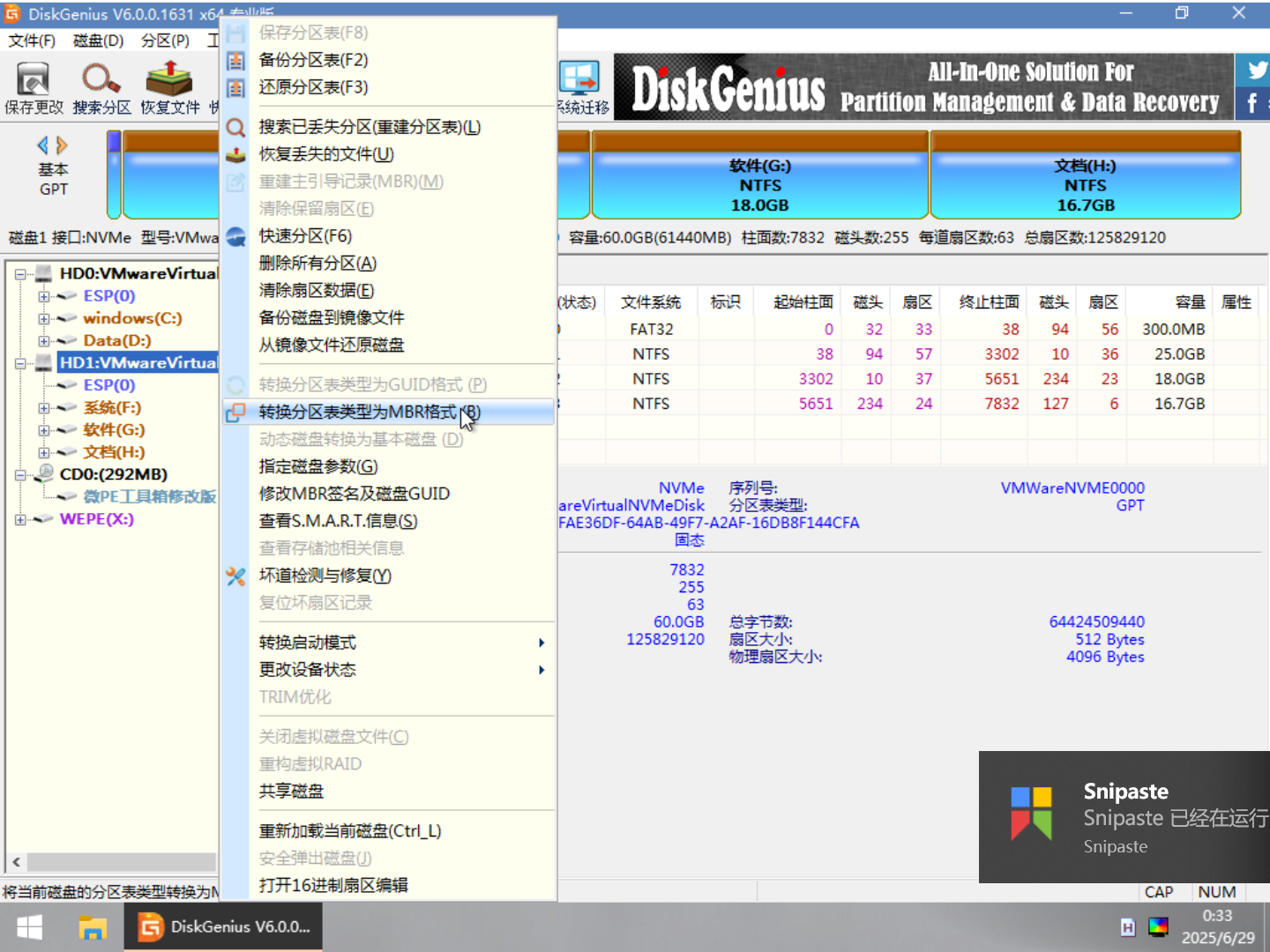
Barring any unexpected issues, the GPT-to-MBR conversion should complete successfully with no risk of data loss.
MBR to GPT Without Data Loss
If a disk originally uses an MBR partition table and you try to convert it directly to GPT using DiskGenius, you might encounter the error shown below:
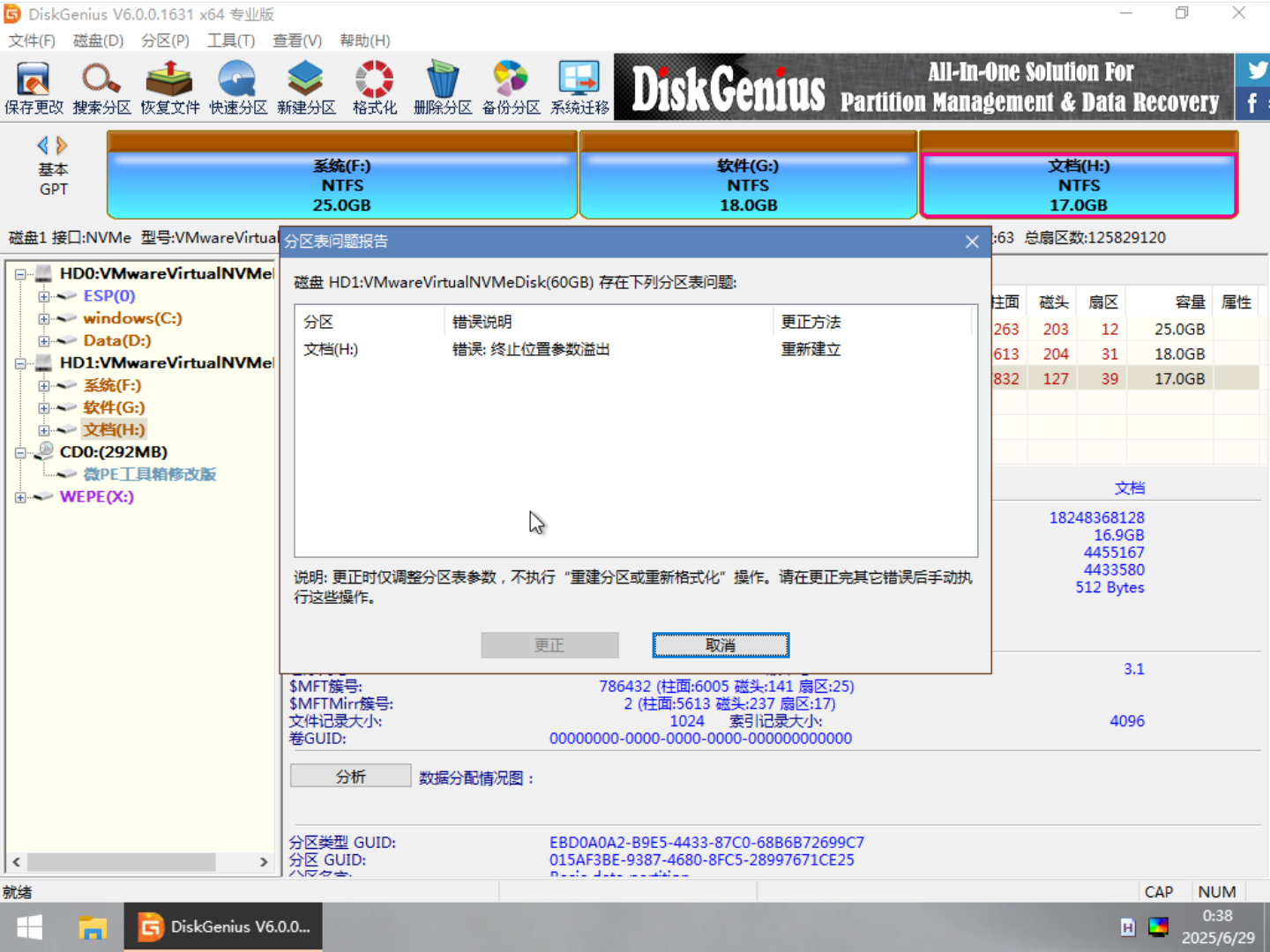
Moreover, this error cannot be fixed directly within DiskGenius.
No worries—once you understand the principles behind GPT and MBR partition tables, the solution becomes clear.
For a GPT partition table disk, there is a partition table at both the beginning and the end of the disk. These two tables are identical, with the one at the end serving as a redundant backup for the one at the beginning.
In contrast, an MBR partition table disk has no such redundant backup—there is only one partition table, located in the first few sectors of the disk.
We all know that partition tables also occupy disk sector space. Therefore, at the end of an MBR disk, there is no extra space—the end of the last partition coincides with the end of the entire disk. However, after the last partition on a GPT disk, there is still some space reserved for the redundant backup partition table.
So, we can manually create a small free space at the end of the MBR disk, and then convert it to GPT. This gives the redundant backup partition table room to exist, and DiskGenius will no longer throw an error.
Here’s how to do it:
- Right-click the last partition on the MBR disk and select “Adjust Partition Size”
- In the “Space after partition” field, enter 10 MB (I personally use 10 MB, though a GPT partition table doesn’t actually need that much)
- On the right side, choose “Keep as Free Space”
- Click “OK” all the way through
- After this operation, there will be 10 MB of gray free space at the end of the MBR disk. However, because 10 MB is so small, it may not be visible in DiskGenius. Don’t worry about it—just proceed.
The steps above have reserved 10 MB of space for the GPT redundant backup partition table. Now we can directly convert this MBR disk to GPT. The operation is the same as converting GPT to MBR.
Right-click the MBR disk you want to convert
Click “Convert Partition Table Type to GUID Format”
Note: GUID Partition Table is the same as GPT
Click “Save Changes” in the top-left corner
This way, DiskGenius will no longer report an error. The MBR-to-GPT conversion without data loss is successful.