Introduction to Basic Concepts: Physical Sectors, Logical Sectors, Clusters, and 4K Alignment
Physical Sectors, Logical Sectors, Clusters, and 4K Alignment: A Beginner’s Guide
When using tools like DiskGenius to manage disks, you’ll often encounter low-level disk concepts such as physical sectors, logical sectors, clusters, 4K alignment, the MFT table, file systems, and more. In this article, I’ll provide a detailed introduction to these topics.
Physical Sectors
A physical sector is the smallest unit a hard drive can operate on. The common size for a physical sector is 4KB.
In older mechanical hard drives, the read/write head would seek across the platter surface to retrieve data. The smallest fan-shaped area on the platter is a physical sector. It looks something like this:

These fan-shaped sectors collectively form the entire disk platter. Each small sector can typically store 4KB of data. Therefore, in most cases, a physical sector is 4KB in size.
However, this is not absolute. The amount of data a physical sector can store is determined by the hard drive manufacturer. Most manufacturers produce 4KB sectors, but some enterprise-grade drives can even reach 8KB.
You can check the physical sector size of a disk using DiskGenius. Simply click on the disk name, and the information will appear in the right-hand panel.
Logical Sectors
A logical sector is the smallest addressing unit that the hard drive reports to the operating system. Due to legacy compatibility issues, during the era of Windows XP, DOS, and similar systems, the physical sector size was 512B, not the current 4KB. To maintain backward compatibility, almost all modern hard drives report a logical sector size of 512B to the operating system.
Thus, a logical sector is a virtual construct.
You can check the logical sector size of a disk using DiskGenius. Click on the disk name, and the information will appear in the right-hand panel.
In general, if the physical sector = 4KB and the logical sector = 512B, then:
$$
4KB ÷ 512B = 4 × 1024B ÷ 512B = 8
$$
This means each physical sector is evenly divided into 8 parts, and 8 logical sectors make up one physical sector.
Hard drives fall into two categories: 512e drives and 4Kn drives.
- On 512e drives: 1 physical sector = 8 logical sectors (512 emulate).
- On 4Kn drives: logical sector = physical sector = 4KB (4K native).
Most hard drives are 512e, while some newer models are 4Kn.
Clusters
A cluster is the smallest unit a file system uses to allocate files. The common cluster size is 4KB.
First, a file system must exist before clusters can be defined.
File systems read data in clusters, while disks read data in sectors.
A file occupies at least one cluster of space. This means that if the cluster size is 4KB, even a 1KB file will take up 4KB of space.
The unused 3KB is referred to as “internal fragmentation.” This is why a file or folder’s size often differs from the space it actually occupies.
How Do Clusters Relate to Logical and Physical Sectors?
Why is the cluster size typically the same as the physical sector size (4KB)? Is this a coincidence?
This is closely tied to 4K alignment. Let’s look at the diagram below:
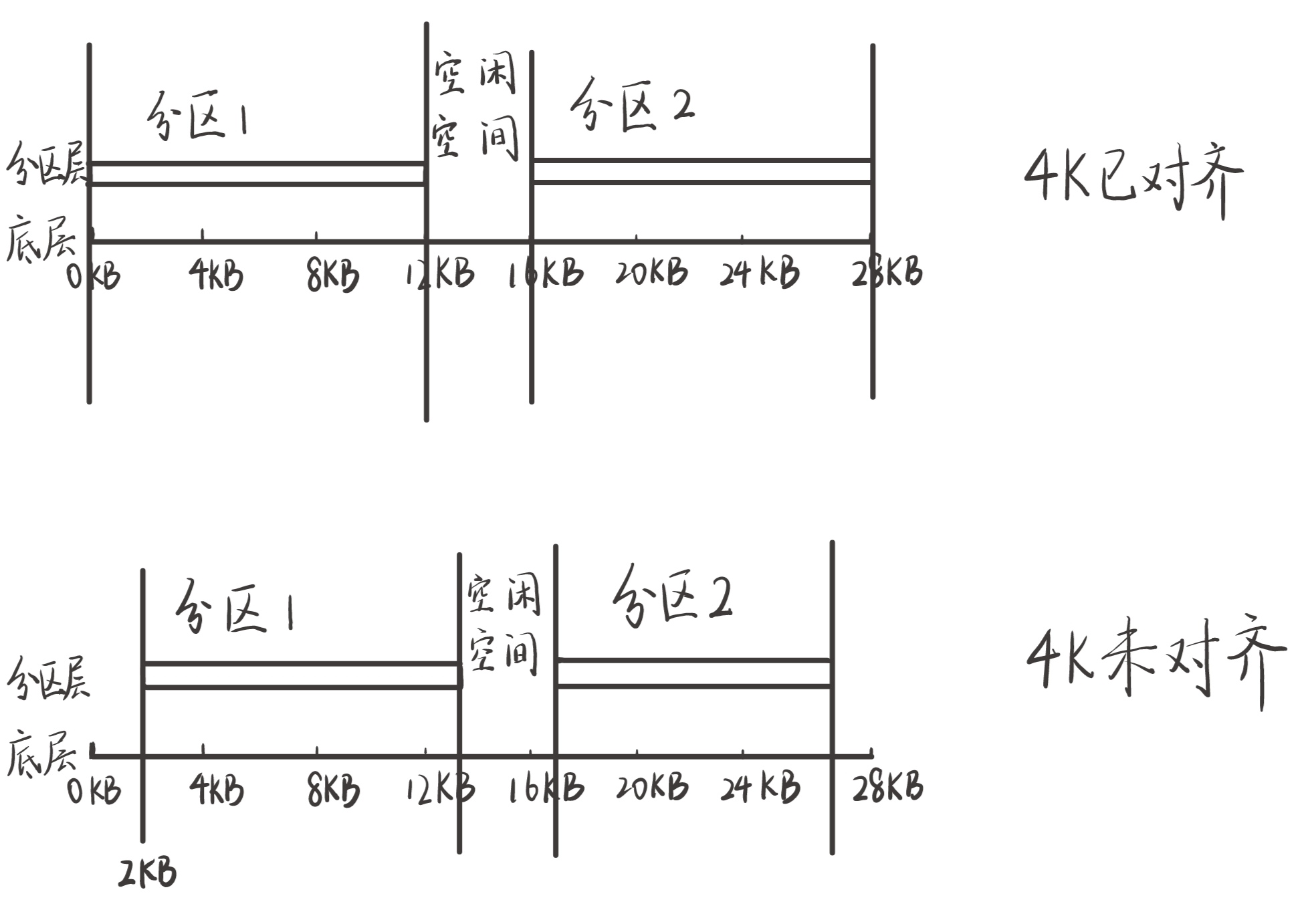
In the diagram, the “bottom layer” uses 4KB as the unit length, with each segment representing a sector. The “partition layer” represents partitions created on the disk.
If 4K alignment is achieved, the situation looks like the top part of the diagram. If not, it looks like the bottom part.
With 4K alignment, the first logical sector of a partition falls exactly on the boundary of a physical sector. In this case:
$$
\text{First logical sector number} × 512B ÷ 4KB = \text{integer}
$$
Clusters are created after a partition is assigned a file system. Formatting a partition generates the file system, and the formatting tool allocates clusters contiguously starting from the partition’s beginning. Therefore, if the cluster size is an integer multiple of the physical sector size and the partition start is 4K-aligned, the clusters will also be aligned.
Why Is It Important to Align Clusters with Physical Sectors (4K Alignment)?
Clusters are the smallest unit the file system can operate on. This means the file system reads and writes data in clusters.
When both clusters and partitions are 4K-aligned, a file that is exactly 4KB in size will perfectly occupy one cluster, one physical sector, and eight logical sectors. When reading this file, the disk only needs to read the single physical sector it occupies—just 4KB of data.
What Happens Without 4K Alignment?
If the first sector of a partition does not fall on the boundary of a physical sector, the situation becomes like the second case in the diagram above. Even though the cluster size is still 4KB, a single cluster now “straddles” two physical sectors. A 4KB file stored in this cluster would require reading two physical sectors.
This is the problem with misaligned 4K: what could have been accomplished by reading one sector now requires two. This significantly reduces disk read/write efficiency. For SSDs, it causes write amplification; for HDDs, it creates excessive fragmentation, reduces lifespan, and halves read/write speeds.
Thus, 4K alignment is critical and must not be overlooked when partitioning a disk.
Calculating 4K Alignment
$$
\text{Partition start sector number} × \text{Logical sector size} = \text{Integer multiple of physical sector size}
$$
Fine-Tuning Cluster Size Can Improve Disk Performance
In the NTFS file system, metadata for every file on a partition (attributes, extended attributes, permissions, file path, occupied cluster numbers) is stored in the MFT table.
The MFT table is the backbone of NTFS. It is stored as a file in the root directory of the NTFS partition but is typically invisible. Since the MFT table records all cluster numbers occupied by a file, increasing the cluster size reduces the number of clusters a file occupies, thereby streamlining the MFT table.
This can improve file read/write speeds, enhance disk responsiveness, stabilize transfer rates, and reduce sudden performance drops.
How to Change the Cluster Size of a Partition?
The cluster size can only be changed during formatting. When formatting a partition, select the “Allocation unit size” option to choose the cluster size. The default is 4096 bytes (4KB).
When Should You Change the Cluster Size, and to What Value?
From the discussion above, it’s clear that if you frequently work with small files, setting a large cluster size will waste space. For example, if the cluster size is 1MB, any file smaller than 1MB will still occupy 1MB of space. Therefore, partitions used for system installation are not suitable for large clusters.
If a partition primarily stores individual files larger than 1MB, setting the cluster size to 1MB is perfectly fine. However, setting it larger than 1MB offers no additional performance benefits and may cause compatibility issues with some software. For such storage scenarios, 1MB is recommended.
1MB ÷ 4KB = 256, which is an integer and qualifies as 4K-aligned.
How to Check 4K Alignment and Align Partitions?
In DiskGenius, click on a disk name in the left panel, then click “Tools” in the top menu, and select “Check 4K Alignment.” However, DiskGenius currently cannot repair misaligned partitions.
When creating a new partition in DiskGenius, you can configure 4K alignment parameters. During the partition creation process, there is a checkbox: “Align to the following number of sectors.” Here, you can select an integer multiple of logical sectors.
By checking the logical and physical sector sizes of the target disk, you can determine how many logical sectors make up one physical sector. In most cases, physical sector = 4KB and logical sector = 512B, so 8 logical sectors form one physical sector. Therefore, when selecting alignment, you should choose at least an integer multiple of 8 logical sectors. Options like 8, 16, 32, 64, 128, 256, 512, 1024, 2048, and 4096 are all multiples of 8 and are valid choices.
Why Does DiskGenius Offer So Many Multiples of 8?
According to DiskGenius, this provides users with greater flexibility and more options.
Is There a Difference Between Aligning to a Large Number of Sectors (e.g., 4096) vs. a Small Number (e.g., 8)?
Yes, there is a difference. Choosing a larger number of sectors wastes more disk space, but the amount is negligible.
Think about it logically.
First, partitions are independent of each other. The sectors of two partitions do not need to be strictly contiguous.
When Aligning to an Integer Multiple of 8 Logical Sectors:
If the last logical sector of the first partition falls somewhere in the middle of its physical sector, the first logical sector of the next partition must shift backward to achieve 4K alignment, rather than directly following the previous partition. Since the alignment is set to 8 sectors, in the worst case, the next partition may need to shift by up to 7 logical sectors to achieve alignment. These 7 logical sectors become unused free space, totaling 7 × 512B = 3584B.
When Aligning to an Integer Multiple of 4096 Logical Sectors:
Similarly, if the last logical sector of the first partition falls in the middle of its physical sector, the next partition must shift backward. With alignment set to 4096 sectors, in the worst case, it may shift by up to 4095 logical sectors. These 4095 logical sectors become unused free space, totaling 4095 × 512B = 2,096,640B = 2047.5KB.
From this analysis, it’s clear that the difference is trivial. The wasted space is so small that it’s not worth worrying about.
As long as you choose a multiple of 8, you will achieve 4K alignment. The specific value of the multiple doesn’t matter.