DIY Your Own MicroPE WIM Image (Cracked Software Download Provided)
DIY Your Own WePE WIM Image (Cracked Software Download Included)
WePE is a minimalist and clean PE system toolbox for system maintenance, with a wide user base. However, during its updates, WePE has removed some useful features (e.g., Windows password reset). To enrich the functionality of your WePE system and update its built-in tools, we can semi-independently edit the WePE WIM image.
Using the veteran compression tool 7-Zip, we can easily edit WIM files.
7-Zip Official Website:
1 | |
The WePE system WIM package is located inside the ISO image it generates. The specific path is:
1 | |
WEPE64.WIM is the WePE WIM package. We will edit it.
Before editing, we need to copy this WIM file to our local disk, as files inside the ISO cannot be edited directly.
Right-click WEPE64.WIM, select 7-Zip → Open Archive, and you can browse the files inside the WIM package.
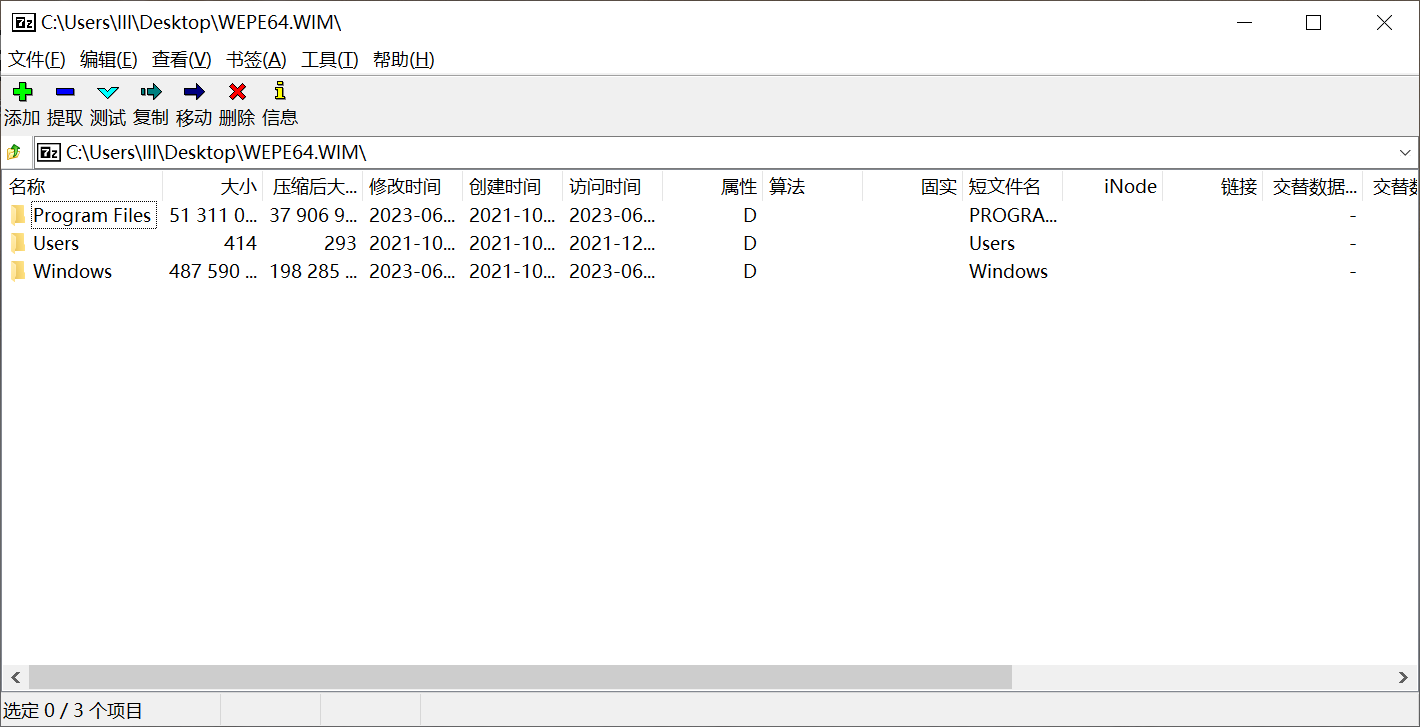
Our principle for modifying WEPE64.WIM is: try to only replace files, and ensure that the file name and path remain unchanged.
Only by doing so can we guarantee that the modified WIM package will boot the system correctly, and desktop shortcuts will properly locate the file paths.
Modifying the WIM Image
Drag and drop files or folders into the 7-Zip window to add them.
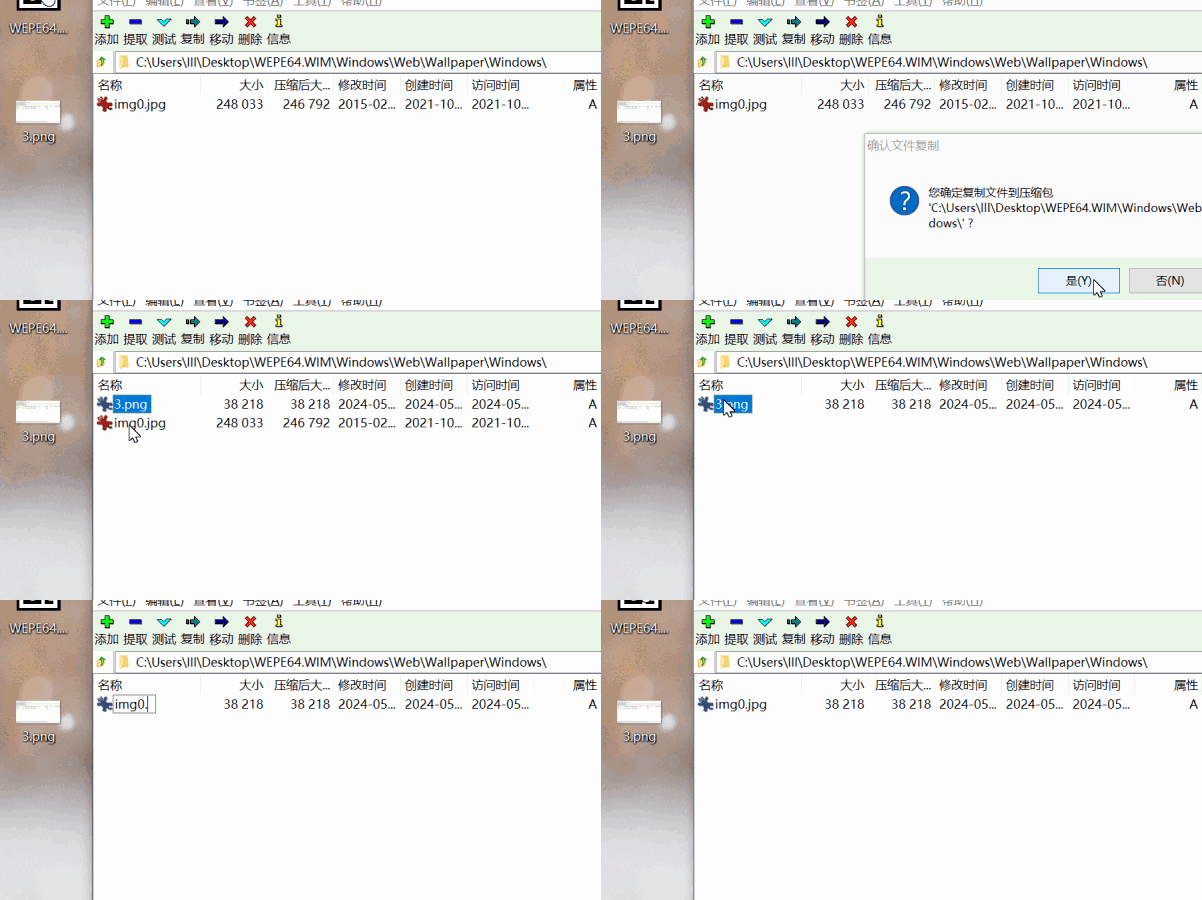
Changing the Wallpaper
First, you can change the wallpaper. The wallpaper is located in the WIM package at:
1 | |
You can replace this file with another JPG image.
But remember, the replacement image file must also be renamed to
img0.jpg!
Replacing Software
Not all utilities in WePE are the latest versions (e.g., WinNTSetup, DiskGenius). We can manually replace them with the latest versions.
Since the software in WePE are all portable or green editions, we can update them by directly replacing the software files themselves.
The WIM package software is located at:
1 | |
Here, we can freely replace, modify, or delete the software provided by WePE.
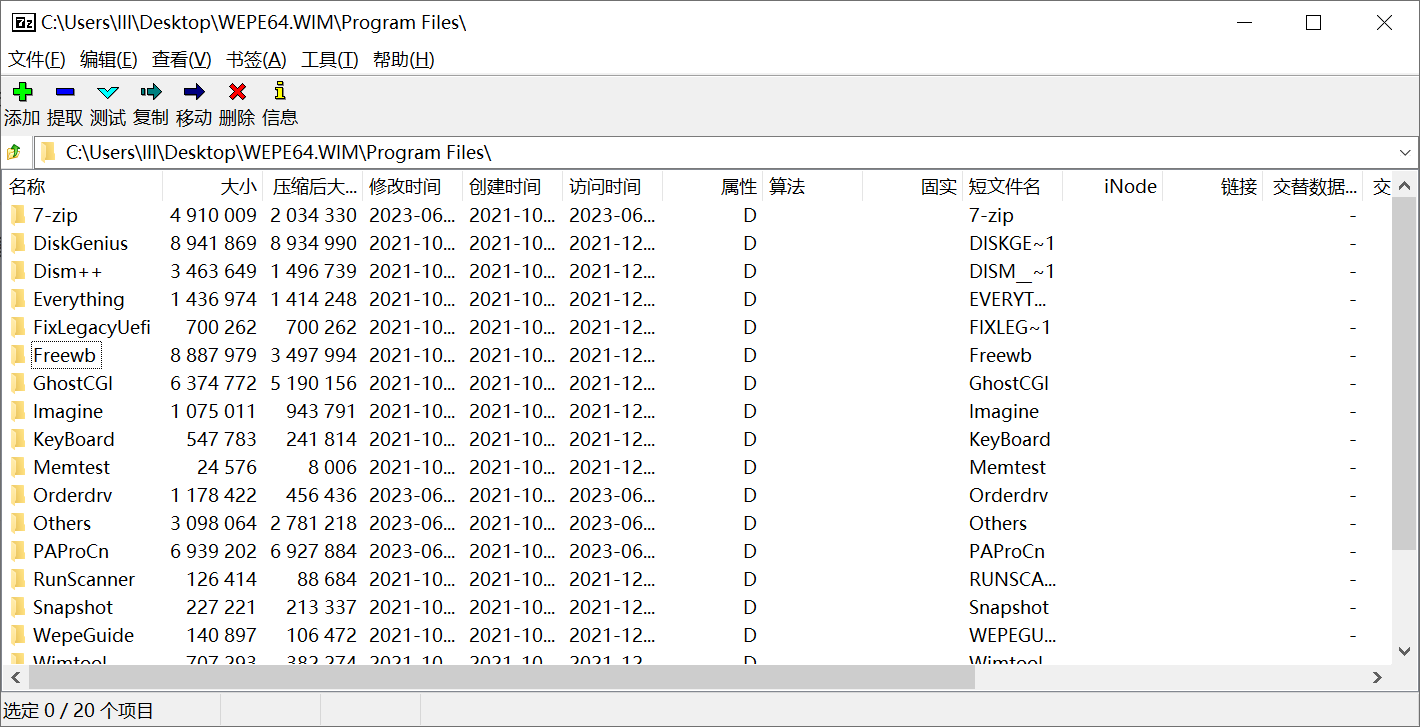
Be careful: the path and name of the replaced software must match the original! Otherwise, WePE won’t be able to create desktop shortcuts for them!
Adding Software
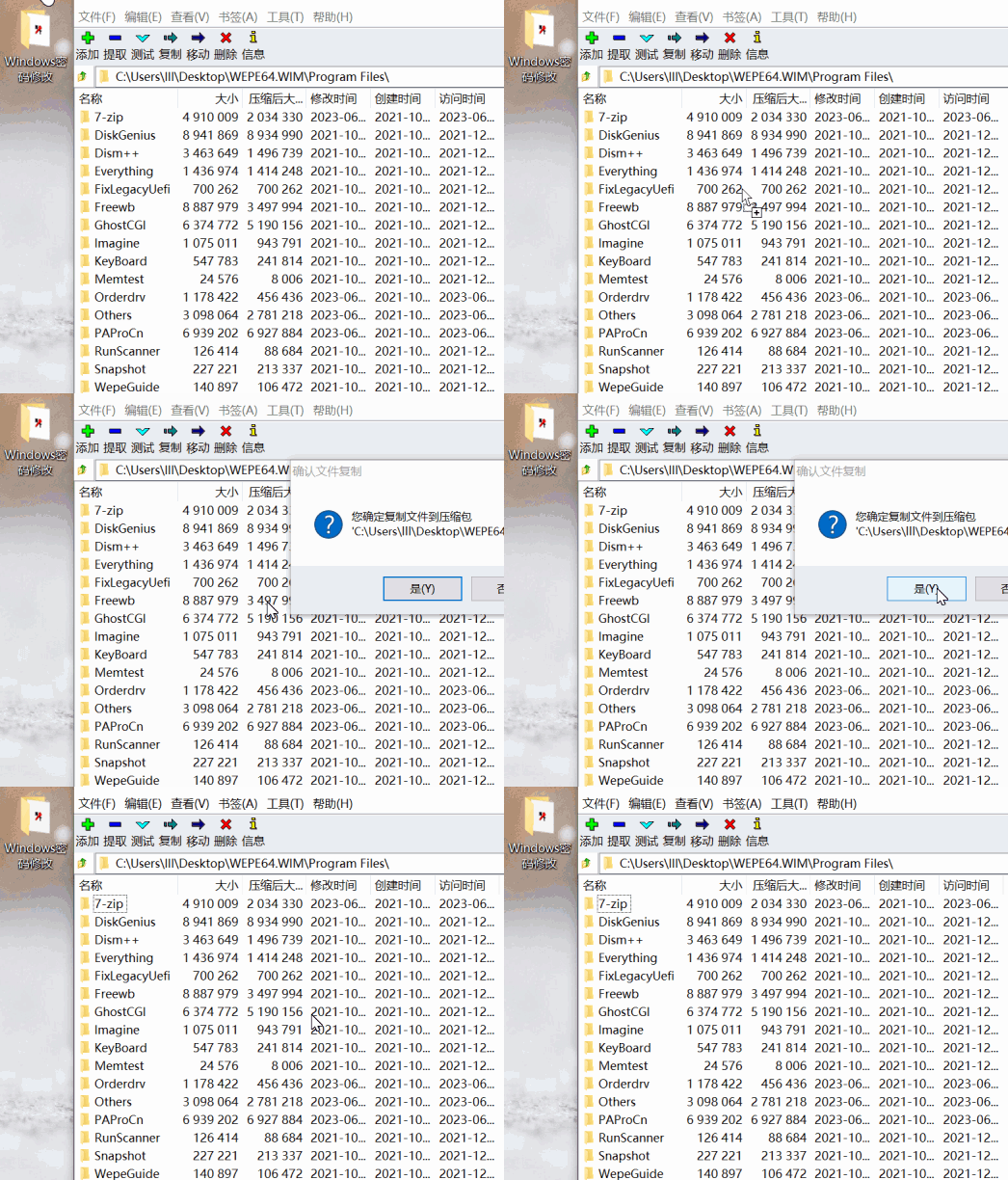
Adding software to the WePE WIM is a bit more cumbersome than replacing. You can create a new folder inside \WEPE64.WIM\Program Files\, or place the software you want to add in a folder outside and then move the entire folder into \WEPE64.WIM\Program Files\.
Adding Desktop Shortcuts
After adding software, we want the shortcuts to appear on the WePE desktop. This is done by editing an INI configuration file. The INI file is located at:
1 | |
You can edit the INI configuration file with Notepad.
The entries under //创建桌面快捷方式 (Create Desktop Shortcuts) in the INI file are the target paths for the desktop shortcuts.
Simply mimic the existing entries and change the path to the path of your added software.
For example:
If I added software located at \WEPE64.WIM\Program Files\Windows Password Reset\password.exe,
then I add a line in the INI file:
1 | |
Here, “Windows Password Reset Software” is the name of the desktop shortcut.
Note: When writing the INI file, use English punctuation.
Save the file.
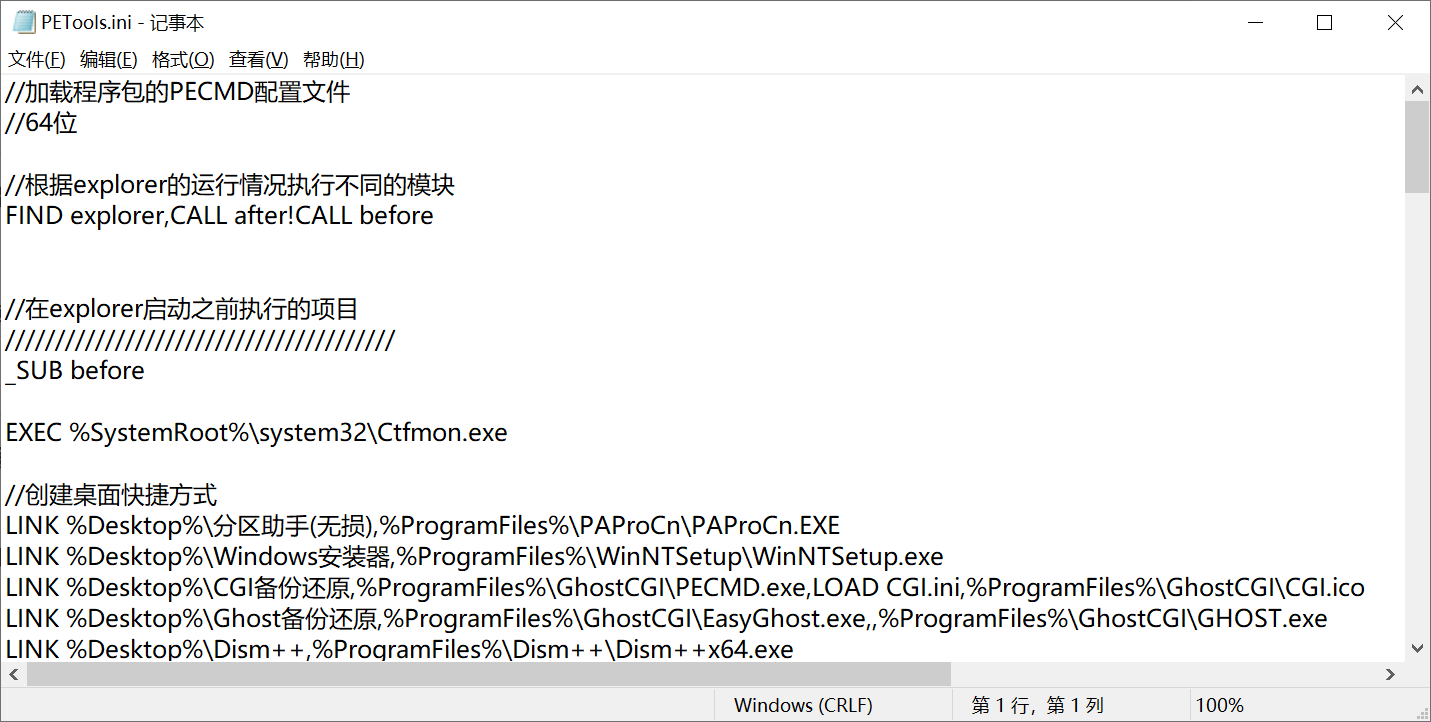
This way, we have added our software icon to the WePE desktop.
Similarly, we can use this method to remove unwanted software icons.
Finally, we need to repackage this WIM file back into the ISO image while preserving its bootability. You can use ISO editing software like UltraISO or PowerISO to directly edit the WePE ISO file and replace the WEPE64.WIM inside with our modified WIM. These operations are straightforward and won’t be detailed here.
I have created a modified version of WePE myself, with the following changes:
- DiskGenius replaced with v5.0.0.1488 Professional Cracked Version
- WinNTSetup replaced with v5.3.4
- Added Windows Password Reset Tool
- Updated Dism++ to the latest version
- Added an image viewer to the desktop
- Added a Bootice icon to the desktop
- Set the OS selection timeout at boot to 7 seconds
If you need it, you can download it directly.
PowerISO Russian Cracked Version Download:
https://www.123pan.com/s/aktYjv-xJ7LH.html
Windows Password Reset Software Download:
https://www.123pan.com/s/aktYjv-1J7LH.html
My Modified WePE Toolbox Download: