Settings to Enhance Windows System User Experience
Enhancing Your Windows Experience: Essential Tweaks
In our daily use of Windows, we often encounter annoying little issues or repetitive, mechanical tasks. This article compiles solutions to some common Windows headaches.
Change: Default Software Installation Path to D Drive
This is the first method; I’ll introduce others in future articles.
When you run an installer, software always defaults to the C drive, requiring manual changes each time—a real inconvenience. You can modify the default installation path via the Registry.
Modifying the Registry carries risks! Proceed with caution!!!
It’s best to save Registry (.reg) files with ANSI encoding.
Create a new text file (.txt) and enter the following:
1 | |
Click File → Save As in the top-right corner.
Select ANSI encoding and save.
Rename the file extension from .txt to .reg, then double-click to run it and confirm.
The Registry has been successfully imported.
Next, go to the D drive and create two new folders:
1 | |
Pay attention to uppercase/lowercase letters and spaces in folder names!
Log off or restart your computer.
Done.
This method changes the default installation path from C:\Program Files (x86) and C:\Program Files to D:\Program Files (x86) and D:\Program Files.
However, I encountered an issue after making these changes. Some desktop shortcuts updated their target paths from
C:\Program FilesorC:\Program Files (x86)toD:\Program Files (x86)andD:\Program Files, while others did not.I’m still unsure why this happens—possibly due to some software’s self-protection mechanisms that automatically adjust shortcut targets based on environment variables. In such cases, you’ll need to recreate those shortcuts manually.
Change: Save Dialog Defaults to Desktop
Some files (e.g., new Office Word documents, Windows screenshots) default to obscure folders like “Documents,” “Pictures,” “Music,” or “Videos” in the save dialog. Each time you save, you have to click “Desktop”—a tedious extra step.
We can fix this by modifying the Registry so that save dialogs default directly to the Desktop.
Create a new Registry file with the following content:
1 | |
Import the .reg file, then log off or restart.
From now on, most file save dialogs will default to the Desktop.
Hide: Common Folders in “This PC”
Folders like “Documents,” “Pictures,” “Music,” “Videos,” “3D Objects,” and “Downloads” appear in “This PC,” taking up valuable space in File Explorer’s upper section. If you find them unnecessary, you can hide them.
Modify the Registry to hide these folders.
The Registry file content is:
1 | |
Import this .reg file, and these folders will be hidden in File Explorer.
Optimize: Show Full Right-Click Menu in Windows 11
The Windows 11 right-click menu has been widely criticized since its release. The secondary menu is particularly frustrating. A simple PowerShell command can revert it to the Windows 10 style.
Right-click the Start menu, select Windows PowerShell (Admin), enter the following, and press Enter:
1 | |
File Explorer will restart automatically, and the right-click menu will be successfully modified.
Streamline: Remove “Home” from Windows 11 File Explorer Sidebar
Import the following Registry file to fix this.
Registry file content:
1 | |
Open File Explorer—the “Home” folder will be gone.
Streamline: Remove Unnecessary Right-Click Menu Items
The longer you use your computer, the more cluttered the right-click menu becomes. A tool called “Right-Click Menu Manager NET4.0.exe” can help you manage this complex structure.
There are many such tools, but after testing, I found “Right-Click Menu Manager NET4.0.exe” to be the most powerful and user-friendly.
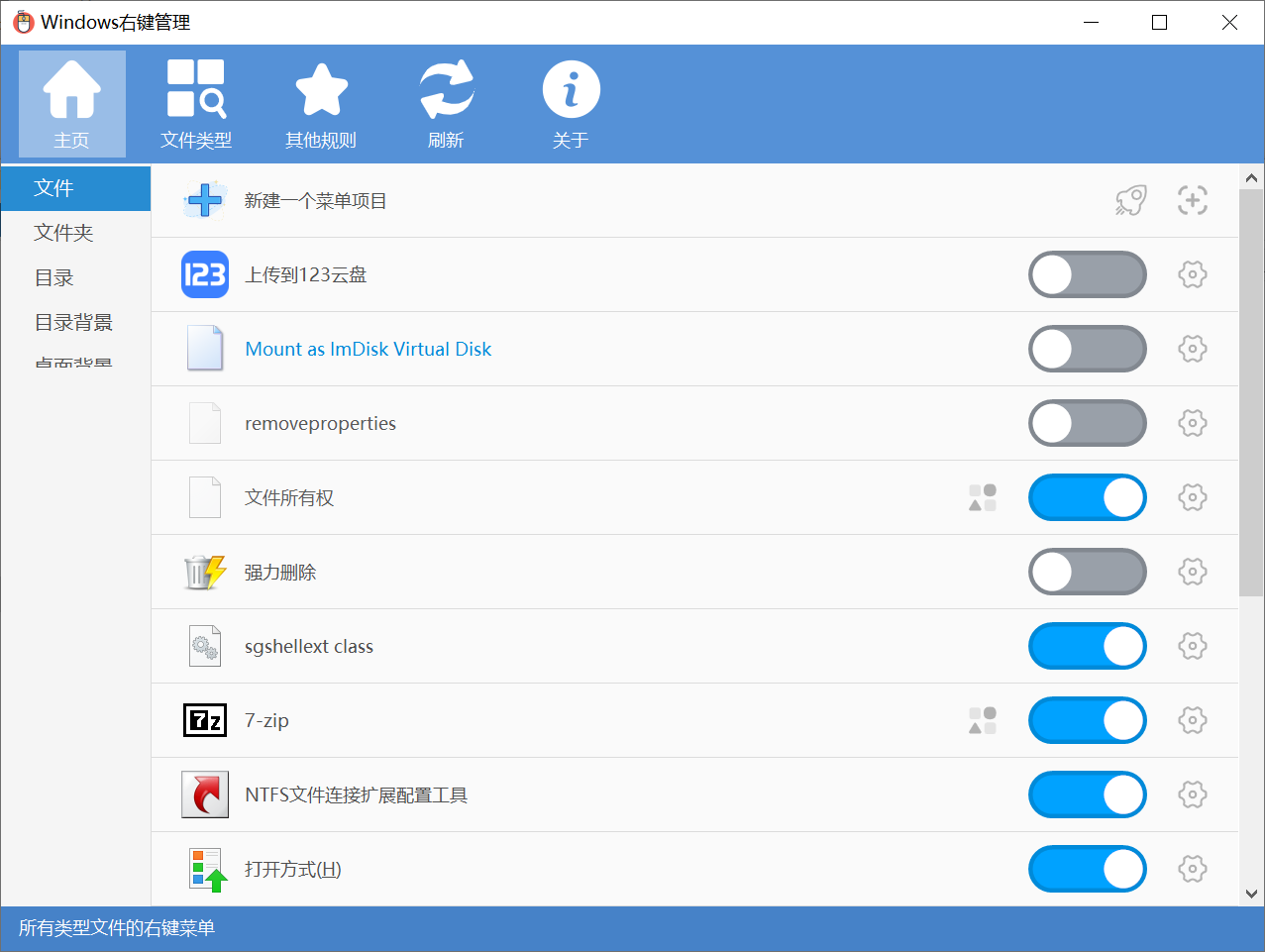
The software is intuitive and requires little explanation.
Download link:
1 | |
Windows 10 Optimization Tool
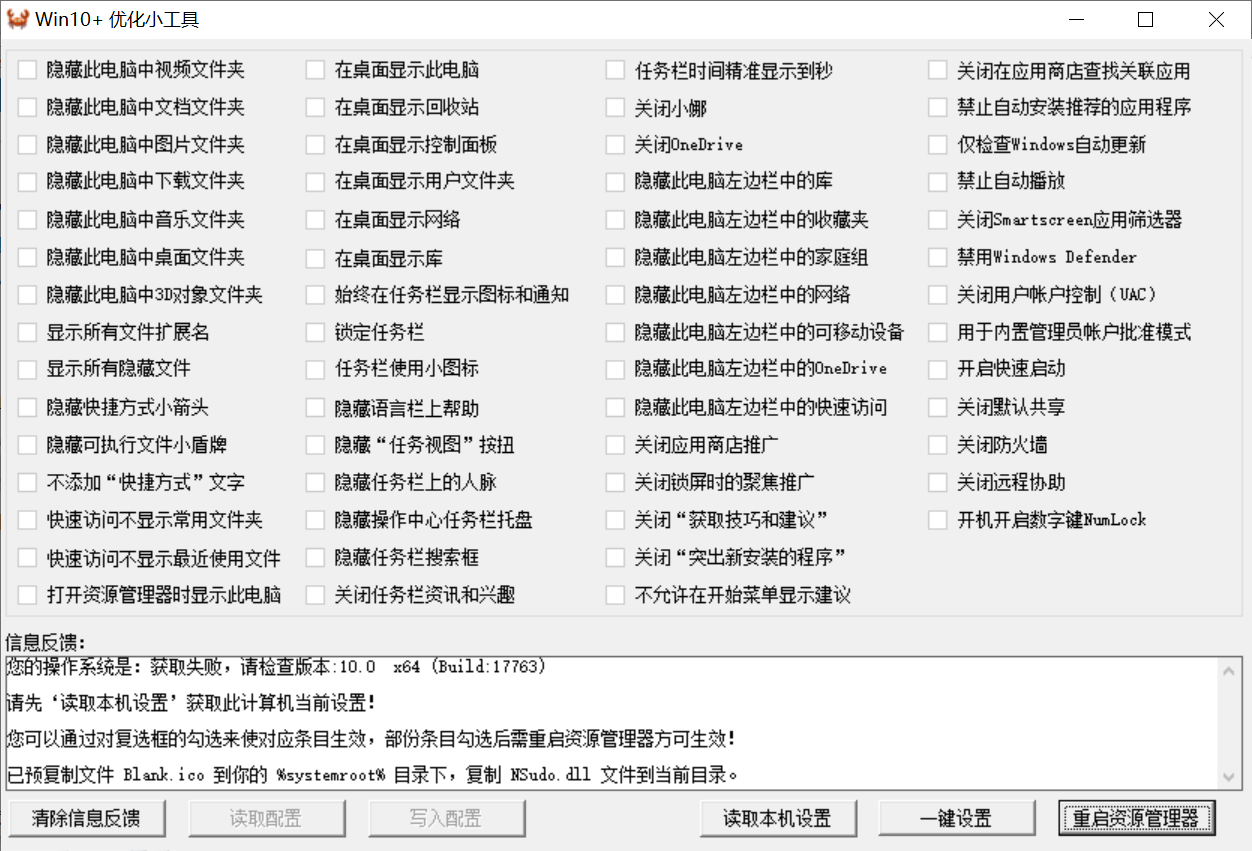
Developed by a renowned user from @吾爱破解, this Windows 10 optimization tool modifies the Registry in real-time. Note the “real-time” aspect—changes take effect immediately when you check an option, without needing to click “Save” (there isn’t one). To see the results, click “Restart File Explorer.”
How to use:
- Click: Read Current Configuration.
- Select your preferred settings.
- Restart File Explorer.
The “One-Click Configuration” option is a lazy mode that automatically applies settings you’re likely to prefer.
Download link:
1 | |
Block Windows Automatic Updates
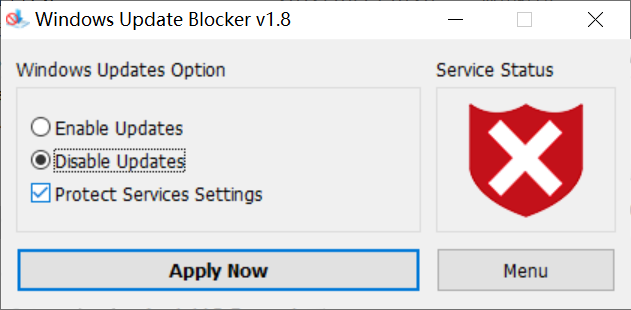
Use a small tool called Wub to block Windows automatic updates.
It’s very straightforward to use, so I won’t elaborate here.
Download link:
1 | |