Introduction to Files and File Systems
Introduction to Files and File Systems
1. Files
Files are the primary objects we interact with in our daily computer use. Everything we see on a computer is displayed based on files. Each file is essentially a block of data stored on the hard drive, occupying disk space. Files come in a wide variety of types. Common ones include:
.txt: Text files
.docx: Microsoft Word documents
.xlsx: Microsoft Excel spreadsheets
.pptx: Microsoft PowerPoint presentations
.pdf: Adobe PDF documents
.jpg or .jpeg: JPEG image files
.png: PNG image files
.mp3: Audio files
.mp4: Video files
.zip: Compressed files
.rar: RAR compressed files
.exe: Executable programs
.html: HTML web page files
Things like .txt and .docx are called file extensions. They typically follow the file name, separated by a dot. Your computer may hide these file extensions, but I believe they should be displayed. If your computer hides them:
Here’s how to show them:
- Open File Explorer, click View → File name extensions
This will let you see the extensions of all files that have them on your computer.
Since a file extension is just a name, it’s not strictly necessary as a suffix in the file name. You can try deleting the extension when renaming a file. The system will warn: “If you change a file name extension, the file might become unusable.” Click OK, and you’ll notice the file icon changes to a “blank white sheet.” This happens because the system no longer knows what type of file it is and cannot determine which software to use to open it, so it doesn’t display the associated software’s icon. To open it, you’ll need to manually select the appropriate software.
2. File Systems
A file system is the architecture used by an operating system to store files. This concept is based on partitions. You can quickly check the file system of a partition using the following method:
Steps:
- Right-click a partition in File Explorer and select Properties
- In the Properties window, you can see the file system of the current partition.
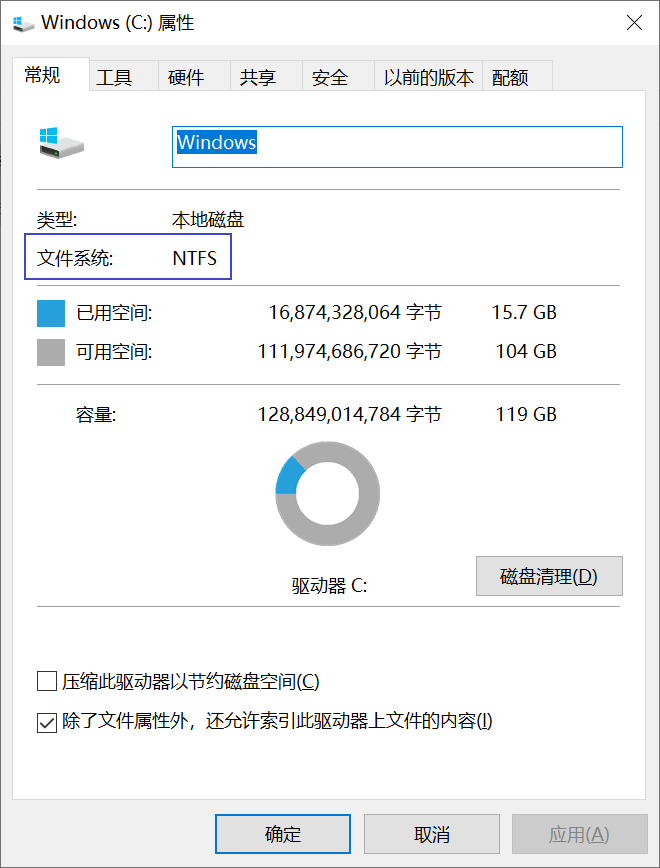
The purpose of all file systems is to store files.
If we compare a disk to a foundation, then the file system is the building framework on that foundation, and files are the residents in each room.
Common types of file systems include:
NTFS
exFAT
FAT32
FAT16
These four file system types are the ones we frequently encounter during operation.
NTFS
New Technology File System, developed by Microsoft. Windows 10 and newer operating systems must be installed on an NTFS-formatted partition.
exFAT
The default partition format for most modern USB drives and some external hard drives. It supports storing individual files larger than 4GB.
FAT32
The file system type used by most older USB drives. It cannot store individual files larger than 4GB.
FAT16
Extremely uncommon, but can be recognized by Windows 10 and UEFI firmware.
File systems can be changed, but only by formatting the entire partition. During the “format” operation mentioned earlier, you can choose a different file system type.
Different file systems are suited to different types of disks (storage media) and operating systems. Only by correctly selecting the file system can the disk and operating system maximize their potential for storing files.
Generally speaking, the default file system of a disk is its optimal file system.