Give U Disk a PE to Go: Directly Extract MicroPE System to U Disk
Give Your USB Drive a PE to Go: Directly Deploy WePE to a USB Drive
In the previous article, a reader commented asking whether it’s possible to install a PE to Go (PTG, a name I came up with) on a USB drive, similar to Windows to Go (WTG). This time, we’ll give it a try.
What is WTG?
Windows to Go (WTG) is a feature developed by Microsoft to make it easier for enterprise users to carry their computer environment with them. It allows users to install Windows onto a portable hard drive or USB drive, so they can boot and run the Windows system directly from the portable storage device on any compatible computer.
Microsoft’s official WTG creation tool imposes strict requirements on USB drives, such as mandating USB 3.0 support.
In reality, for those who understand the Windows installation process, installing WTG is no different from a normal Windows installation—it’s exactly the same procedure. Therefore, we can directly use small tools like WinNTSetup to inject a complete Windows system into a portable storage device.
Using the same approach and methodology from the previous article, we’ll install a built-in system on a USB drive: PTG.
Installing a PE to Go System on a USB Drive
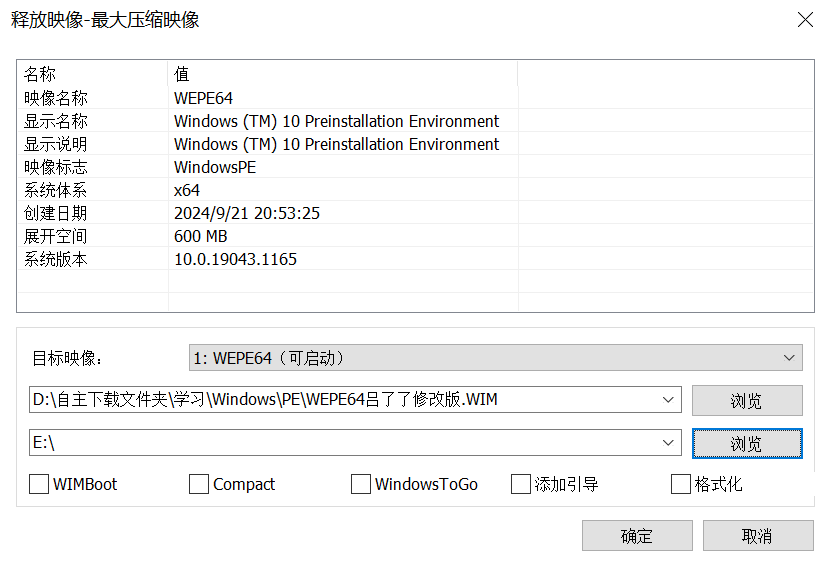
- Use Dism++ to deploy the PE system’s WIM package to a partition on the USB drive. (The WIM package for WePE is located inside the WePE ISO file, at the path
\WEPE\WEPE64.WIM.) - During deployment, leave all five options (WIMBoot, Compact, Windows to Go, Add Boot Entry, Format) unchecked.
After deploying to the USB partition, edit the EFI partition of the bootable USB drive. Specifically, use BootICE to edit the BCD file located at
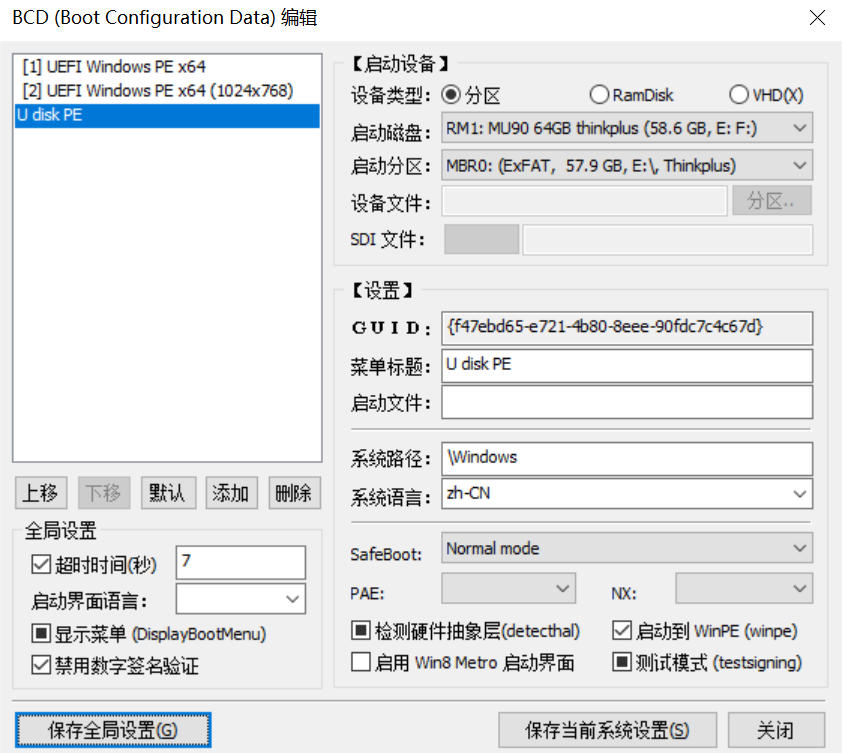
\EFI\Microsoft\Boot\BCD. For detailed editing methods and principles, refer to my 20th article: “20 Windows Computer Boot Process Analysis 2”.Key points for editing the BCD:
- Create a new boot entry for Windows 7/8/8.1
- Set the boot disk to the USB drive
- Set the boot partition to the partition where the WIM package was deployed
- Leave the boot file field blank
- Check the “Boot to WinPE” option below
- Save the current system settings, save the global settings, and exit
At this point, the PTG creation is complete.
Boot Test
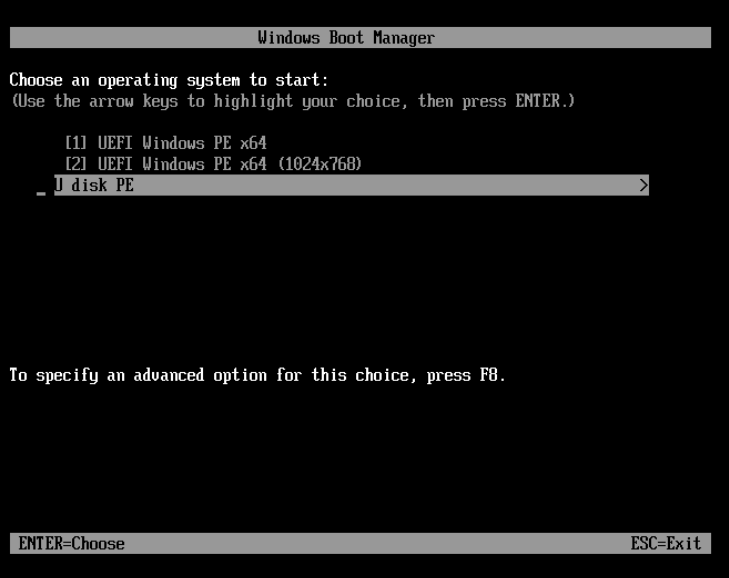
Testing shows that the PTG system on the USB drive can boot normally. However, due to the poor read/write performance of the USB drive, the boot speed is very slow—far behind the memory read speed of Ramdisk.