Move the entire Office to the D drive!
Move the Entire Office to the D Drive!
Microsoft Office is widely recognized as the best office suite, and it’s one of Microsoft’s flagship products.
However, the most popular versions today—Office 2019/2021/365—are also heavily criticized for taking up too much space on the C drive during installation.
For Office 2019, the installation files reach 3.59GB, and during installation, you cannot freely choose the installation path—it defaults to the C drive.
To address this issue, this article aims to move Office’s installation files to a non-system drive (D drive) to optimize C drive space.
Approach
Readers who have read my 29th article, “29 Extra 4: Introduction to Folder Symbolic Links (Directory Junctions),” already know the power of directory junctions. The method in this article is also based on creating directory junctions.
For 64-bit Office, the default installation location is C:\Program Files\Microsoft Office. This folder is about 3.59GB and stores Office’s core files. We simply need to move it to the Program Files folder on the D drive, then create a symbolic link for D:\Program Files\Microsoft Office in C:\Program Files.
Important!!! We
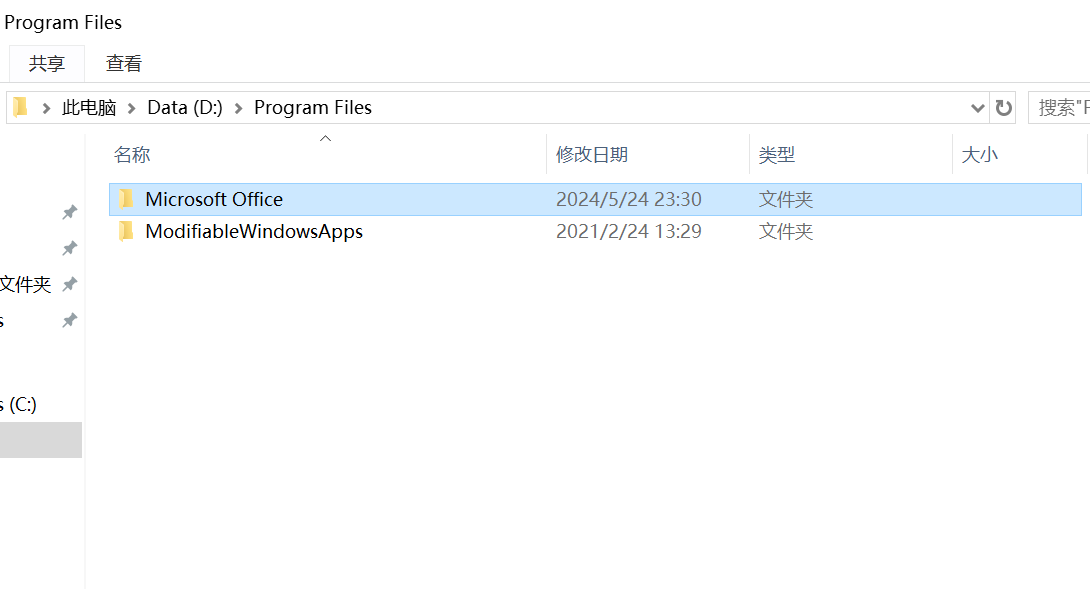
mustcreate a folder named Program Files in the root of the D drive! Then move the Microsoft Office folder from the C drive into this Program Files folder!!If you arbitrarily place the C drive’s Microsoft Office folder somewhere on the D drive and then create a directory junction, it will not work!
Steps
Install Link Shell Extension
Using Link Shell Extension, we can easily create various types of links for files or folders, such as hard links, symbolic links (soft links), directory junctions, etc.
Link Shell Extension (LSE) official download:
1 | |
Link Shell Extension (LSE) mirror download via Lanzou Cloud:
1 | |
Installation requires Microsoft Visual C++ Redistributables; otherwise, an error will occur during installation.
Microsoft Visual C++ Redistributables download:
1 | |
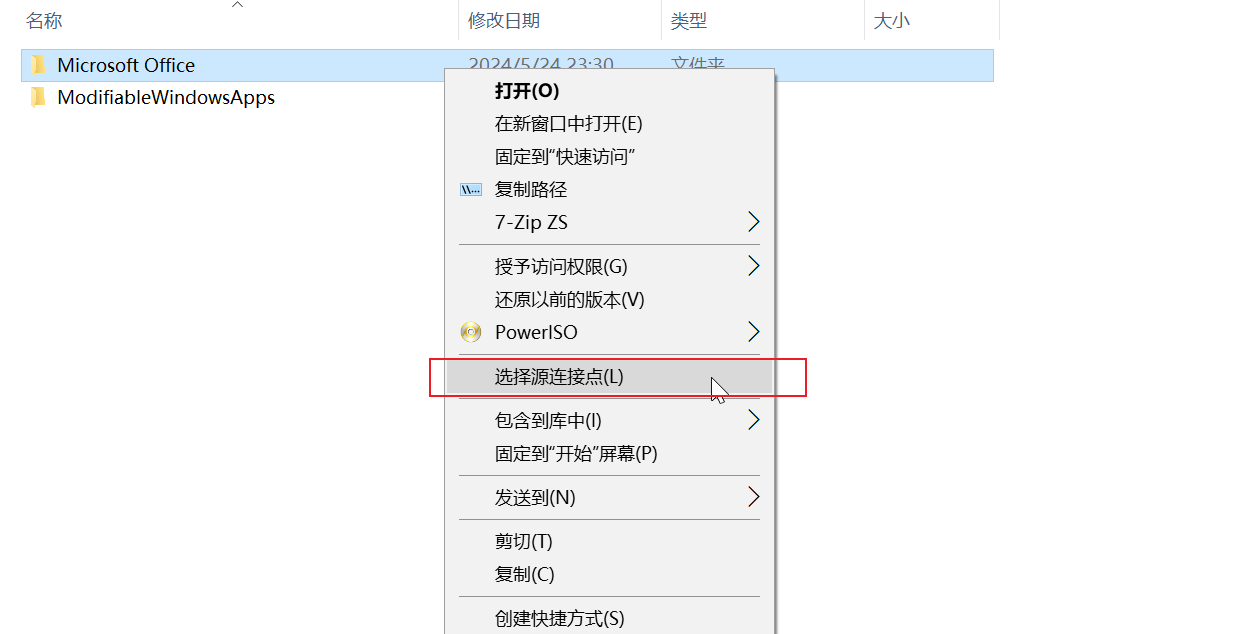
After installation, right-clicking a file or folder will show “Select Source Link” in the context menu. After selecting it, right-clicking in another location will show “Create As…”
In “Create As…”, you can choose to create hard links for files, symbolic links, soft links for folders, etc.
Move Office to the D Drive
Move the C:\Program Files\Microsoft Office folder into D:\Program Files\. Here’s an example screenshot:
Right-click this folder and select “Select Source Link”.
Go back to C:\Program Files\, right-click there, and choose “Create As…” -> “Directory Junction (M)”
Example screenshot:
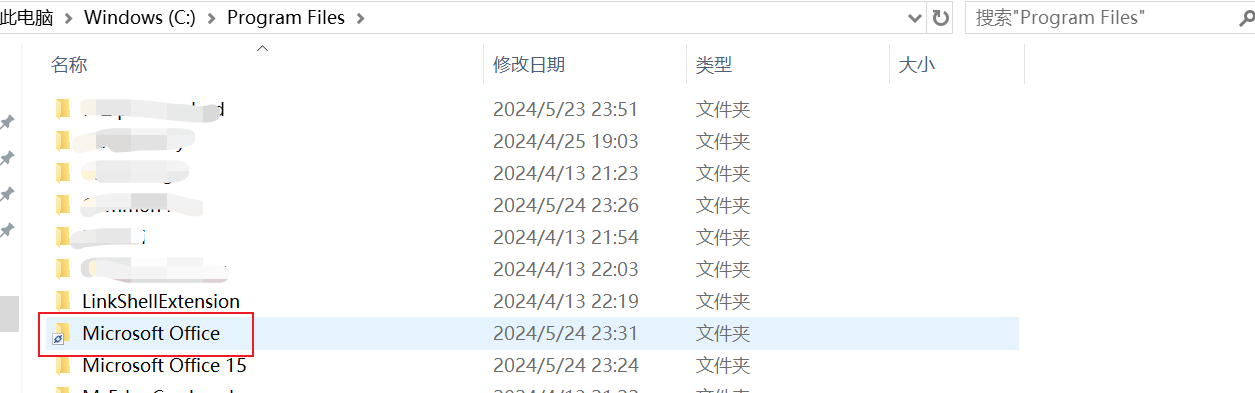
The folder name must not be changed; it must be
Microsoft Office.
That’s it! The Office folder has been moved to the D drive, freeing up 3.5GB of space on the C drive.
If your Office is 32-bit, the Microsoft Office folder is located at
C:\Program Files (x86)\Microsoft Office. Similarly, on the D drive, you need to createD:\Program Files (x86). The rest of the steps are the same as for 64-bit.
Summary
In my 29th article, “29 Extra 4: Introduction to Folder Symbolic Links (Directory Junctions),” I previously discussed using soft links to move Office to the D drive. The reason it didn’t work back then was that I didn’t create the same folder structure on the D drive as on the C drive, causing the operation to fail.
Therefore, when using soft links to move software, it’s best to create the same directory structure as the original location.
Although this is not strictly mandatory, experiments have shown that some software (like Office) depends on this directory structure to function properly.
Additionally, replacing the directory junctions created in all Office operations in this article with symbolic links will achieve the same effect, as symbolic links and soft links function similarly.