Offline Installation of Office: A Godly Technique – One Image for All Versions
The Insane Trick for Offline Office Installation: One Image to Rule Them All
I’ve previously covered in detail how to use setup.exe to download and install Office online. However, this approach makes it difficult to control details like component selection and architecture (32-bit vs 64-bit). Sometimes, the computer where you need to install Office is completely offline (no internet access) or has a terrible network connection—slow downloads or frequent disconnections. In such cases, using online installation is a massive waste of time.
In these scenarios, using local installation files to install Office offline is a far better choice.
Some might worry: there are so many Office versions—2016, 2019, 2021, 2024, Microsoft 365 Apps—do I need to download the installation files for each version, taking up a huge amount of disk space?
Actually, that’s not the case. Since Microsoft introduced Office C2R (Click-to-Run) technology starting with Office 2016, all Office components based on the same feature set are bundled into a single binary file. In other words, you only need to download one Office installation binary, and by using a well-configured configuration file, you can install different versions of Office from that same installation file.
Note: When I say “different versions of Office,” I’m not just referring to different product IDs within the same year (e.g., Office 2021 ProPlus, Office 2021 Standard, Office 2021 Home & Student). I mean all Office versions from Office 2016 onward, including 2019, 2021, 2024, Microsoft 365 Apps, and every product ID classification within each major version.
Since they are all based on Office 16, they are consolidated into the same binary file.
How to Download the Office Binary File?
You can directly obtain the Office installation binary from Microsoft’s official CDN, but for convenience, you can use a third-party tool.
The tool I recommend here is Office Tool Plus.
Office Tool Plus (OTP) is an open-source Office deployment and installation tool hosted on GitHub. It supports full lifecycle control of Office, including version management, activation control, and installation/uninstallation. You can find all Office-related operations within OTP.
Office Tool Plus official website:
https://otp.landian.vip/en-us/download.html
OTP requires the .NET 4.0 runtime. If it’s not pre-installed, the software will prompt an error and guide you to download and install the runtime. Once installed, you can open the software directly.
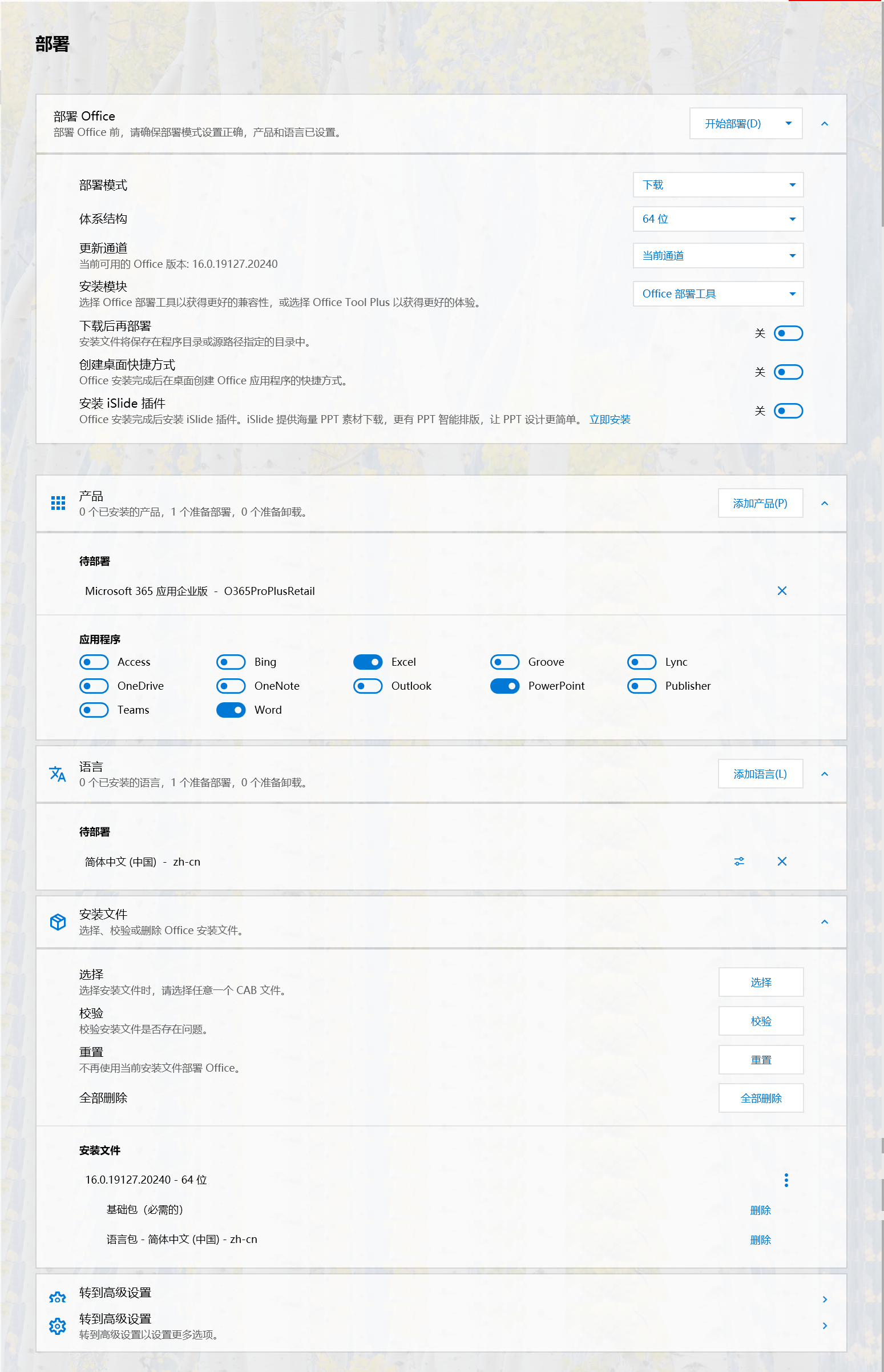
Open Office Tool Plus, click Deploy on the left, and you’ll see the Office deployment interface.
Since we want to download the Office binary for later installation, select Download.
Choose x64 for the architecture.
In the Update Channel dropdown, select Current Channel—this is the most suitable channel for regular individual users.
For the Installation Module, choose Office Tool Plus.
Under Products, select the latest Office version ID: o365proplusretail. This is Microsoft 365 Apps for Enterprise. Of course, this installation binary can be used to install all Office versions from Office 2016 onward.
For the products to install, I typically select only Word, Excel, and PowerPoint—the essential office trio. Other components are not very useful for general office work.
In the Language selection, choose Simplified Chinese (it’s at the bottom of the dropdown).
At this point, the Office configuration is mostly complete. You can click Start Deployment to begin downloading the Office binary installation file.
Once the download starts, the speed should max out your internet connection. The total size of the downloaded files is approximately 3 GB.
The Office binary installation files are located in the Office folder within the OTP folder. The main file is something like streamxxx.dat.
The above steps complete the download of the Office installation binary.
How to Install Different Versions of Office Using the Same Binary?
The key to installing different Office versions lies in configuring config.xml.
After downloading Office in Office Tool Plus, you can click the dropdown arrow next to Start Deployment at the top and select Export Configuration. This saves all the settings for installing Microsoft 365 Apps as an XML file. You can name this XML file anything you like.
Similarly, you can configure XML files for Office 2019, 2021, and 2024 using OTP. After selecting all the settings in OTP, simply click Export Configuration.
This essentially uses OTP’s GUI to generate XML files. If you’re comfortable writing XML manually, you don’t need to use OTP for this step.
For example, after downloading the Office binary, I’ve configured the following XML files:
2019proplus.xml2021proplus.xml2024proplus.xmlo365proplusretail.xml
Now, if I want to install one of these versions on another computer, what should I do?
First, copy the entire folder containing Office Tool Plus (including all its files) to a portable hard drive or USB flash drive.
This folder must include all OTP files and the downloaded Office binary installation files. The directory structure and file hierarchy must remain unchanged.
In simple terms, just copy the entire OTP folder.
Insert your portable drive or USB flash drive into the computer where you want to install Office. Let’s say we want to install Office 2021.
Naturally, we’ll use the XML file for Office 2021, i.e., 2021proplus.xml.
But before using this XML, we need to edit its content.
Open the XML file with Notepad, find the SourcePath entry, and replace the folder path inside the double quotes with the path to the Office Tool Plus folder on the current computer. Leave everything else unchanged, then save and close the file.
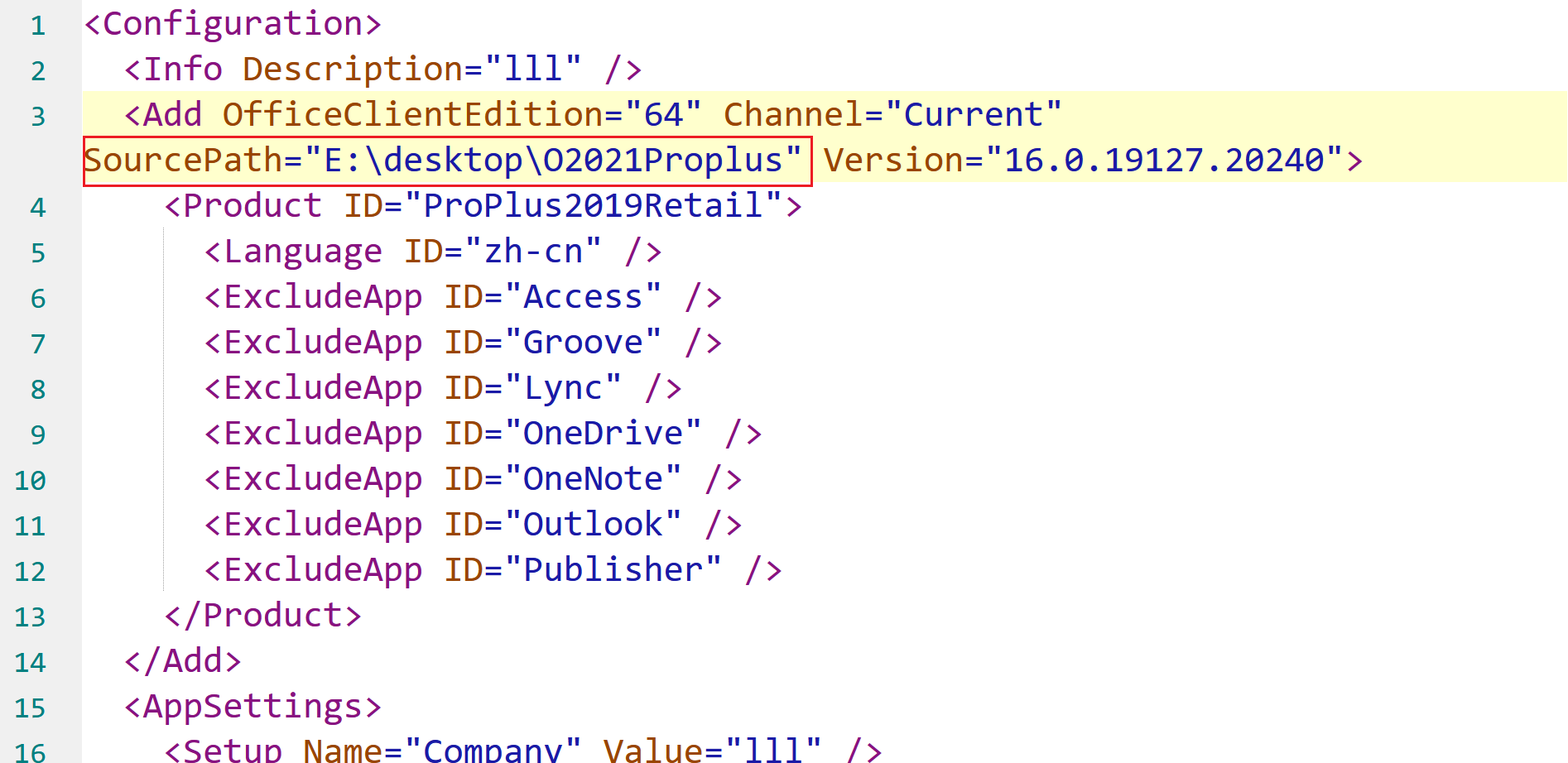
If you don’t update the path, OTP won’t be able to find the installation files when calling
setup.exeto install Office, causing the installation to fail.
Wait for the installation to complete. Offline installation is significantly faster than online installation.
Summary
With the method described above, we achieve the goal of installing different versions of Office using the same set of installation files. By controlling the Office installation configuration file (XML), we can instruct Office C2R to install the corresponding version of Office without needing to download separate installation packages for each version—saving time and avoiding unnecessary disk space usage.
In the next article, I’ll explain how to permanently activate Office using tools and why sometimes the activated Office version differs from the installed one.