New Star of PE Bootable USB: Ventoy (with ISO Downloads for Various PE)
The New Star in PE Boot Drives: Ventoy (Including ISO Downloads for Various PE Systems)
In our previous understanding, a single USB drive could only be used to create a bootable drive containing one system. For example, a USB drive installed with MicroPE Toolkit couldn’t accommodate any other PE toolkit. This often left us frustrated, forcing us to buy multiple USB drives—one for each PE system.
What’s the root cause of this issue? In my opinion, it’s simply that a single ISO file cannot directly boot a computer (I’m curious why Microsoft’s Windows Boot Manager doesn’t support this feature). That’s where Ventoy comes in.
Ventoy enables us to boot ISO files directly.
Ventoy: One Boot Drive, Multiple PE Systems
Ventoy is a bootloader based on grub4dos. With Ventoy, you can easily boot multiple PE systems from a single USB drive without having to recreate the bootable USB each time.
Ventoy Official Download:
https://www.ventoy.net/en/download.html
Installing Ventoy onto a USB Drive
After downloading, insert your USB drive and open Ventoy2Disk.exe. Ventoy will automatically detect the USB drive. Click “Install” to install Ventoy onto the USB drive.
Please note: Installing Ventoy onto a USB drive will format it!!! Be sure to back up any data on the USB drive!!!
Upgrading Ventoy
When a new version of Ventoy is released, you can quickly upgrade the installation on your USB drive without needing to format it again. This is one of Ventoy’s major advantages.
Using Ventoy
After installing Ventoy onto your USB drive, simply copy the ISO image files of your daily-use PE systems into the USB drive partition. Just like with other bootable drives, insert the USB into your computer, press the boot hotkey, select your USB drive option, and press Enter…
Boot Failure?!
Your computer shows a prompt.
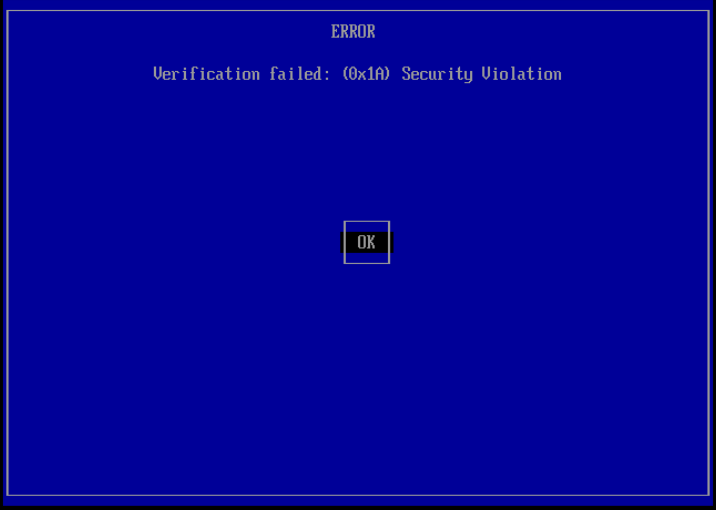
Don’t panic. This happens because the UEFI firmware’s Secure Boot verification detects that Ventoy lacks a security certificate, thus blocking Ventoy from running.
What we need to do is simply import Ventoy’s security certificate into your computer.
Ventoy’s security certificate is located in the EFI partition of the bootable USB drive, with a .cer file extension.
Steps:
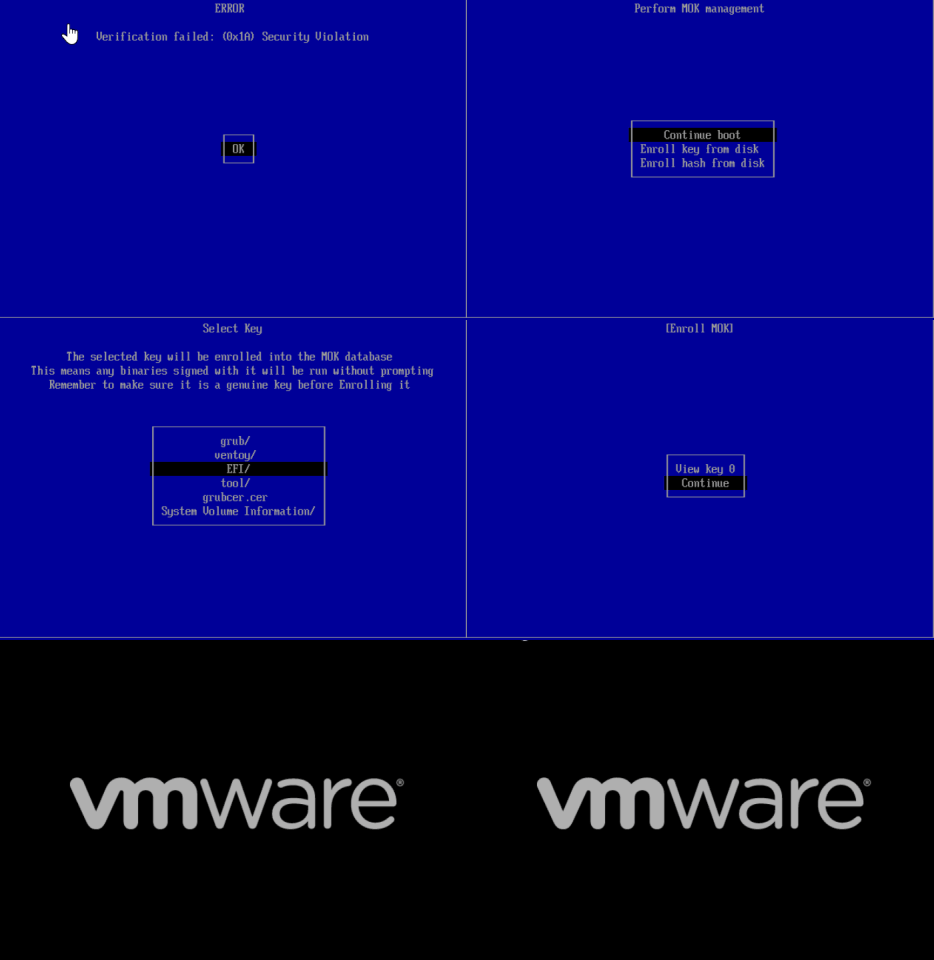
- Press Enter on OK
- Press Enter
- Select VTOEFI
- Select “enroll key from disk” and press Enter
- Select the
.cerfile and press Enter - Continue
- Yes
- Reboot
After the computer restarts, booting from the USB drive again should work without issues.
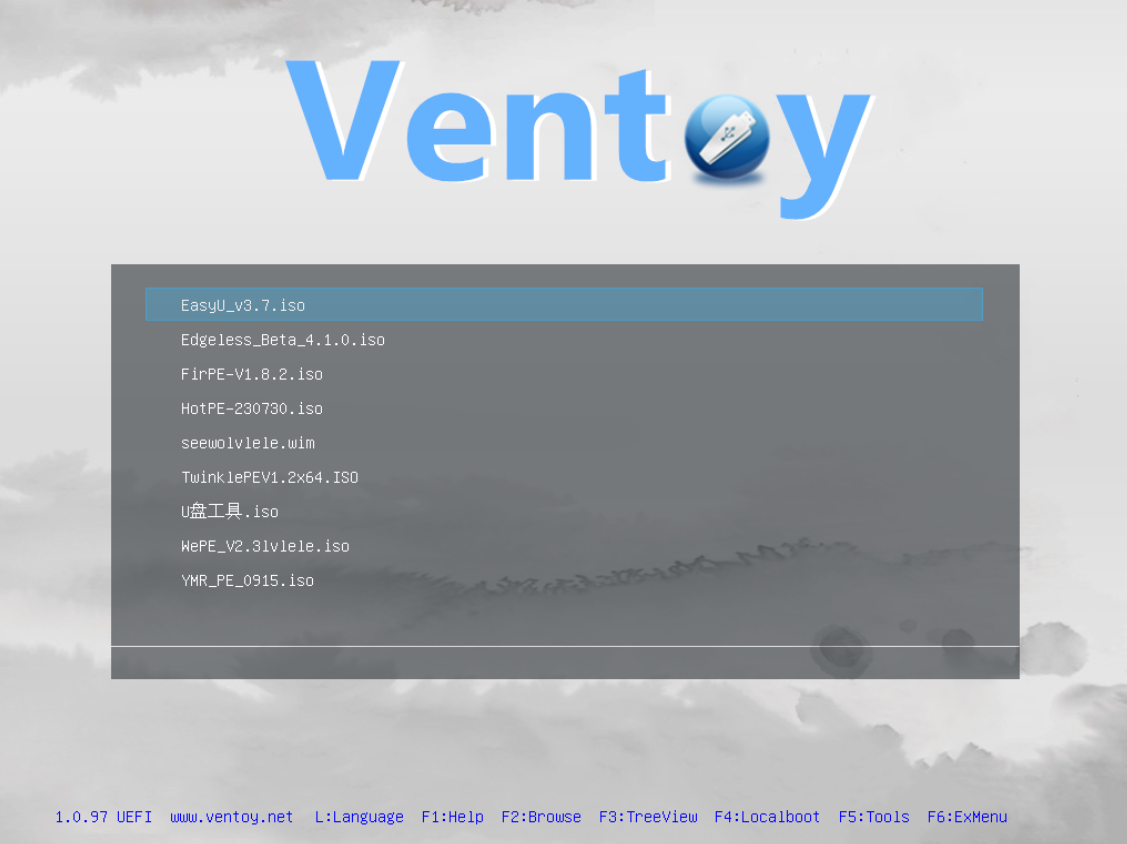
On the Ventoy main screen, simply select the ISO of the bootable PE system you want. In most cases, the default boot mode will work for the majority of ISOs.
Appendix:
ISO File Downloads for Various PE Systems: