Introduction to PE System
Introduction to PE System
A PE system is an essential tool for any computer maintenance professional. But what exactly is a PE system?
Background
Windows 10 is a fully-featured and complex operating system. It’s massive in size, and a typical small USB drive simply can’t run Windows 10 due to extremely slow read/write speeds.
Have you ever wondered what a Windows 10 system without a desktop environment looks like?
It would probably be just a black screen…
Yes, it looks like this:

Without a desktop, neither you nor I can perform any operations. But for programmers, this is a piece of cake. They use the Command Prompt tool, navigating the entire computer through command lines.
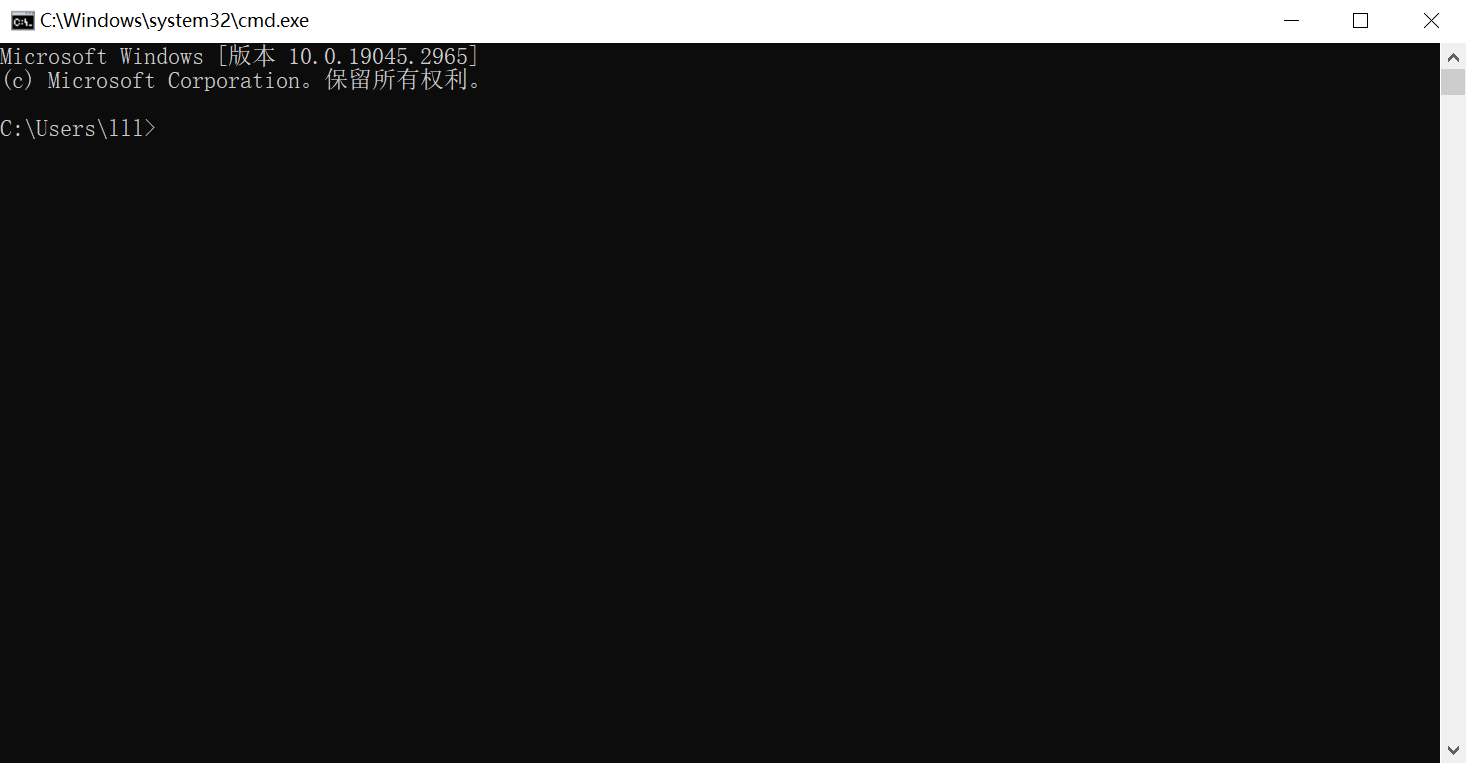
But what if I don’t know how to code?
The example above is just a small illustration. I wouldn’t be cruel enough to leave you staring at a black screen (even though it might make you look advanced and professional). What I’m getting at is this: since we can “remove” the Windows 10 desktop through certain methods, we can also strip away much more from Windows 10!
After expert developers modify and delete various service components, configurations, system parameters, non-essential files, redundant backups, and more from the Windows system…
A “brand new” system emerges!
This type of system is collectively called a PE system.
PE System
PE stands for Windows Preinstallation Environment. At its core, a PE system is an extremely stripped-down version of Windows. While a typical Windows system requires at least 16GB of storage space, a small PE system only needs about 2GB of system disk space, and its system files are far smaller than 2GB.
Due to its extreme simplicity and tiny size, a PE system can be installed on a USB drive. This is one of its greatest advantages. A portable USB drive with a built-in PE system allows us to boot any computer anywhere, regardless of the computer’s own system state. In essence, a PE system is like an “external add-on” for Windows computers.
There are many types of PE systems, and they are all free. Some are based on the Windows 8.1 kernel, others on Windows 10, and some even on Windows 11. PE systems typically come with built-in system maintenance tools. The tools included vary slightly between different PE systems, but the differences are minimal.
Since a PE system is fundamentally a Windows system, all system maintenance tools within the PE can also run on a normal Windows computer.
So, after all this explanation, how do you get a PE system?
Creating Your Own PE System
The strongly recommended PE system is the WePE Toolbox.
Official website:
https://www.wepe.com.cn/download.html
For most computers from recent years, choose the 64-bit download.
Please avoid using PE systems like “DabaiCai” or “DianNaoDian.” Malicious PE systems can inject junk information or even viruses into your computer.
WePE is small in size, does not require an internet connection, boots quickly, and is clean and pollution-free—making it the top choice for daily maintenance.
Steps:
1. Insert your USB drive. (Be sure to back up your data beforehand! Installing the PE requires formatting!)
2. Open the WePE Toolbox.
3. Click "Other Installation Methods" in the bottom right corner, then select "Install PE to USB Drive."
4. Installation method: Option 1 (default) is fine.
5. Select your USB drive as the target drive—make sure you choose the correct one.
6. You can optionally choose a wallpaper image.
7. Select "Include DOS Toolbox."
8. Leave everything else as is (unless I mentioned it), then click "Install PE to USB Drive Now" and confirm all prompts.
9. Wait a few minutes, and your PE USB drive is ready.
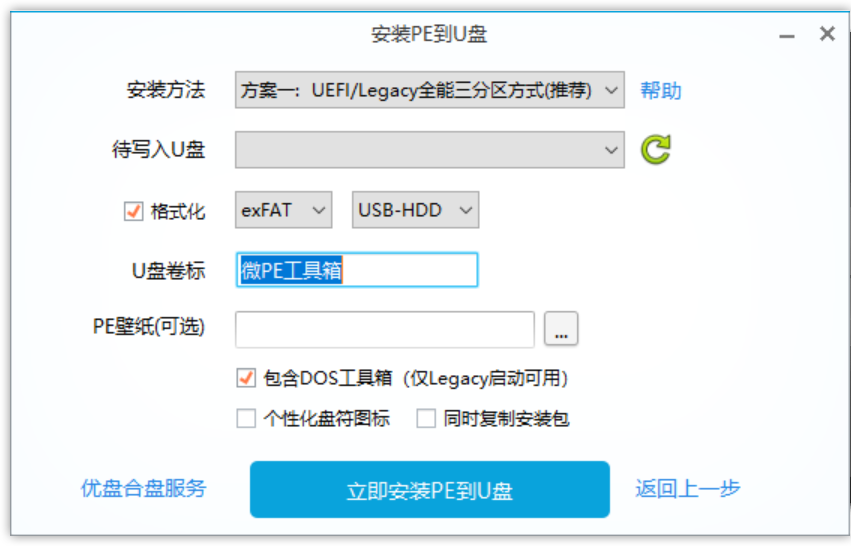
If you’re curious, check your USB drive’s partition layout in Disk Management to see what has changed.
In the next section, I’ll introduce how to use WePE on both a physical machine and a VM virtual machine.