Why can file names in the Recycle Bin be the same?
Why Can Files in the Recycle Bin Have the Same Name?
As we all know, in the Windows system, you cannot create files with exactly the same name in the same folder. Doing so would cause file confusion and system crashes.
You might say, “But I can create two files with the same name in the same folder!”

In fact, their file extensions—the file extension names—are different. For example, one file is actually “百年孤独.txt” and the other is “百年孤独.pdf”. It’s just that the file extensions are hidden. The file extension is part of the file name, telling the computer what format the file is.
How to show file extensions?
For Windows 10:
- Open File Explorer
- Click “View”
- Check “File name extensions”
For Windows 11:
- Open File Explorer
- Click “View → Show”
- “File name extensions”
What Exactly Is the Recycle Bin?
On your desktop, you can see the trash can icon labeled Recycle Bin.
When you open the Recycle Bin, you can see the files you’ve deleted, including the following attributes:
- Name
- Original Location
- Date Deleted
- Size
- Item Type
- Date Modified
These attributes record the “story” of the deleted files.
In fact, the “Recycle Bin” is essentially a special folder.
Deleting a file to the Recycle Bin is a file move operation.
Emptying the Recycle Bin is the real deletion of files.
If you want to delete a file directly without sending it to the Recycle Bin, you can use the shortcut Shift + Delete.
How Does the Recycle Bin Work?
When we press Delete to send a file to the Recycle Bin, what actually happens?
Why can files in the “Recycle Bin” folder have exactly the same name?
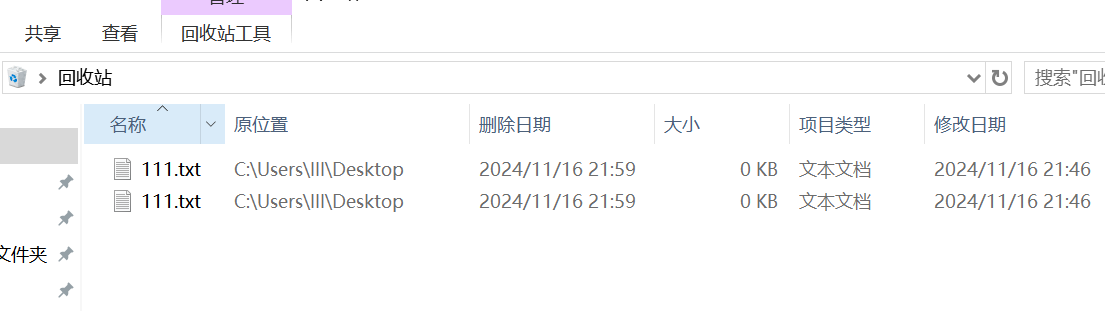
First, we need to know where the “Recycle Bin” folder is located on your computer.
In fact, each partition’s root directory contains a Recycle Bin folder named “Recycle.bin“ (“recycle” means to recycle, and “bin” means trash can).
You need to show hidden files and also show files protected by the operating system before you can see this deeply hidden folder.
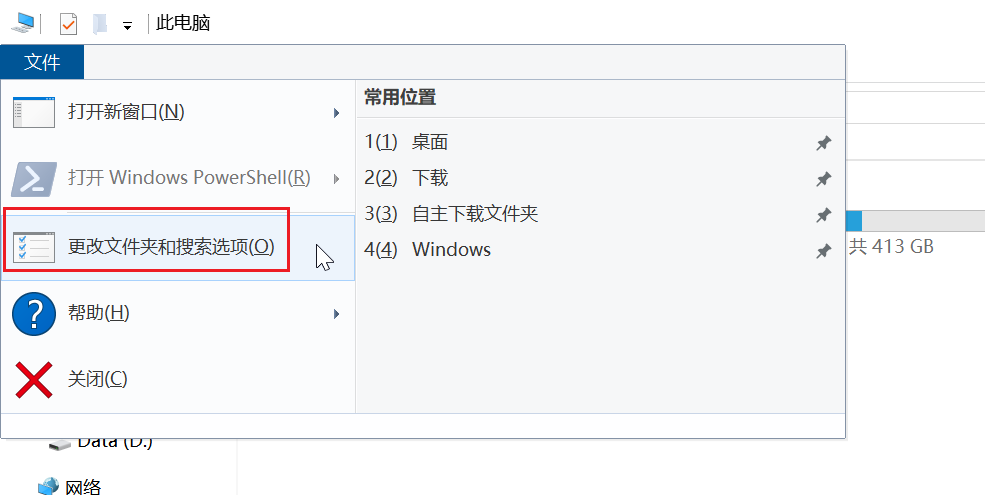
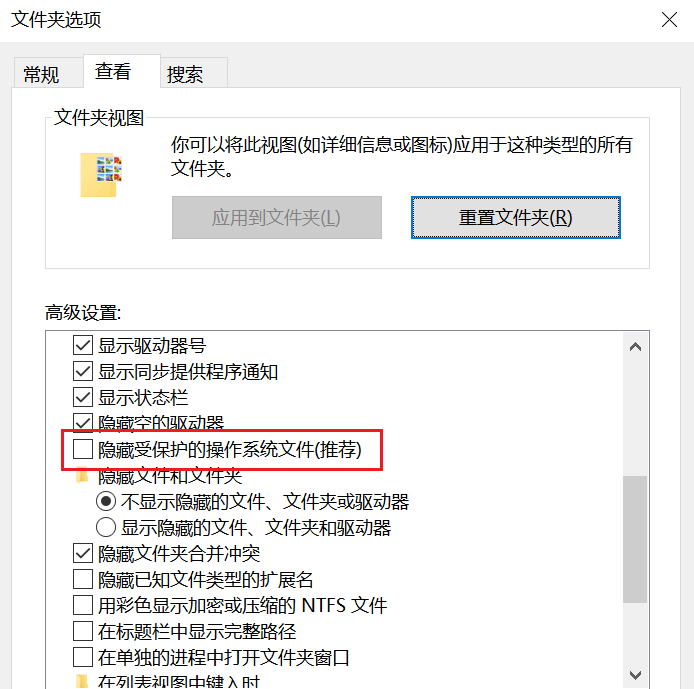
Files originally on the C drive go into C:\Recycle.bin when deleted; files originally on the D drive go into D:\Recycle.bin. When you open the “Recycle Bin” on your desktop, it actually shows the combined files from all partitions’ Recycle.bin folders.
Open this folder, and you’ll see a “Recycle Bin” inside. Open that, and you’ll see the deleted files.
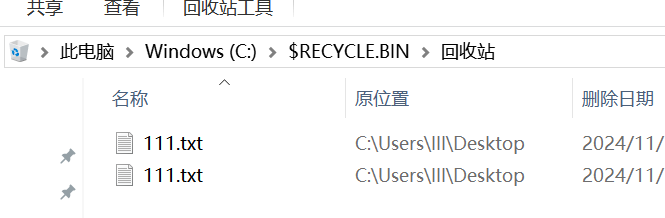
But this still doesn’t explain why file names in the Recycle Bin can be exactly the same.
The True Mechanism of the Recycle Bin
The fundamental rule cannot change: file names in the same folder must never be identical. This is the absolute premise.
What we see in the Recycle Bin is merely an illusion.
Windows File Explorer hides too much from us. To see through the illusion and understand the essence, we’ll use another file management tool: the excellent compression software 7-Zip.
Download 7-Zip from the official website:
https://www.7-zip.org/
After installation, open 7-Zip from the Start menu, then navigate to C:\Recycle.bin.
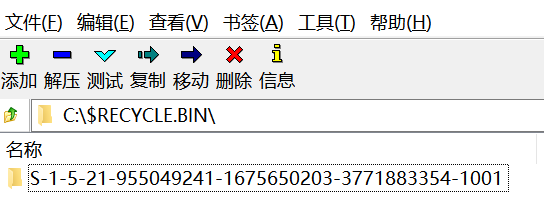
We see a long string of strange characters, which is different from what File Explorer shows. When File Explorer opens Recycle.bin, it shows the Recycle Bin.
So yes, this folder with the long string of characters is the actual name of the Recycle Bin folder.
This is the Recycle Bin’s GUID (Globally Unique Identifier). On your computer, only the Recycle Bin can have this name (this GUID). It is unique.
Open this “long string” folder, and we see something different again:
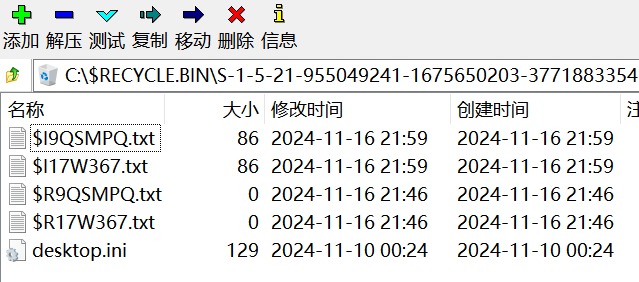
Are these my deleted files?
Don’t worry, there’s a pattern.
First, the Recycle Bin contains two deleted files named 111.txt and 111.txt (same name).
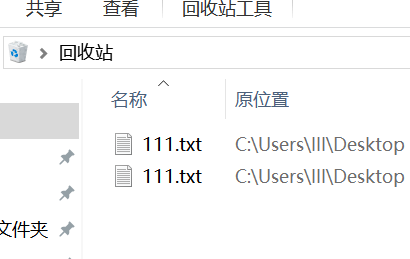
In 7-Zip, there are four .txt files named:
$R9QSMPQ.txt
$I17W367.txt
$I9QSMPQ.txt
$R17W367.txt
Observing closely, apart from the letters R and I after the $, the remaining parts of the file names are identical in pairs.
So we infer that two .txt files with partially matching names in this long-named folder determine one file displayed in the Recycle Bin.
Let’s dig deeper. When we open the file starting with $R, we see the actual deleted file.
When we open the file starting with $I, we see a semi-garbled file.
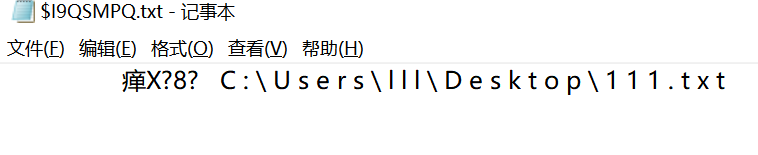
From this “semi-garbled” file, we can discern some clues.
Inside, the string C : \ U s e r s \ l l l \ D e s k t o p \ 1 1 1 . t x t records the original location of the deleted 111.txt file.
Using a hex editor like HxD, we can see that the preceding blank and garbled data record the size, original name, and deletion time of this 111.txt file.
The truth is gradually coming to light.
We Can Conclude:
When we delete a file, the system performs two main operations: first, it moves the file to the Recycle Bin folder; second, it randomly renames the file. The renaming format is $RXXXXXX. Additionally, for the deleted file, the system creates a new file.
This newly created file is also located in the Recycle Bin folder and records the deleted file’s size, original name, and deletion time. This new file should be named $IXXXXXX, and the XXXXXX part must exactly match the XXXXXX in $RXXXXXX. The system reads the content of the $IXXXXXX file to retrieve the deleted file’s name, original location, size, deletion time, etc., and displays this information in the Recycle Bin we normally see.
Therefore, even if the deleted files have the same name, the file names in the Recycle Bin folder become different due to the renaming operation during deletion.
This is the mechanism by which the system deletes files to the Recycle Bin.
Verifying the Conclusion
If we delete a file starting with
$I, the corresponding file in the Recycle Bin is no longer displayed.If we delete a file starting with
$R, the corresponding file in the Recycle Bin is no longer displayed.If we modify the data inside a file starting with
$I, the corresponding file in the Recycle Bin is no longer displayed.If we delete an
xyz.exesoftware to the Recycle Bin, in 7-Zip we can see a$IXXXXXX.exeand a$RXXXXXX.exein the Recycle Bin folder. The$RXXXXXX.exeruns normally and is the original software.The
$IXXXXXX.exeis a small file. Using a hex editor, we can read that it records the software’s original location, etc.
So, the essential structure of file names in the Recycle Bin is:
$IXXXXXX.extension1
$RXXXXXX.extension1
$IAAAAAA.extension2
$RAAAAAA.extension2
$IBBBBBB.extension3
$RBBBBBB.extension3
…………………………..
(extension1, 2, 3 can be the same or different)
By reading this article, I hope you have a deeper understanding of how the Recycle Bin works.