After mounting a USB drive to a virtual machine, it unexpectedly failed to boot? Years later, I finally found the solution!
After Mounting a USB Drive to a Virtual Machine, It Wouldn’t Boot? Years Later, I Finally Found the Solution!
I remember the first time I tried to boot a PE system using a virtual machine. I didn’t know that the PE system’s ISO file could be directly used to boot the VM.
So, I mounted a bootable USB drive I had created to the virtual machine and clicked the start button.
Then, the virtual machine gave me an error screen that puzzled me for years:
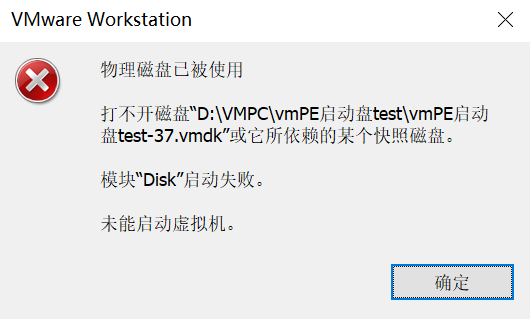
The physical disk is in use. Cannot open xxx or one of its dependent snapshot disks. The module “disk” failed to start. Failed to start the virtual machine.
What’s even more bizarre is that sometimes this error would appear, and other times it would boot just fine.
I searched for solutions online and even asked AI for help. But I couldn’t find any useful answers on the web, and the AI just rambled on without giving a clear solution.
Later, when I realized that the PE system’s ISO file could directly boot the virtual machine, I gave up on using a USB boot drive. After all, it was cumbersome and slower than using an ISO.
For years, this problem haunted me, and I never took the time to really think about what was causing it. Since the use case for booting a USB drive in a virtual machine is quite niche, I just let it slide.
But recently, I created dozens of bootable USB drives for shipping. To ensure each one was functional, I had to test them one by one.
So, the issue of booting a PE system from a USB drive in a virtual machine was back on my plate.
After encountering the exact same error again, I finally had enough. I searched online once more, but still found no effective solution.
After some deep thinking, I finally found a universal fix. Today, I’m sharing it with you.
The solution is simple: offline the disk.
The virtual machine error says, “The physical disk is in use.” This means a process in Windows is occupying the USB drive, preventing the VM from mounting it.
So, if we can terminate the Windows process that’s occupying the USB drive, the VM should boot successfully. (Though I have no idea what process is occupying it, since I always plug in the USB, mount it to the VM, and boot immediately.)
Since it’s hard to pinpoint exactly which process is occupying the USB drive, we’ll use a brute-force method: take the USB drive offline, making its drive letter disappear from File Explorer.
This way, no Windows process can possibly occupy the USB drive.
How to take a USB drive offline?
Windows’ built-in Disk Management can’t do this. I use DiskGenius.
Open DiskGenius, right-click the USB drive name, and select Change Device Status → Uncheck "Online".
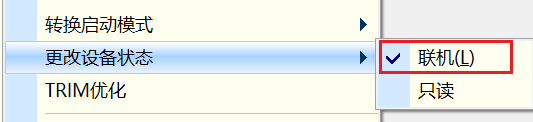
The USB drive is now offline. To bring it back online, just re-check the “Online” option.
Once the USB drive is offline, you can directly boot the virtual machine and use the PE system on the USB for various tests.
Reflecting on this, the idea isn’t complicated. But I never found a solution for so many years, mainly because booting a USB drive in a virtual machine doesn’t have a very common use case, so I never seriously thought about it.