Detailed Explanation of Windows System Disks and Partitions
Comprehensive Guide to Windows Disk and Partition Management
In everyday use of the Windows operating system, we frequently encounter disk management and disk partitioning operations. However, many people may not fully understand how disks and partitions work or how to manage them efficiently.
This article explores various aspects of disks and partitions in Windows, helping you gain a better understanding of these concepts.
What is a Disk?
A disk is a physical device used by a computer to store data. In Windows, the term “disk” typically refers to storage media such as Hard Disk Drives (HDD) and Solid-State Drives (SSD).
Differences Between HDD and SSD
- HDD (Hard Disk Drive): Uses mechanical arms to read and write data on spinning platters. It is slower but relatively cheaper and offers larger capacities.
- SSD (Solid-State Drive): Uses flash memory chips to store data, with no moving parts. Read and write speeds are significantly faster than HDDs, but they are more expensive.
How Windows Labels Disks
Each disk is assigned a disk number, which can be viewed in the system tool “Disk Management.” Disk numbering typically starts from “Disk 0.”
The built-in disk in a computer is usually “Disk 0.” Any subsequently inserted disks, USB drives, virtual optical drives, etc., are numbered incrementally.
What is a Partition?
A partition is the process of dividing a physical disk into multiple storage regions. Each partition can be used as an independent logical drive. The system can format each partition, assign it a drive letter, install an operating system, and more. In File Explorer, drives like C: and D: are examples of partitions.
Types of Partitions
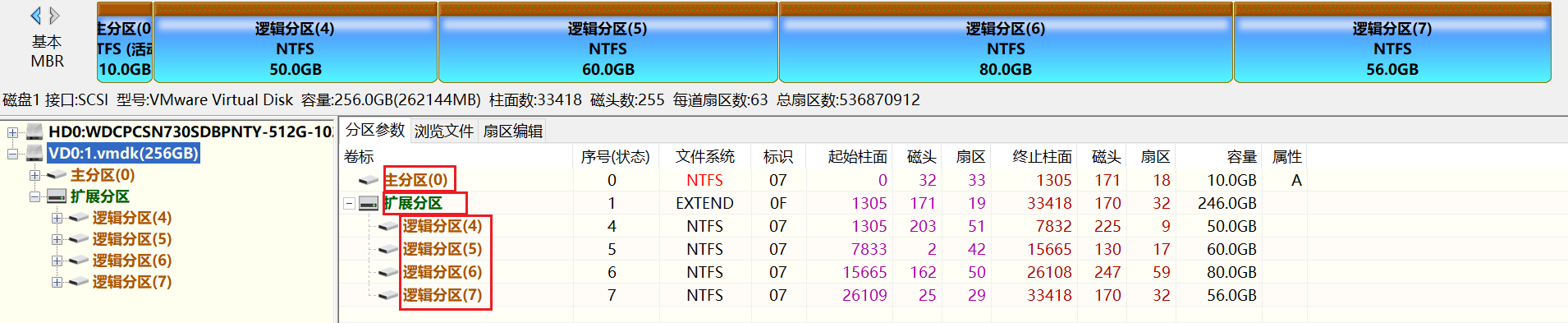
- Primary Partition:
- A primary partition can be recognized by the operating system and used to boot the system.
- Extended Partition:
- An extended partition does not store data directly but contains one or more logical partitions.
- Extended partitions solve the limitation on the number of primary partitions in traditional setups.
- Logical Partition:
- A logical partition is a sub-partition within an extended partition.
Partition Table
The partition structure of a disk is managed by an area called the partition table. The partition table stores information about the location, size, and type of all partitions on the disk.
The partition table is typically stored in the header sectors (the first few sectors) of the disk and can be viewed using a hex editor.
MBR Partition Table:
- A traditional partition table format that supports disks up to 2TB and a maximum of four primary partitions (though extended and logical partitions can be created to support more). Suitable for older disks and systems (typically Windows 7 and below).
GPT Partition Table:
- A next-generation partition table format that supports larger disks (up to 18EB) and many more partitions. GPT is the standard for UEFI booting and has become the default partition method for modern operating systems. (In fact, UEFI also supports disks using the MBR partition table.)
All partitions on a GPT disk are primary partitions.
Note: The MBR partition table and the MBR master boot record are two different concepts that are often confused.
The partition table is a piece of data that records partition information, while the MBR master boot record is a piece of code (also binary) located in the header sector of the disk.
This code is read by the motherboard’s BIOS during startup and is responsible for the critical step of booting the operating system.
File System
A file system is a method for managing how data is stored, defining how data is organized, accessed, and managed on a disk. There are various types of file systems. Common file systems in Windows include:
- NTFS: A file system invented by Microsoft. Windows must be installed on an NTFS file system to function. Hard drives typically use this file system.
- FAT32: An older file system. Best suited for modern UEFI firmware to read. Its limitation is that it cannot store individual files larger than 4GB. Older USB drives often use FAT32.
- FAT16: Even older than FAT32. Rarely used today, though UEFI firmware can still read it.
- exFAT: Also known as FAT64. This is the file system type most commonly chosen for modern flash drives (USB drives). It does not have the 4GB single-file size limit.
- UDF: The file system for optical discs. It is also the file system used by virtual optical drives.
If the hard drive is the foundation, the file system is the building framework on top of it. Files are the residents in each room, and the file path is the address.
The building framework determines how files reside within that building.
Partition Parameters
Sometimes, in Disk Management, you may see different labels on partitions of the same disk, such as: EFI System Partition, Boot, Page File, Crash Dump, WIM Boot, Primary Partition, Supports WIM, etc. These are partition parameters.
You can use the diskpart tool or software like DiskGenius to modify certain partition parameters, making unreadable or unmountable partitions accessible for system maintenance.
Hidden Partitions
Occasionally, in Disk Management, you may see a disk containing many partitions, but only a few of them appear in File Explorer.
This is because the unshown partitions are hidden. The difference between a hidden partition and a visible one is that hidden partitions have no drive letter, while visible partitions do. (Drive letters are the letters C, D, E for drives C:, D:, E:.)
Using Disk Management, you can assign drive letters to some hidden partitions so they appear in File Explorer for file access.
- Open Disk Management, right-click the hidden partition.
- Click “Change Drive Letter and Paths.”
- Click
Add. - Choose a preferred drive letter and confirm.
Sometimes, you may find that options like “Change Drive Letter and Paths” are grayed out and unclickable. This is because the partition parameters prevent such operations. For example, the EFI System Partition cannot be assigned a drive letter in Disk Management.
Using third-party disk partition management tools can bypass this restriction and allow arbitrary drive letter assignment.
Disk Management Tools in Windows
Windows provides several tools to help users manage disks and partitions:
Disk Management:
- Access it by right-clicking the “Start” menu and selecting “Disk Management.”
- This tool allows you to view disk information, create, delete, and resize partitions, format partitions, and more.
- However, its functionality is quite basic. Excellent third-party graphical disk management tools include DiskGenius (DG) and AOMEI Partition Assistant.
Disk Cleanup:
- Used to clean up temporary files, system files, and other unnecessary files on a disk to free up space.
- In Windows 10, right-click a partition in File Explorer, select
Properties, and you will see the “Disk Cleanup” button.
Disk Optimization:
- For HDDs, Windows automatically performs defragmentation. For SSDs, it performs TRIM operations to maintain performance.
Command-Line Tools:
diskpart: A powerful command-line tool that can perform more complex disk management operations, such as partitioning, formatting, and changing partition types.
Common Disk and Partition Operations
1. Creating a Partition
In Disk Management, right-click on unallocated space and select “New Simple Volume.” Follow the wizard to complete the partition creation. In most cases, you can simply click “Next” all the way through.
2. Resizing a Partition
Disk Management allows you to resize partitions. You can shrink one partition and then extend another to reallocate storage space.
However, Disk Management cannot allocate free space to a partition located after the freed space; it can only allocate free space to the partition immediately before it.
Using third-party tools (such as DiskGenius), you can perform arbitrary operations on partition sizes, allocation, and the partition table.
3. Formatting a Partition
Formatting a partition erases all data on it. Typically, you can right-click a partition in File Explorer and select “Format.” You can change the file system of the partition during formatting.
Data is priceless—please proceed with caution!
4. Merging Partitions
In Windows 10 and later, the Disk Management tool allows you to delete a partition and merge its free space into an adjacent partition. However, you must back up data before merging, as deleting a partition erases all data on it.
5. Converting Disk Type (MBR to GPT and Vice Versa)
You can use the diskpart command or Windows Disk Management to convert an MBR disk (with an operating system installed) to GPT, or vice versa. However, note that the conversion will erase all data on the disk.
Since diskpart is not user-friendly for average users, using third-party software with a graphical user interface is a better choice.
How to Choose the Right Disk Format and Partition Type?
Disk Size:
- If the disk size exceeds 2TB, the GPT partition table is recommended. The MBR partition table only supports disks up to 2TB.
Operating System Compatibility:
- Windows 10/11 defaults to GPT and UEFI booting. If your computer is older, you may need to choose MBR and the traditional BIOS boot method.
Storage Needs:
- If you need more partitions, GPT supports many more (up to 128), while MBR only supports four primary partitions (though you can also use logical partitions).
Data Security:
- GPT format can store redundant partition tables for each partition, helping prevent data loss caused by partition table corruption.
What Type of Partition Can Windows Be Installed On?
Windows must be installed on a partition formatted with the NTFS file system.
Windows can be installed and run on any sufficiently large NTFS partition on a GPT disk.
Windows can be installed and run on any sufficiently large NTFS primary or logical partition on an MBR disk.